
Multi-Language Templates
This feature is only available in paid plans. Learn More
Multi-Language lets a single template hold content in multiple languages. Users switch languages in the editor and translate text, images, and other elements without duplicating the template.
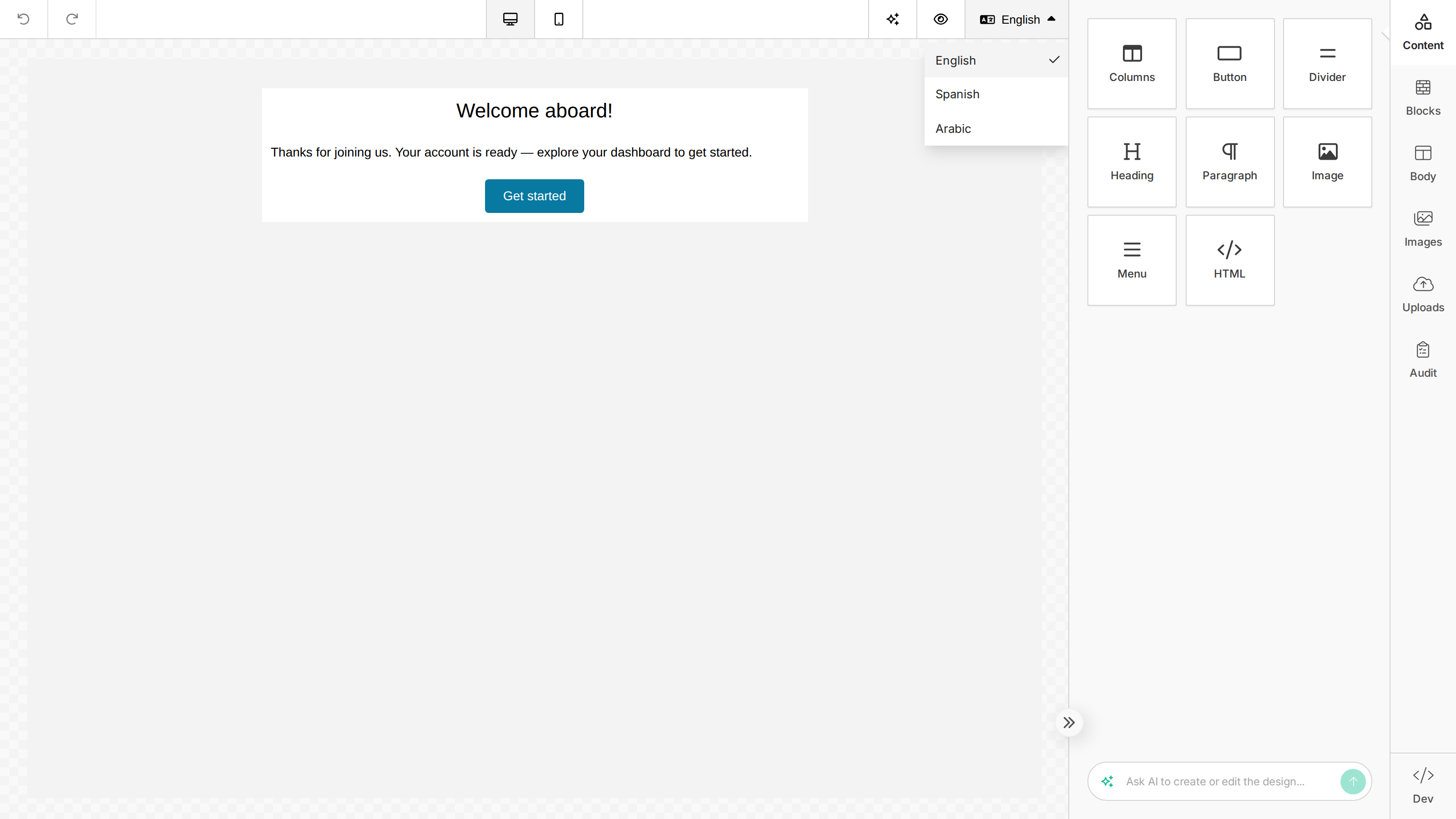
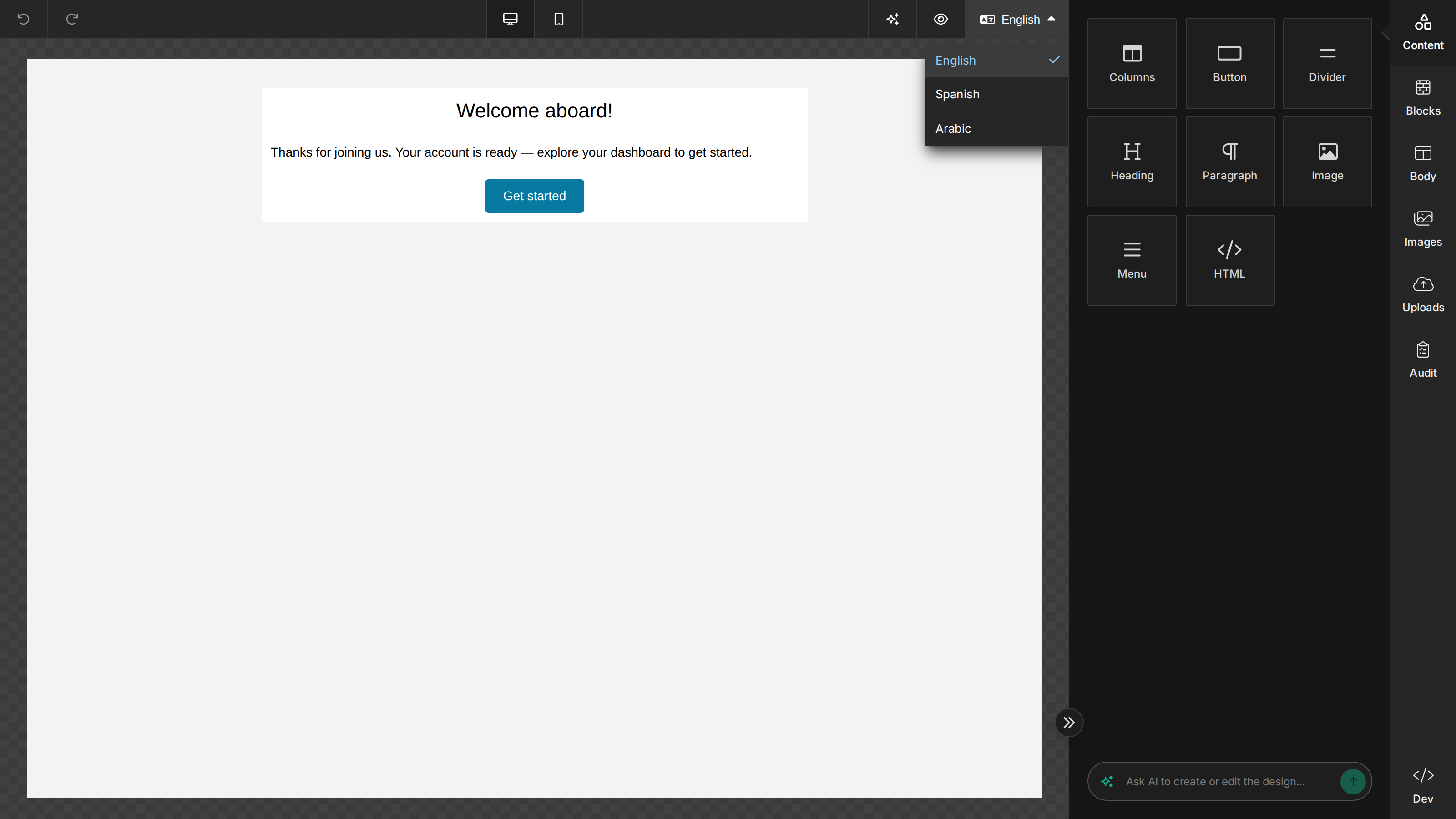
Multi-Language controls the languages of your template content. To translate the editor interface itself (panels, buttons, tool names), see Localization.
Enable
Disabled by default. Enable it with features.multiLanguage — pass true, or an object with enabled: true plus the available languages (the object form does not enable the feature on its own):
unlayer.init({
  features: {
    multiLanguage: {
      enabled: true,
      languages: [
        { label: 'English', value: 'en_US', default: true },
        { label: 'Spanish', value: 'es_ES' },
        { label: 'Arabic', value: 'ar_AE', rtl: true },
      ],
    },
  },
});
Each language object supports:
| Property | Type | Required | Description |
|---|---|---|---|
value | string | Yes | Unique identifier for the language, e.g. en_US, pt_BR |
label | string | No | Display name shown in the language selector. Can be omitted if using translations. |
default | boolean | No | Marks the default language. Set it on exactly one language. |
rtl | boolean | No | Applies direction: rtl to content when this language is selected. |
If no language has default: true, the first language in the array is only the initially selected one — no language becomes the default. Edits in every language are then stored as per-language overrides, so untranslated content falls back to each tool's built-in default value instead of the first language's content.
Switching languages
When enabled, a language selector appears in three places: the editor toolbar, the Body settings tab, and the preview modal header. Switching re-renders the canvas with that language's content:
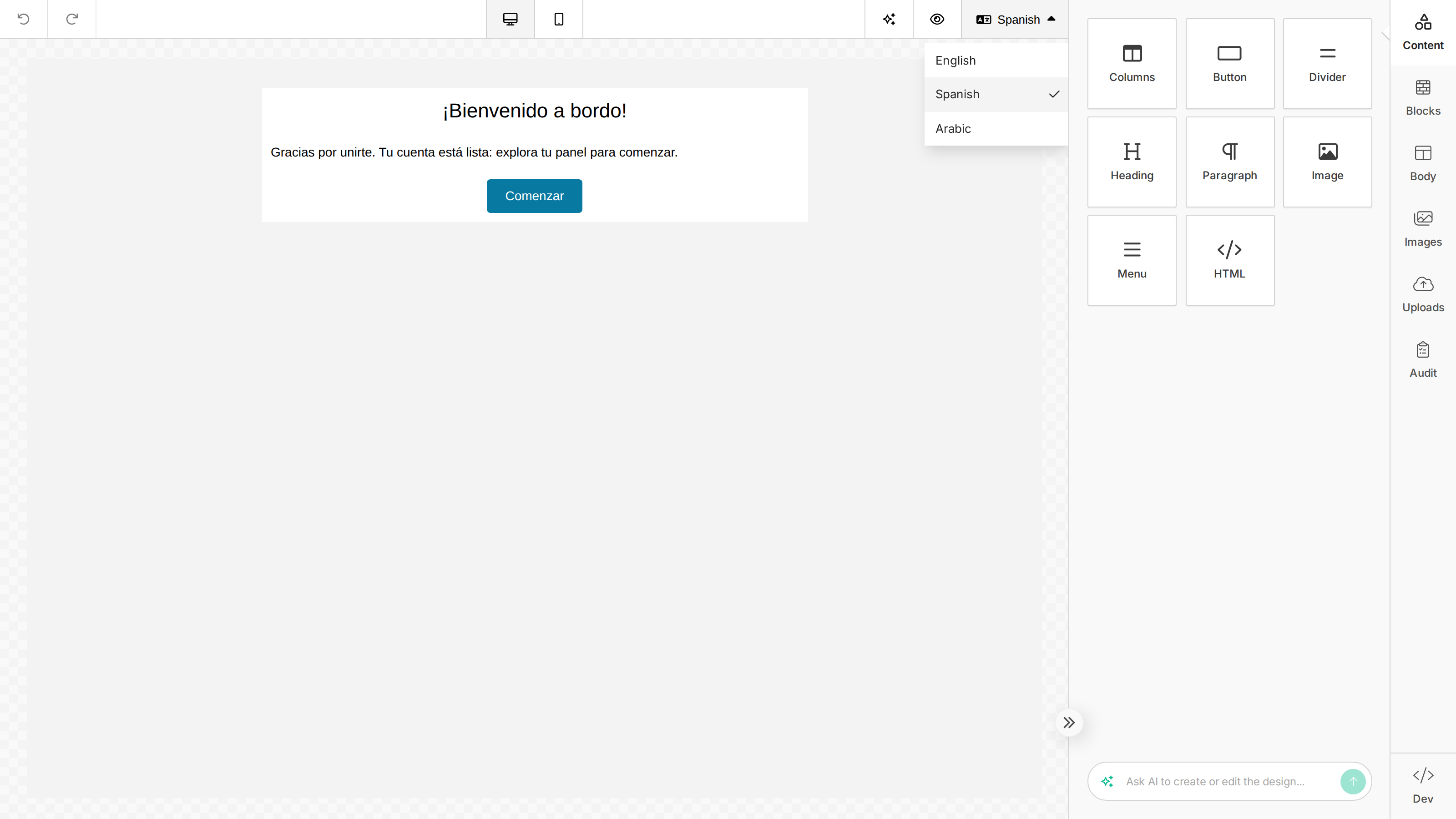
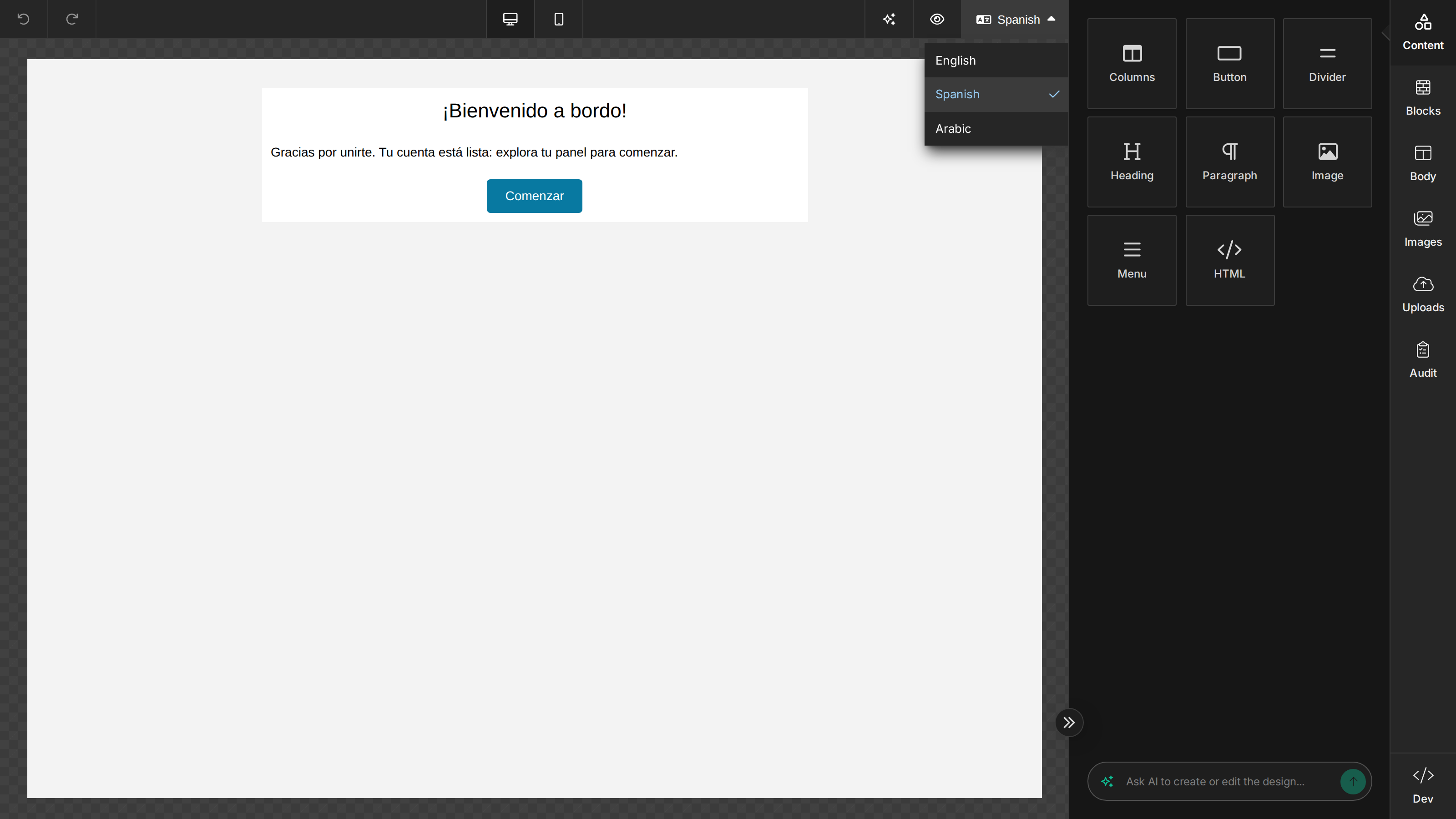
You can also drive it programmatically after init:
// Replace the available languages
unlayer.setLanguages([
  { label: 'English', value: 'en_US', default: true },
  { label: 'Portuguese', value: 'pt_BR' },
]);

// Switch the active language
unlayer.setCurrentLanguage('pt_BR');
Translating language labels
To make the language dropdown follow the user's locale, define keys via the translations API instead of hardcoding label. For each language the editor checks, in order:
languages.{value}— thevaluelowercased (languages.en_usforen_US)- The
labelas an exact key, orlabels.{label}in snake_case (labels.english_usforEnglish (US)) — both skipped when the language has nolabel - Falls back to
labelif set, then tovalue
unlayer.init({
  features: {
    multiLanguage: true,
  },
  translations: {
    en: { 'languages.en_us': 'English', 'languages.pt_br': 'Portuguese' },
    'pt-BR': { 'languages.en_us': 'Inglês', 'languages.pt_br': 'Português' },
  },
});

unlayer.setLanguages([{ value: 'en_US' }, { value: 'pt_BR' }]);
Translation keys are always lowercase, even when the language value contains uppercase characters: for en_US, the key is languages.en_us.
Data structure
Content edited in the default language is stored at the root of the element's values. Other languages store only their overrides in a _languages object; anything not translated falls back to the default language:
{
  "text": "Hello World",
  "_languages": {
    "es_ES": { "text": "Hola Mundo" },
    "fr_FR": { "text": "Bonjour le Monde" }
  }
}
Multi-Language composes with device overrides: the root _languages translates the base (desktop) values, and each device override carries its own _languages inside _override — so e.g. a background image can vary by device and language:
{
  "backgroundImage": { "url": "https://example.com/pt_desktop.jpg" },
  "_languages": {
    "en_US": {
      "backgroundImage": { "url": "https://example.com/en_desktop.jpg" }
    }
  },
  "_override": {
    "mobile": {
      "backgroundImage": { "url": "https://example.com/pt_mobile.jpg" },
      "_languages": {
        "en_US": {
          "backgroundImage": { "url": "https://example.com/en_mobile.jpg" }
        }
      }
    }
  }
}
Supported content types
| Content Type | Translatable Properties |
|---|---|
| Text | Text content, font family |
| Paragraph | Text content, font family |
| Heading | Heading text |
| Button | Button text |
| Image | Source image, alt text |
| Menu | Menu items (text and links) |
| Table | Cell content; header, content, and footer font families |
| Form | Field, label, and button font families |
| Timer | Countdown settings (labels, locale, fonts), alt text |
| Row Background | Background images (for localized visuals) |
Font families being per-language lets you pick a script-appropriate font for each language (e.g. Arabic, Hebrew, or CJK content).
Exporting in a specific language
Pass language to any export method — exportHtml, exportPlainText, exportImage, exportPdf, exportZip (see Export HTML for all options). Element dimensions (e.g. button width) are recalculated for the specified language's content:
unlayer.exportHtml(
  function (data) {
    var html = data.html;
  },
  { language: 'es_ES' },
);
If omitted, the export uses the language currently selected in the editor (initially the default language).