
AI Assistant
This feature is only available in paid plans. Learn More
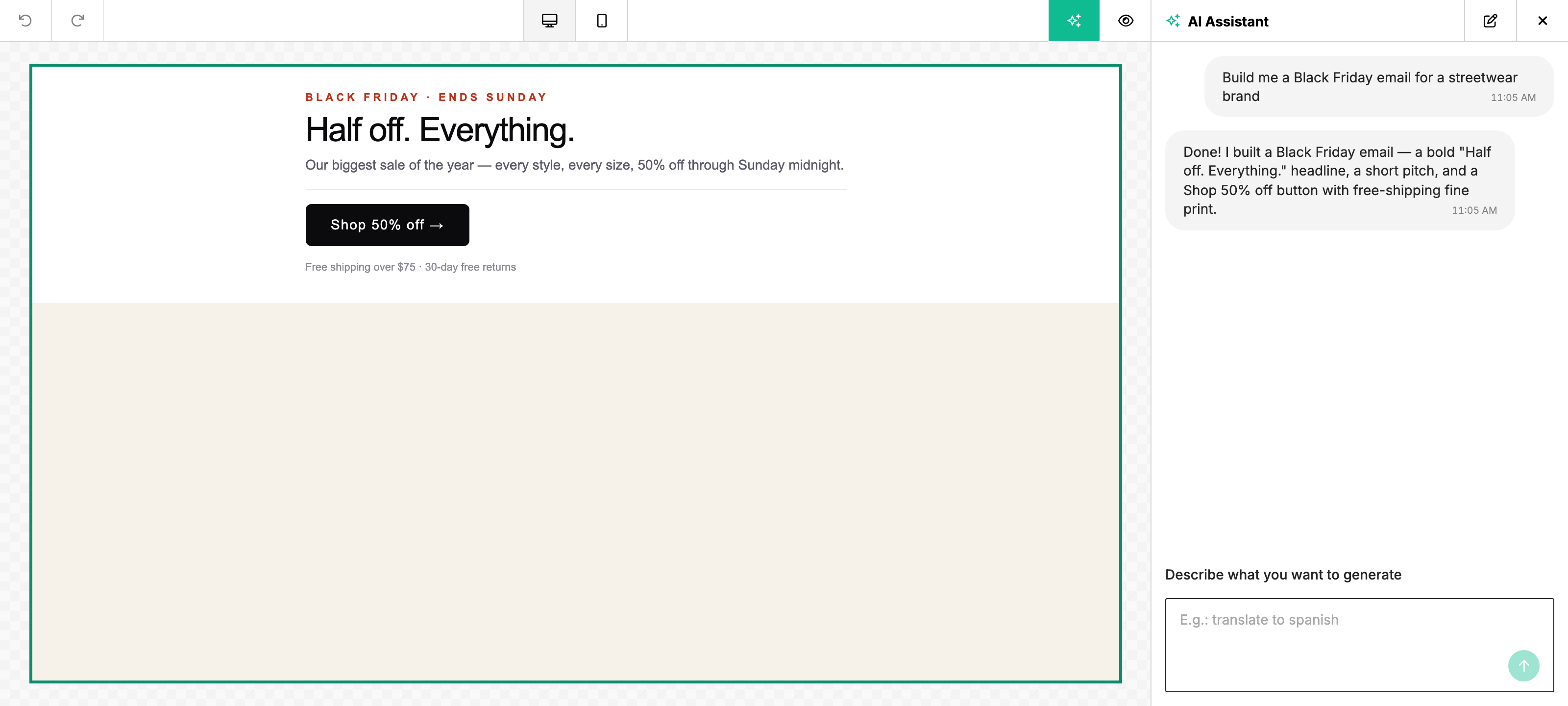
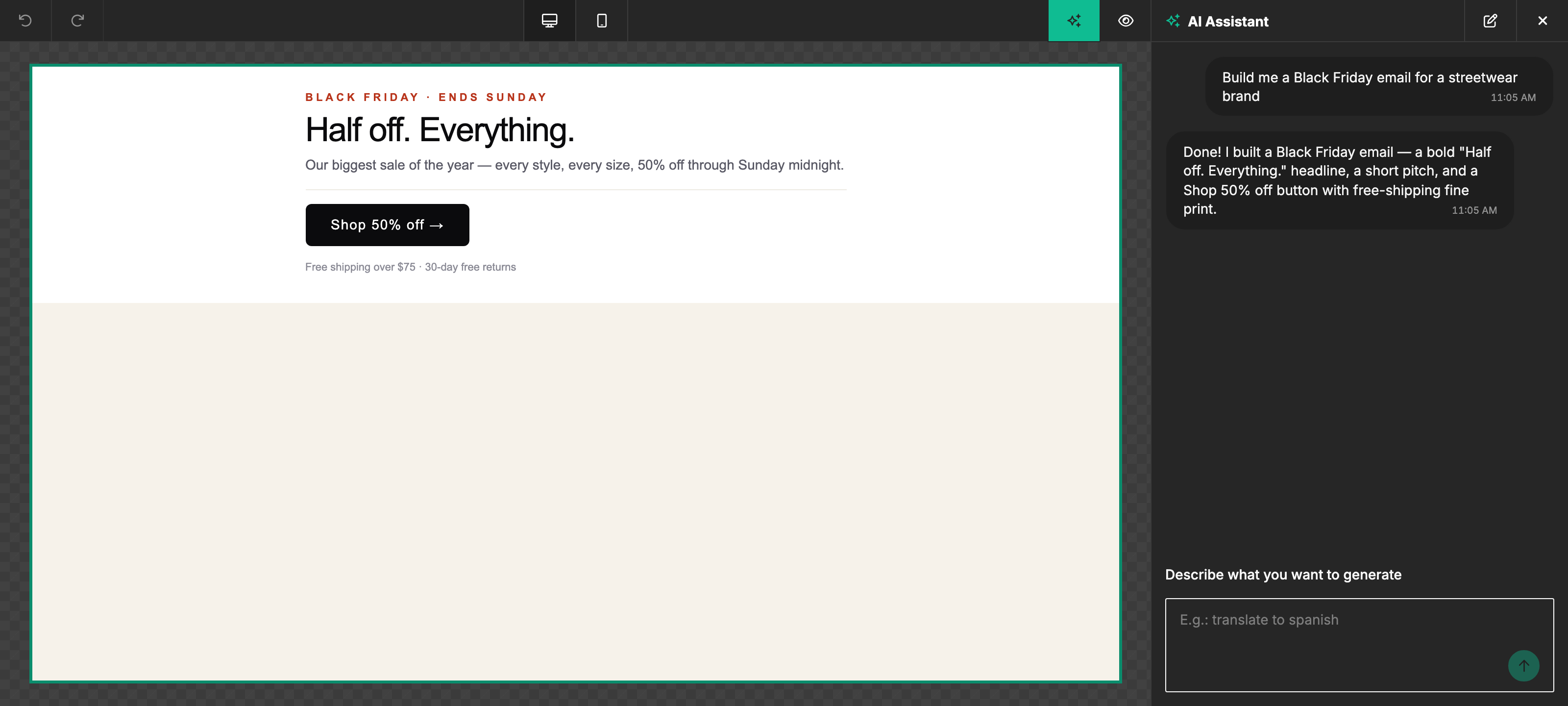
The AI Assistant is a chat-based assistant built into the builder. Users describe what they want — "translate this row to Spanish", "generate a Black Friday hero", "shorten this paragraph and make it friendlier" — and the assistant streams the changes directly into the design.
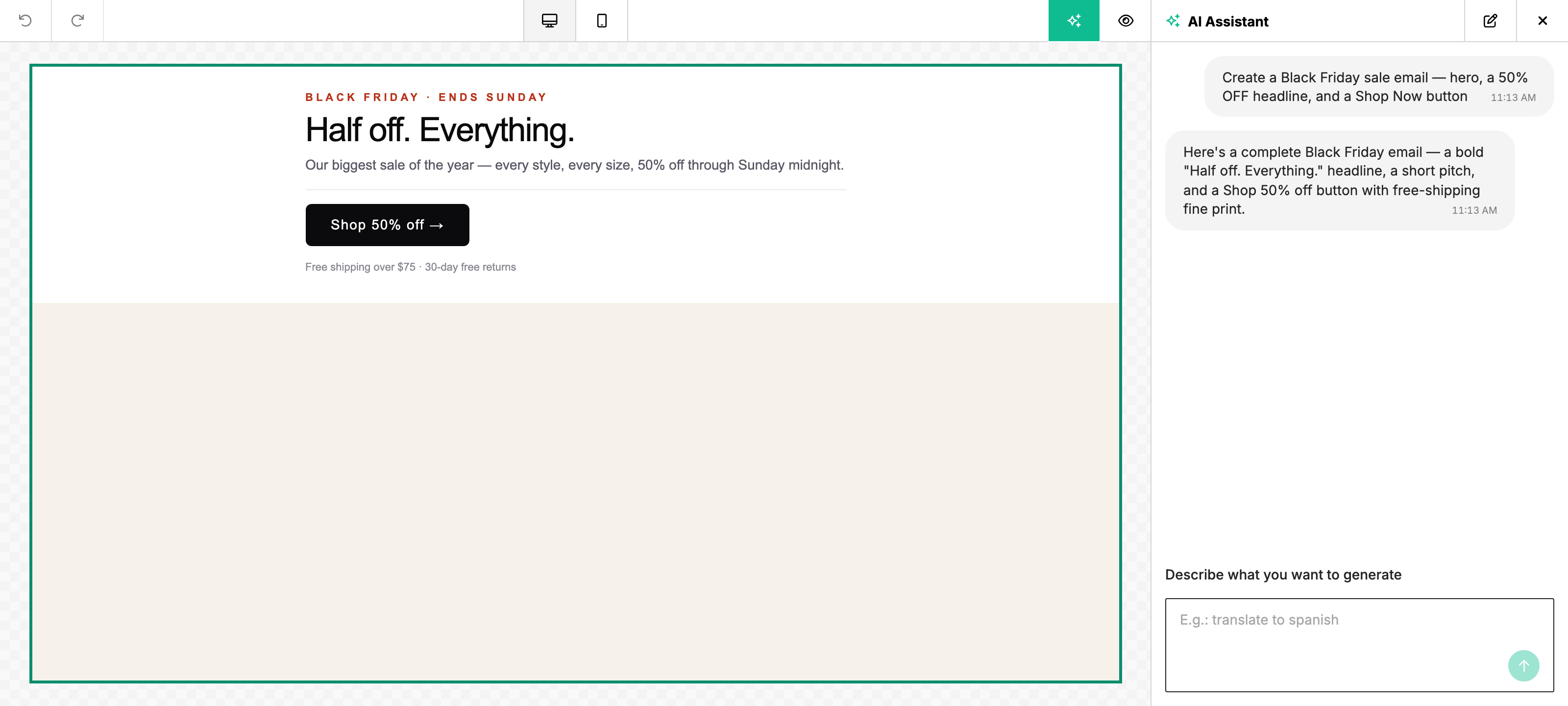
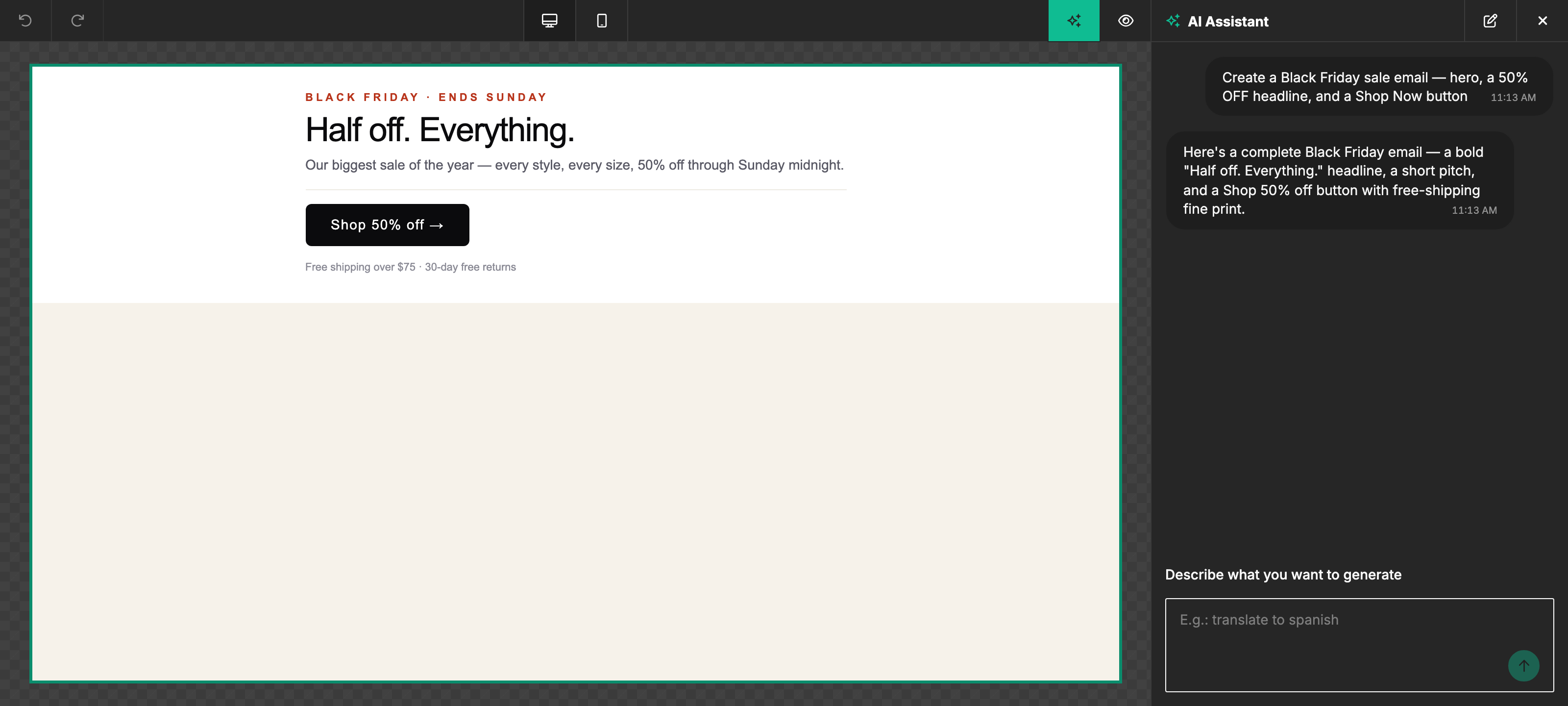
The assistant operates at any level of the design tree — full template, row, text, image, and your own custom tools. It detects the language the user typed and uses it for chat replies, even when the user asks it to translate design copy into another language. Design copy follows the requested target language, or the existing design language when no target is specified.
Where users find it
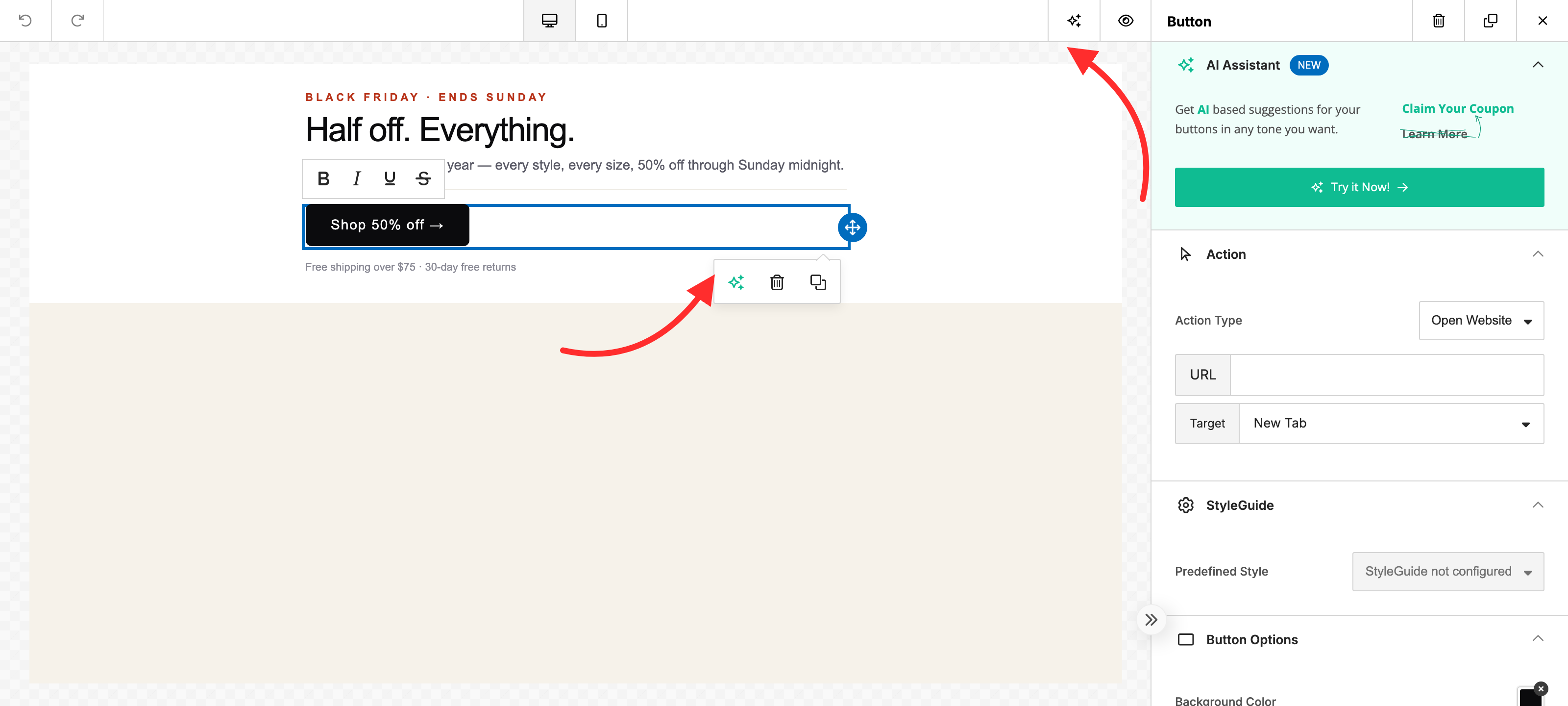
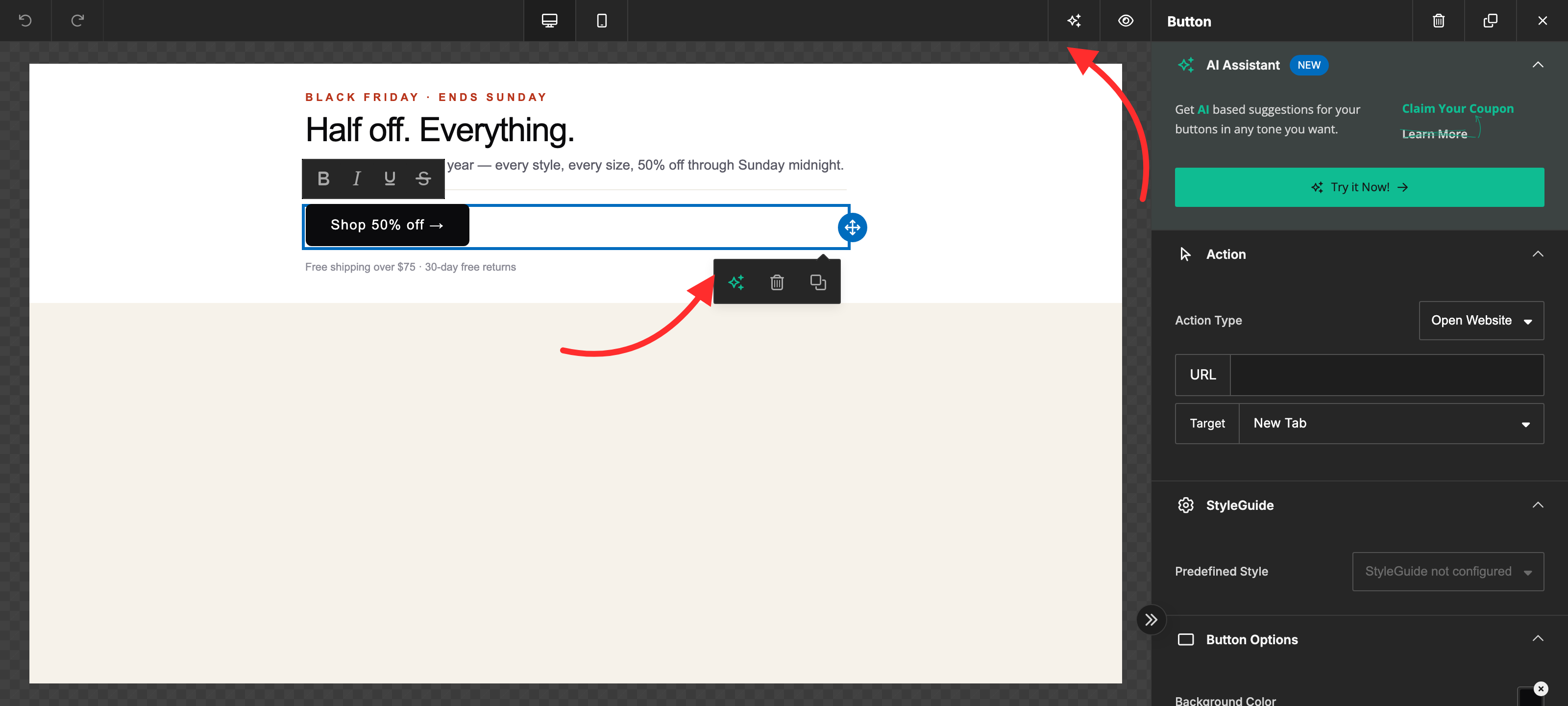
There are three entry points:
- AI Assistant panel — click the Sparkles button in the editor's top toolbar; a dedicated chat panel slides in on the side, with one conversation shared across the design for the current session. Selecting another element keeps the history visible; new prompts target the current selection. Chat history scope can restore separate element threads.
- Layer control popover — when a user selects an element, the layer control surfaces a Sparkles button. Clicking it opens the assistant scoped to that selection.
- Content tools input — a prompt input pinned below the content tools in the Content tab. Type a request, add files with +, or drop files onto the prompt without leaving the tab. Submitting opens the AI Assistant and starts the turn, scoped to the selected element or the full design when nothing is selected.
An optional Import from HTML or image action can appear in the Content input's + menu and in the Assistant composer at the full-template level. It is hidden by default: set features.ai.templateImporter to true for the editor sessions that should offer it. End-users attach an HTML file or screenshot and optionally describe how it should be recreated. See AI Template Importer → Embedded builder access.
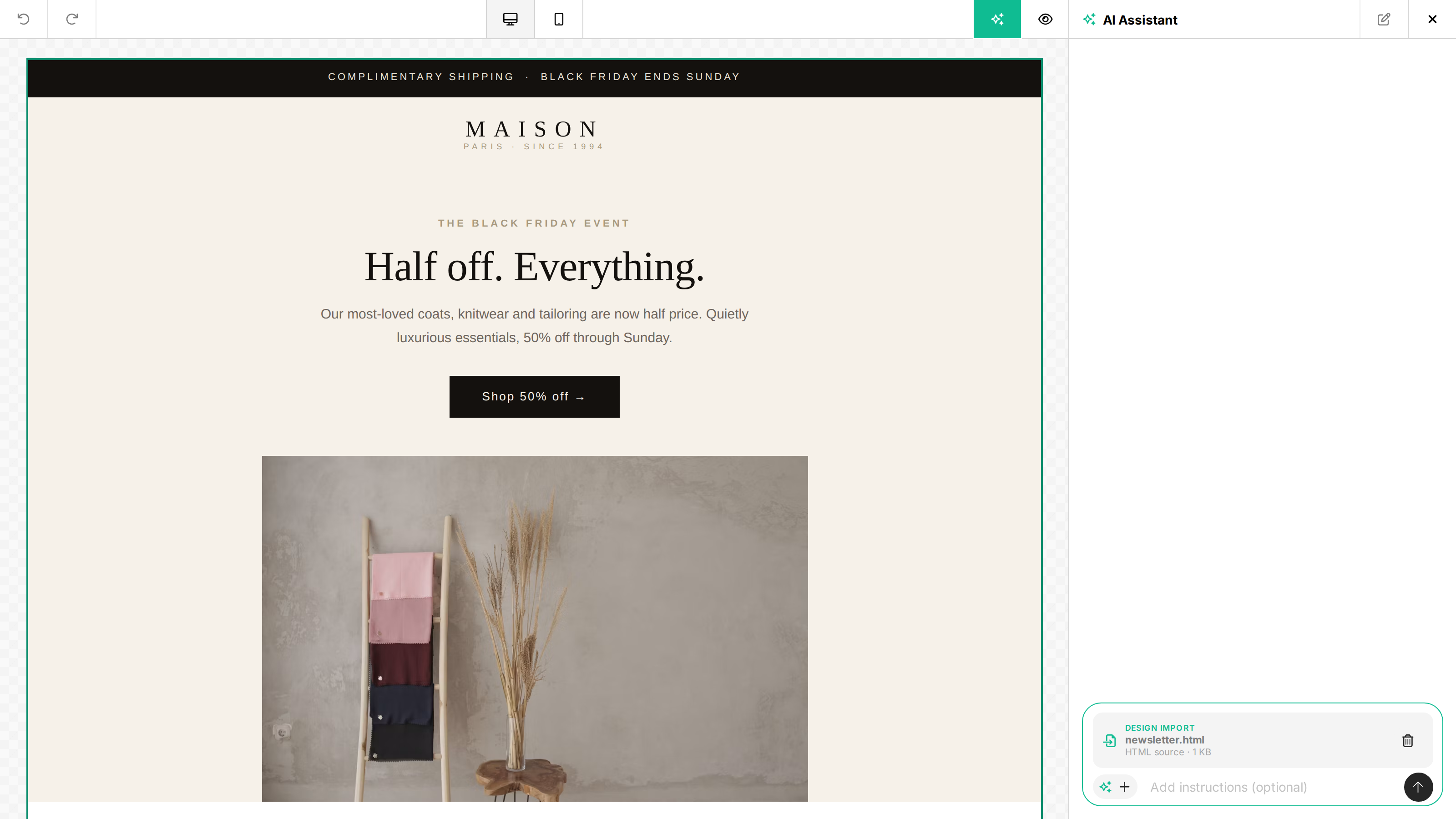
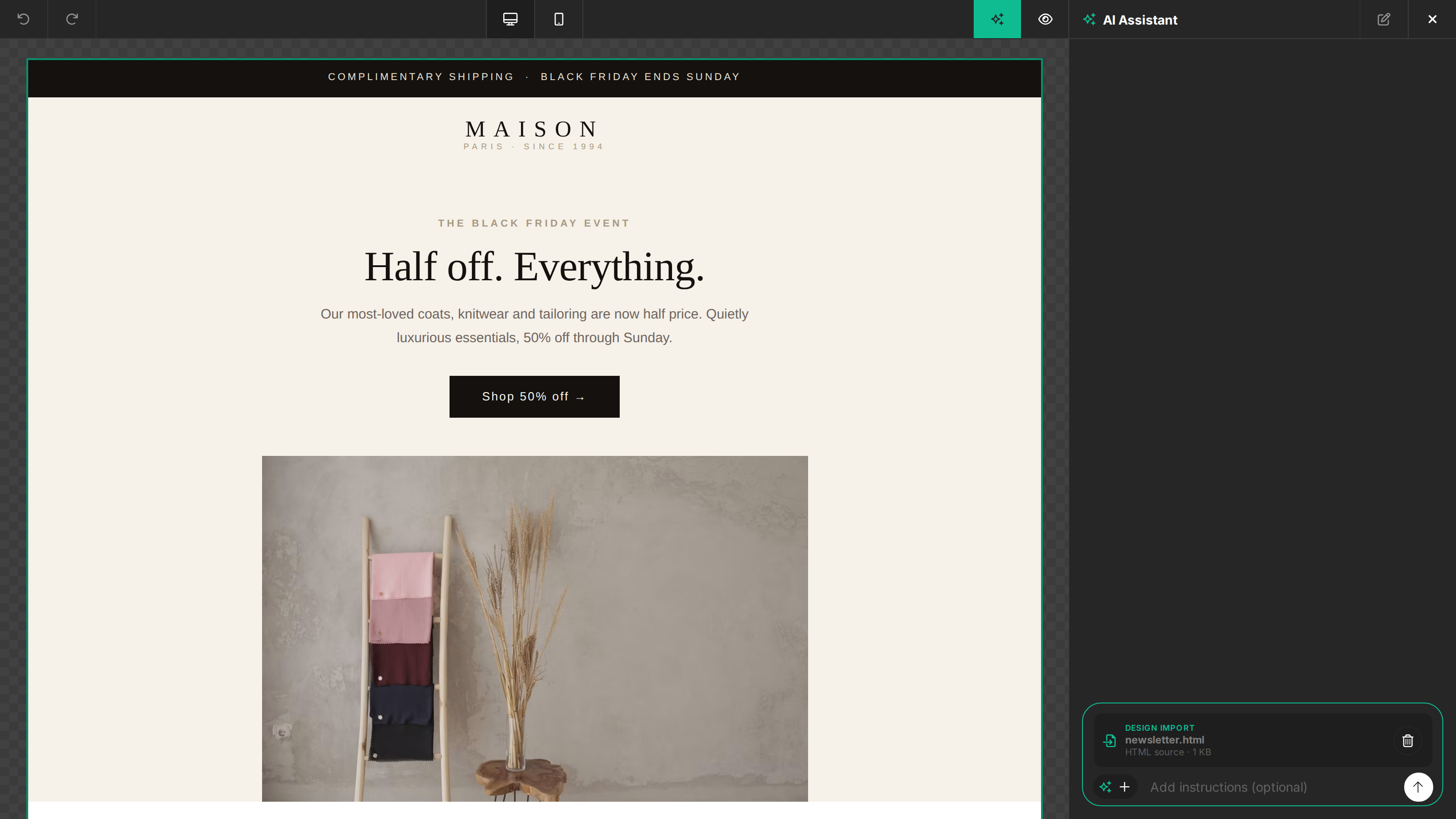
The + menu also offers Add files when HTML references are enabled, or Add an image when only image uploads are enabled. The picker accepts only the enabled file types. Attach up to six image references, reorder them, and refer to their numbers in a prompt. Files and instructions added in the Content tab carry into the Assistant when you submit. Stock search, custom generation, and image edits happen in this conversation; the old Magic Image modal is no longer used. See Images for configuration, application, and undo behavior.
How it works
- The user types a prompt (and optionally selects an element to scope the request).
- The editor sends the prompt and the relevant slice of the design to Unlayer's AI service.
- The service streams back text, design operations, and image results when requested.
- The editor applies design operations as they arrive — the canvas updates live.
- The user can stop generation at any time, undo the result, or follow up with another prompt.
Template Importer turns use the same Assistant conversation and lifecycle events, but return one completed design instead of streaming design operations.
Reliability & uptime
Unlayer's AI service runs a multi-provider routing layer with an automatic fallback chain — if the primary model is rate-limited, overloaded, unavailable, or returns another transient provider error, the request transparently retries against a backup model. Users don't see the retry; the turn just continues. Errors that require user input or configuration changes, such as invalid API keys or invalid request bodies, fail immediately.
Quick start
Initialize the editor with your project, identify the current end-user, and
enable the AI Assistant. user.id is required for the assistant to appear and
for AI requests to succeed.
unlayer.init({
  id: 'editor-container',
  projectId: 1234, // Replace with your numeric Unlayer Project ID
  user: {
    id: 'user-123', // Required for the AI Assistant
  },
  features: {
    ai: {
      enabled: true,
      assistant: true,
    },
  },
});
See Setup for the full reference. To also offer the Template
Importer in an embed, add templateImporter: true to features.ai — it is off
by default; see
AI Template Importer → Embedded builder access.
What's in this section
- How it works — what the assistant does at each scope: full template, row/header/footer, text, image, and custom tools.
- Setup — enable the assistant in your embed.
- Pricing — how AI usage is billed.
- Examples — live demos and starter snippets.
- Events & Callbacks — track every AI turn and forward it to your analytics pipeline.
- FAQ & Troubleshooting — answers to the most common questions and failure modes.
Privacy & data
User prompts, relevant design context, image attachments and editing references, and any HTML or image source uploaded through the Template Importer are sent to Unlayer's AI service. The service routes requests to model providers including OpenAI, Anthropic, and Google. An image operation can use a different provider from the surrounding conversation. Imported source bytes are omitted from AI lifecycle callbacks and lifecycle logs, but they still have to be transmitted to perform the import. Inputs are not used to train models. Unlayer logs prompts for short-term debugging and abuse prevention; model providers may apply their own retention windows per their published terms.
For data-handling specifics tied to your contract — data residency, retention, zero-retention agreements, DPAs, or the up-to-date subprocessor list — contact your account manager.
See also: FAQ → Privacy & data and the per-user opt-out pattern in Setup → Disabling per init.
Related
- In-Builder Credit Upsell — show end-users their remaining AI credit balance and route them through your host-managed purchase flow.
AI can make mistakes. The AI Assistant can produce inaccurate, incomplete, or misleading content. Always review generated copy, links, prices, claims, and translations before sending or publishing. Check important info.