
Using Comments
This page walks through the experience your users get once Team Collaboration is set up.
Entering Collaboration Mode
The Comments button in the builder's action bar shows a badge with the number of open threads. Clicking it switches the builder into Collaboration Mode.
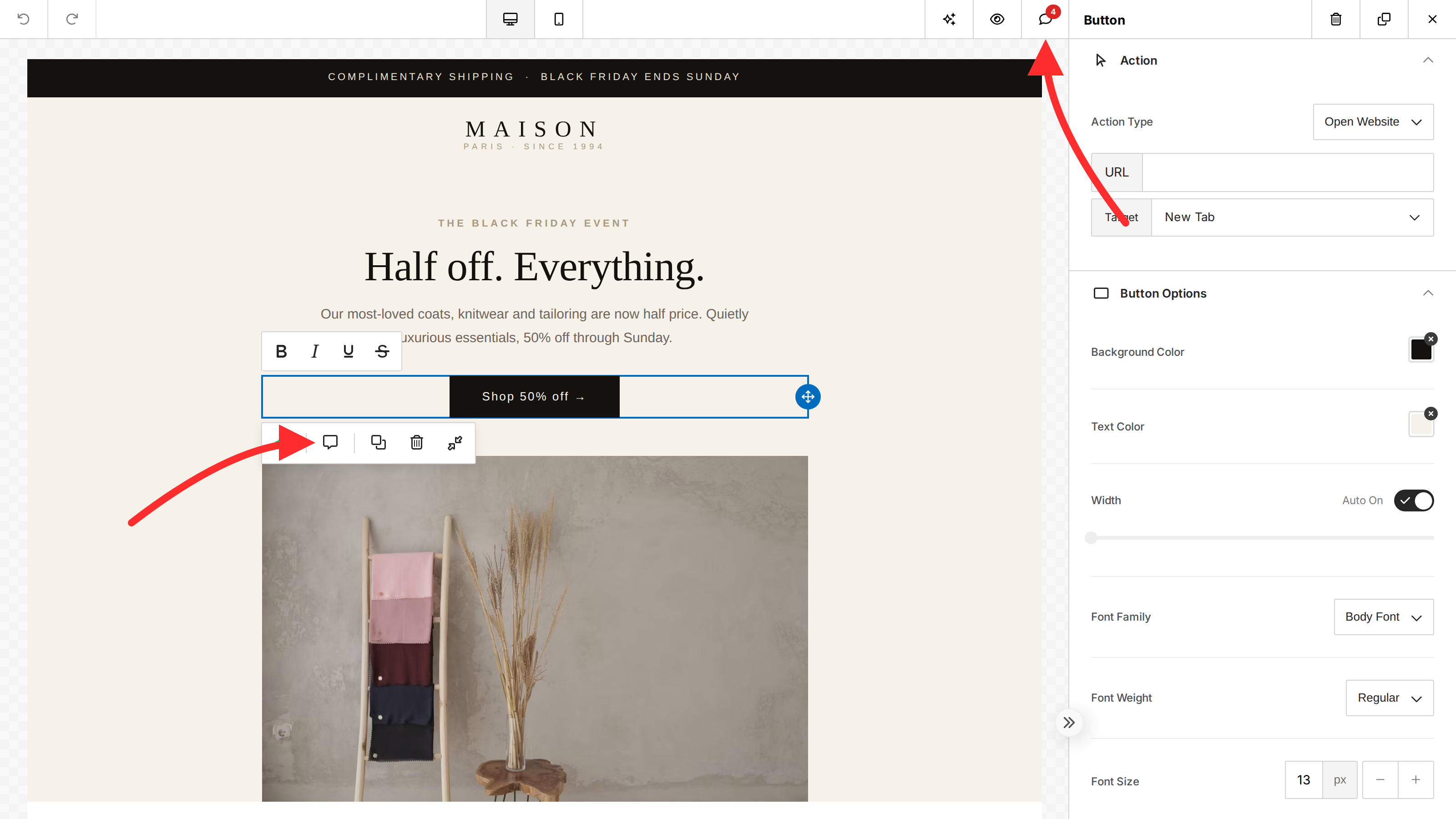
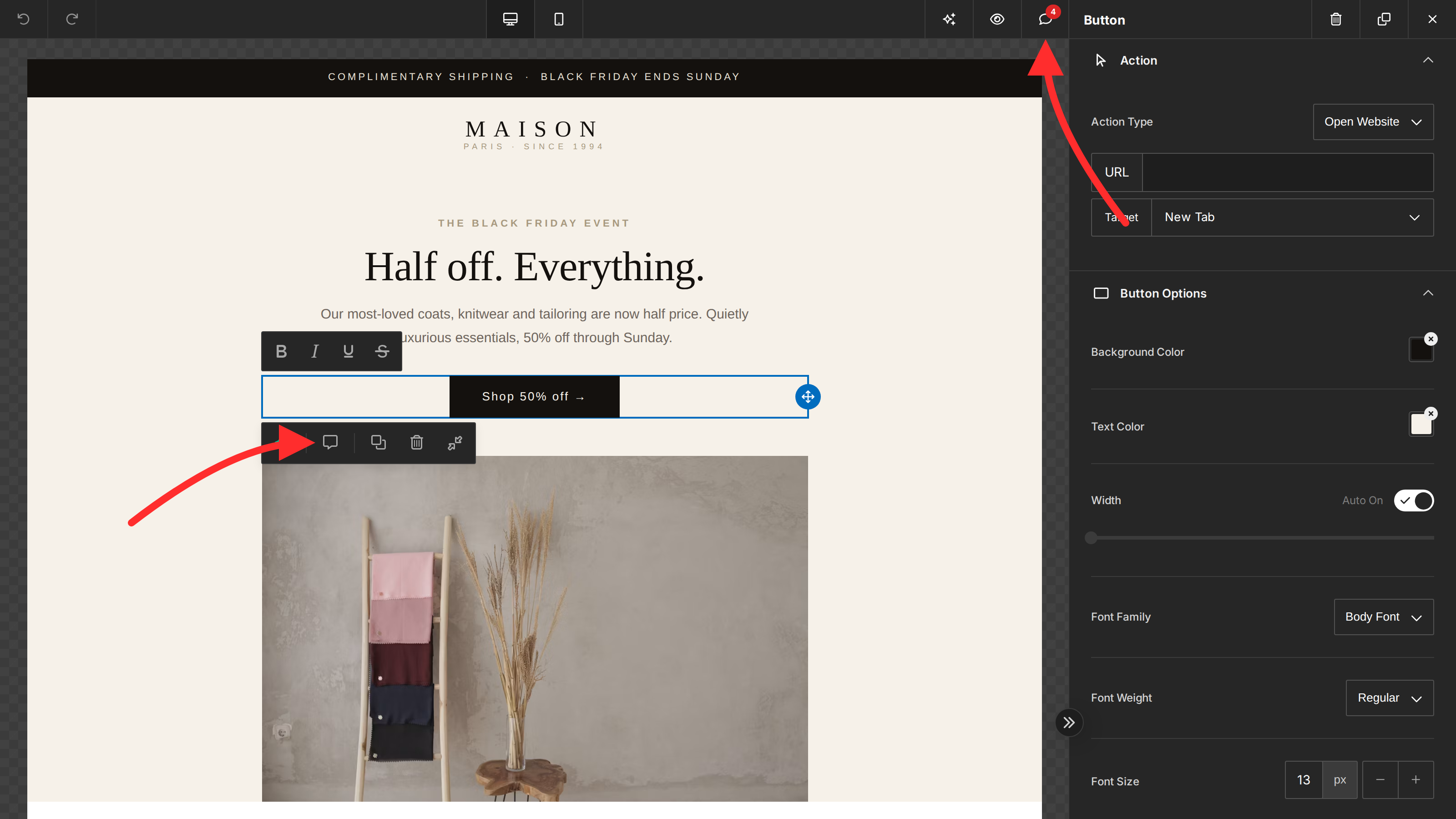
- The Comments panel opens, listing all threads on the design — newest activity first.
- Design editing controls are disabled while the mode is active; users browse and discuss instead of editing.
- While the mode is active, the action-bar button reads Collaboration Mode — click it again, or the Close Comments (×) button in the Comments panel header, to exit.
If the design has no threads yet, the panel prompts the user to select a component to add the first comment.
Starting a thread
In Collaboration Mode, clicking any component of the design — a text block, an image, a row — opens a comment popover for it:
- Pick a comment type (see below).
- Type the comment in the Add a comment field.
- Submit. The thread is created and anchored to that component.
Each comment shows the author's name, avatar (or initials), and a timestamp.
Comment types
Every thread carries one of four types, shown as an icon on the thread:
| Type | Intent |
|---|---|
| Feedback | General review notes. |
| Idea | Suggestions and alternatives. |
| Question | Something that needs an answer. |
| Urgent | Must be addressed before the design ships. |
Replying
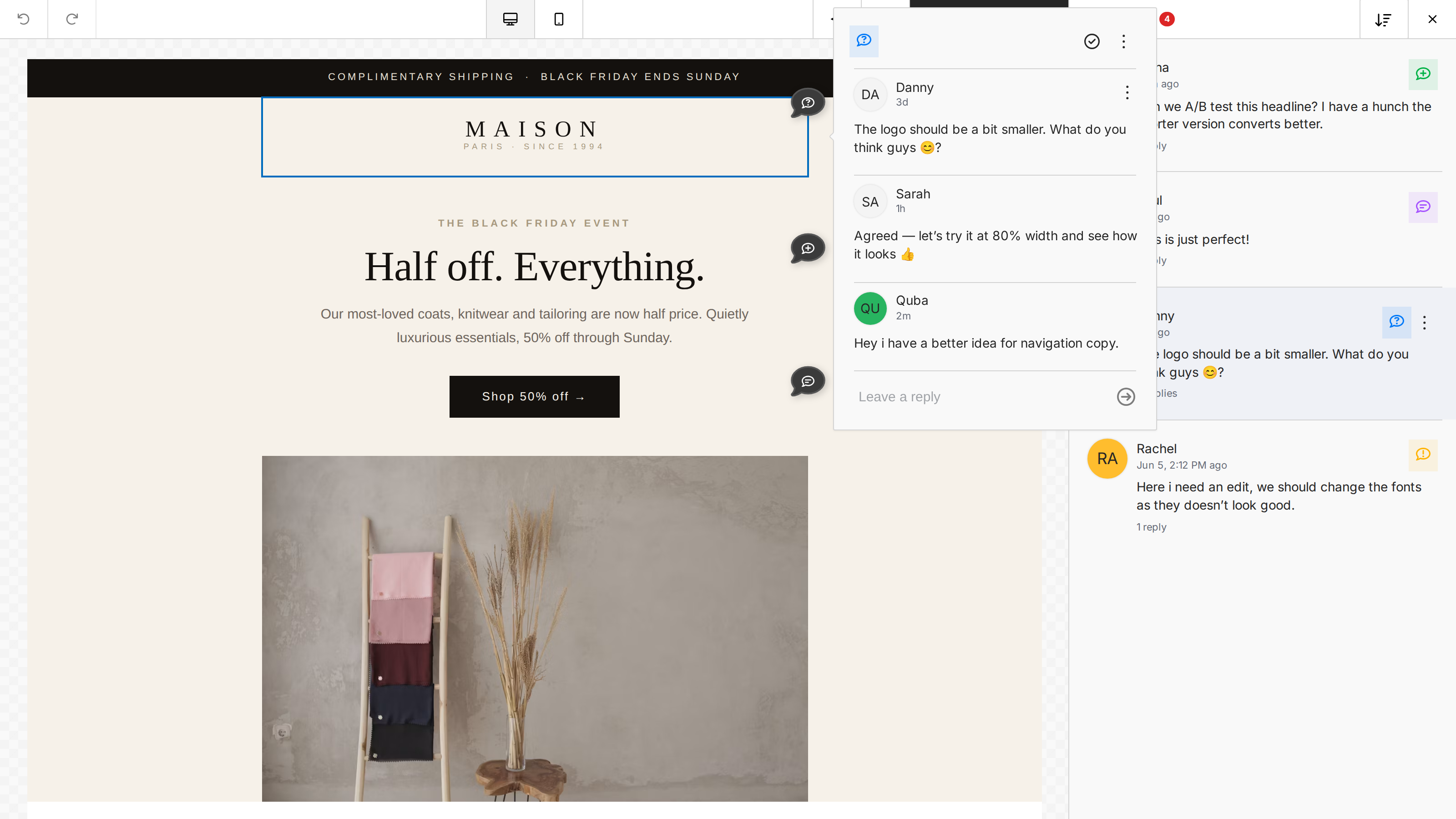
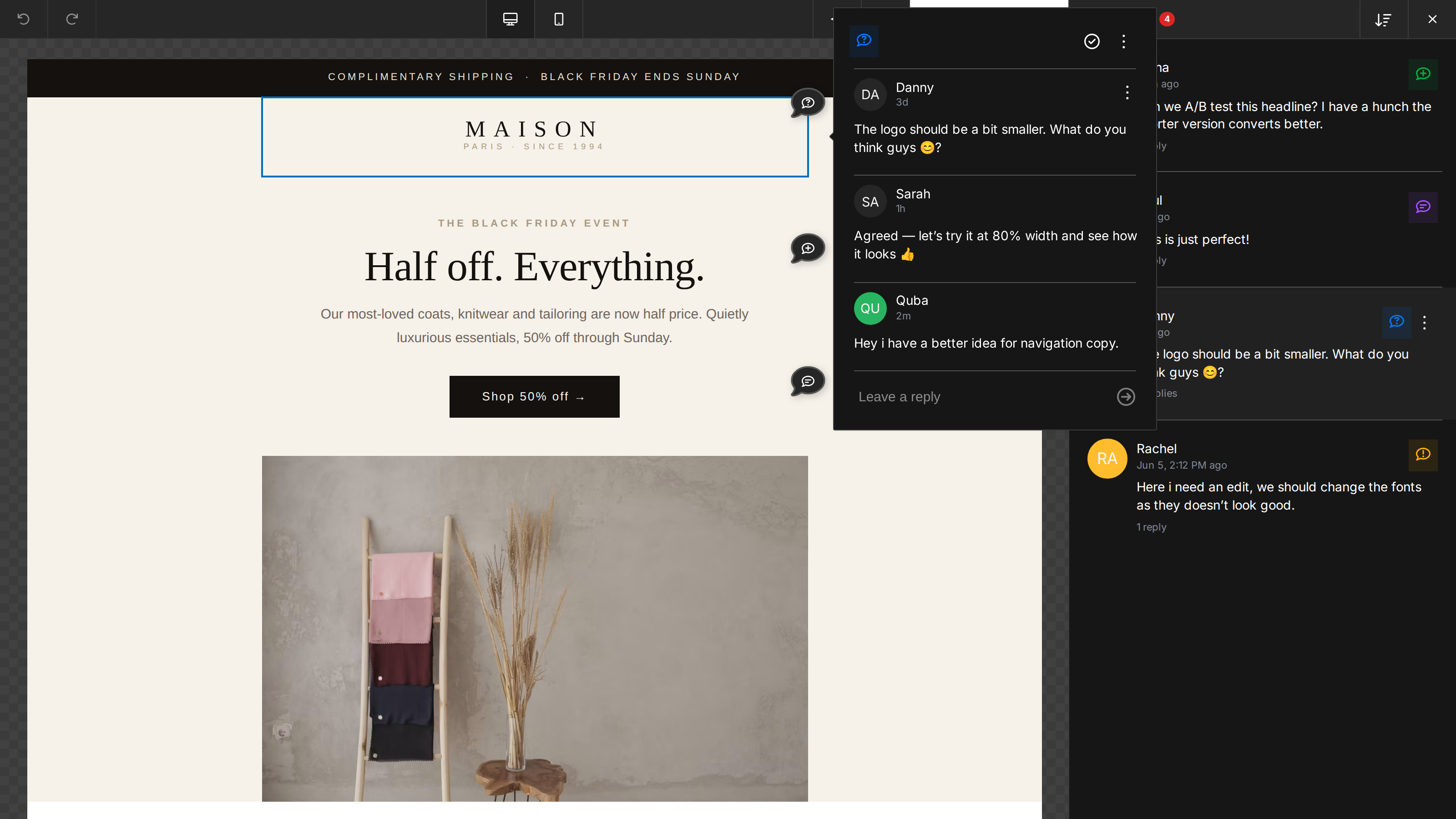
Opening an existing thread — from the panel list or by clicking its component — shows the full conversation in a popover with a Leave a reply field. The thread's reply count updates in the panel list (for example "1 reply" or "No replies").
Resolving threads
Each thread popover has a Resolve button. Resolving a thread:
- Marks it
resolvedand hides it from the default panel list. - Removes it from the open-thread badge count.
- Disables new replies while resolved.
Resolved threads aren't deleted — they can be found with the Resolved filter and reopened at any time.
Filtering
The Comments panel can filter threads by:
- All — every open thread on the design.
- Only yours — threads started by the current user.
- Resolved — threads that have been resolved.
- Type — show only a specific comment type (feedback, idea, question, urgent).
Permissions
- Browsing threads works for any user of the builder; creating comments requires an identified
user(see Setup). - Users can only edit or delete their own threads and comments.
- Deleting a thread's last remaining comment removes the thread itself.