
Image Editor
Unlayer's Image Editor is a standalone, embeddable image editor for your web application. Your users can crop, resize, draw, add text, apply filters, and more — or simply describe an edit in plain language and let the AI Assistant make the change for them.
The Image Editor and its manual editing tools are free. The optional AI Assistant is a paid feature.
The editor mounts into any container element on your page, works with any image URL or base64 data URL, and hands the edited image back to your application when the user saves.
The email, page, popup, and document builders already include this image editor — users open it by double-clicking any image. To configure that built-in experience through unlayer.init, see Image Editor (in the builder). This section covers embedding the image editor as a standalone product.
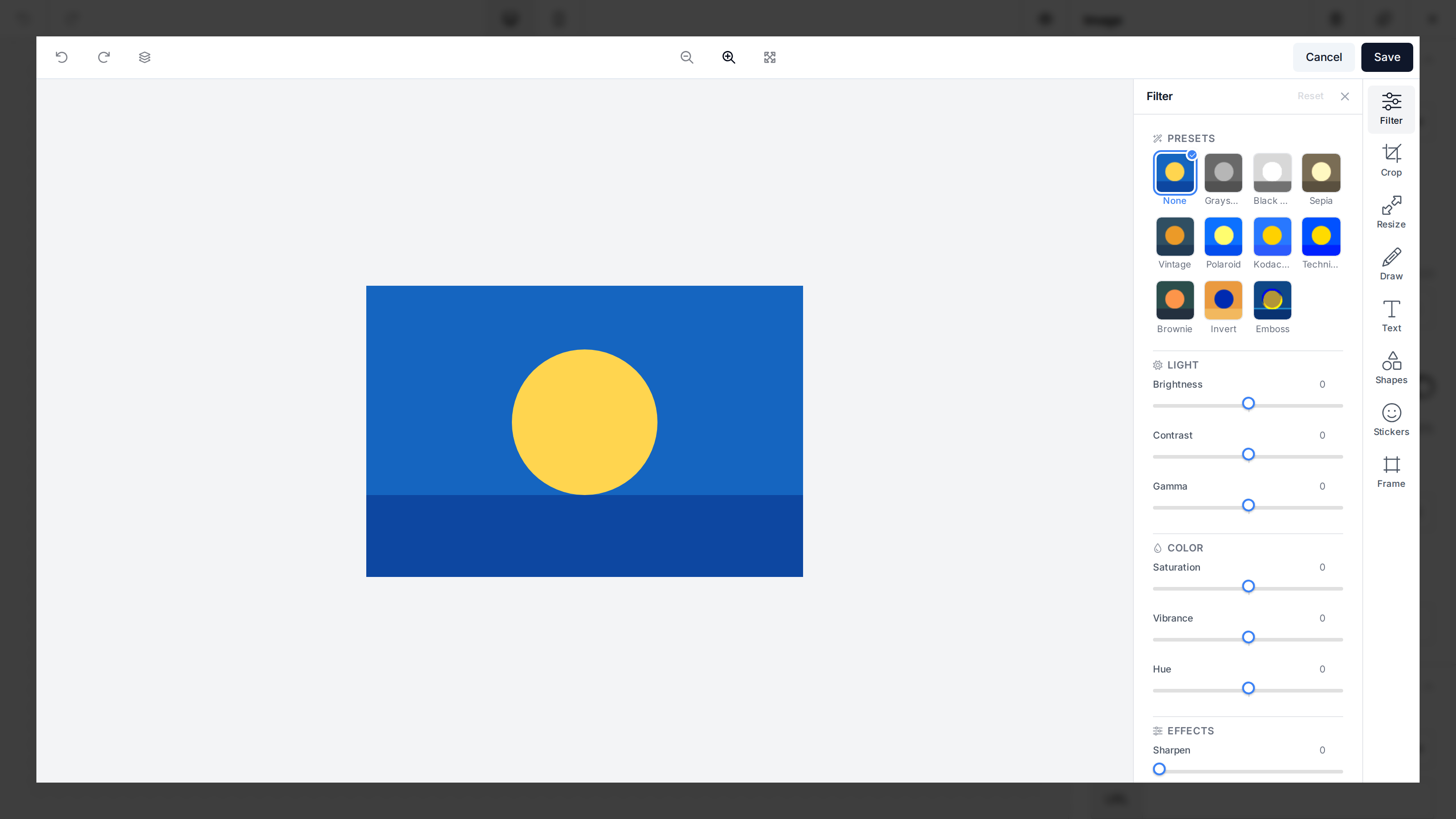
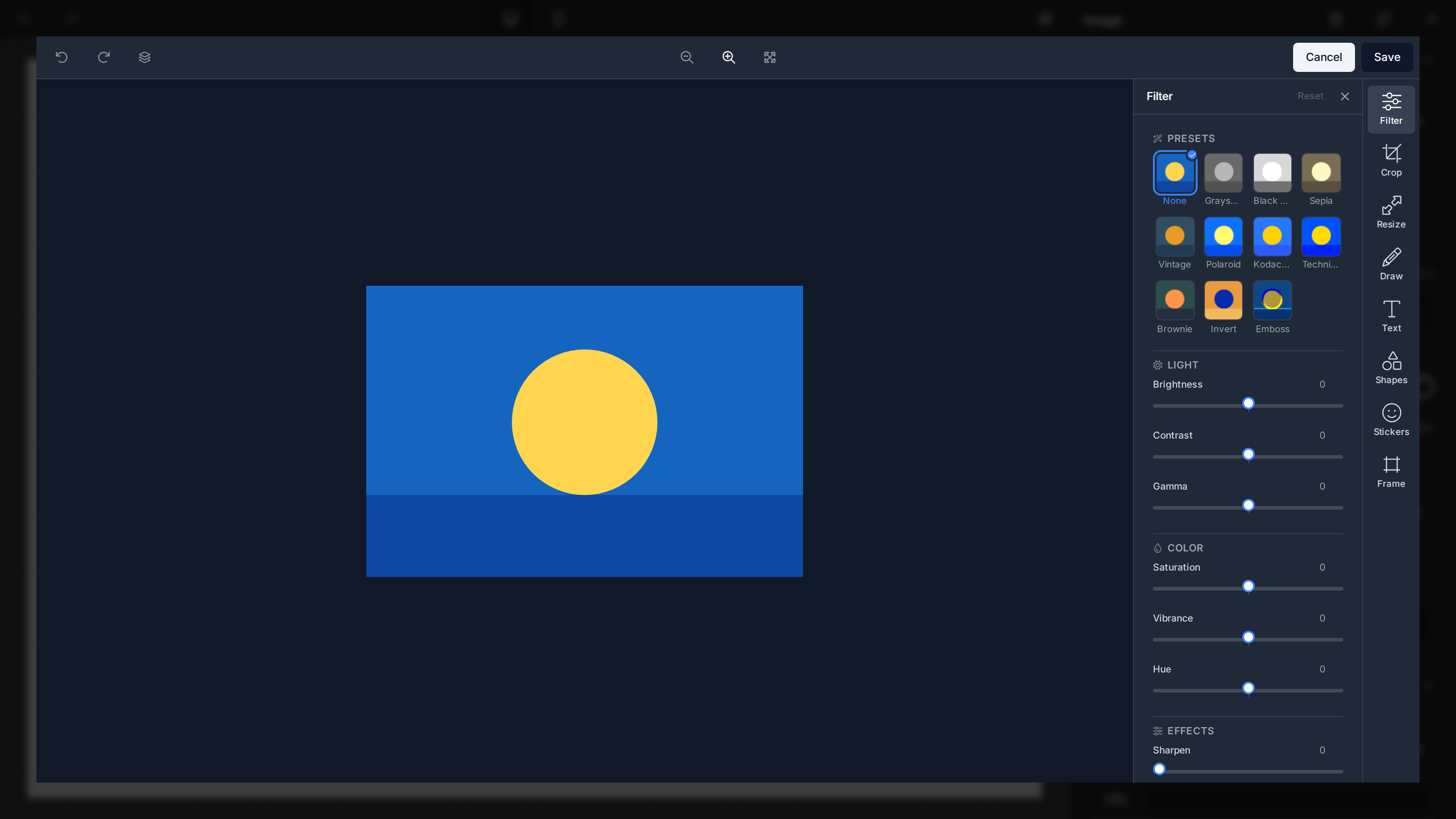
Integration
Add the embed script and create an editor — see the Quickstart for a complete walkthrough.
<div id="editor-container" style="height: 700px;"></div>

<script src="https://cdn.unlayer.com/image-editor/embed.js"></script>
<script>
  window.ImageEditor.createEditor({
    container: '#editor-container',
    image: 'https://example.com/photo.jpg',
    projectId: 1234, // Replace with your project ID
    onSave: (result) => {
      console.info('Saved', result.dataUrl);
    },
  });
</script>
Using React? The official @unlayer/react-image-editor component manages the embed script, editor lifecycle, and prop updates for you.
Tools
The editor comes with eight tool tabs out of the box:
- Filter: Apply effects like brightness, blur, noise, sharpen, color, and grayscale.
- Crop: Crop to a custom or fixed aspect ratio, rotate, flip, straighten, or round the image's corners.
- Resize: Change the image dimensions.
- Draw: Draw freehand on the image with configurable brushes.
- Text: Add and style text overlays.
- Shapes: Add geometric shapes to the image.
- Stickers: Add stickers from a built-in library.
- Frame: Add decorative frames around the image.
Text, shapes, stickers, and drawings remain editable until you save, export, send the image to the AI Assistant, or select Flatten layers in the toolbar. Each tool can be disabled or given a custom icon, and the tool rail can dock on either side of the canvas — see Configuration.
AI Assistant
The optional AI Assistant adds a chat panel where users describe edits in natural language — "remove the background", "make it look vintage", "convert to black & white" — and the editor applies them. AI edits participate in the same undo/redo history as manual edits.