
Page Format
Page-format controls require a plan that includes Document Page Format Controls. Projects without this feature use fixed A4 portrait pages and don't show these controls. Their documents keep either the standard 'auto' margin or no margin (0); non-default sizes, orientations, and custom margins supplied through editor configuration, loadDesign, or setBodyValues are normalized back to A4 portrait with the 'auto' margin.
The document builder lets end-users pick the paper size, orientation, and margin for their design. These properties live on the body and surface when displayMode is 'document':
- the body's property panel under Document → Size / Orientation / Margin, and
- the editor's top toolbar (the Size and Orientation dropdowns next to the device buttons).
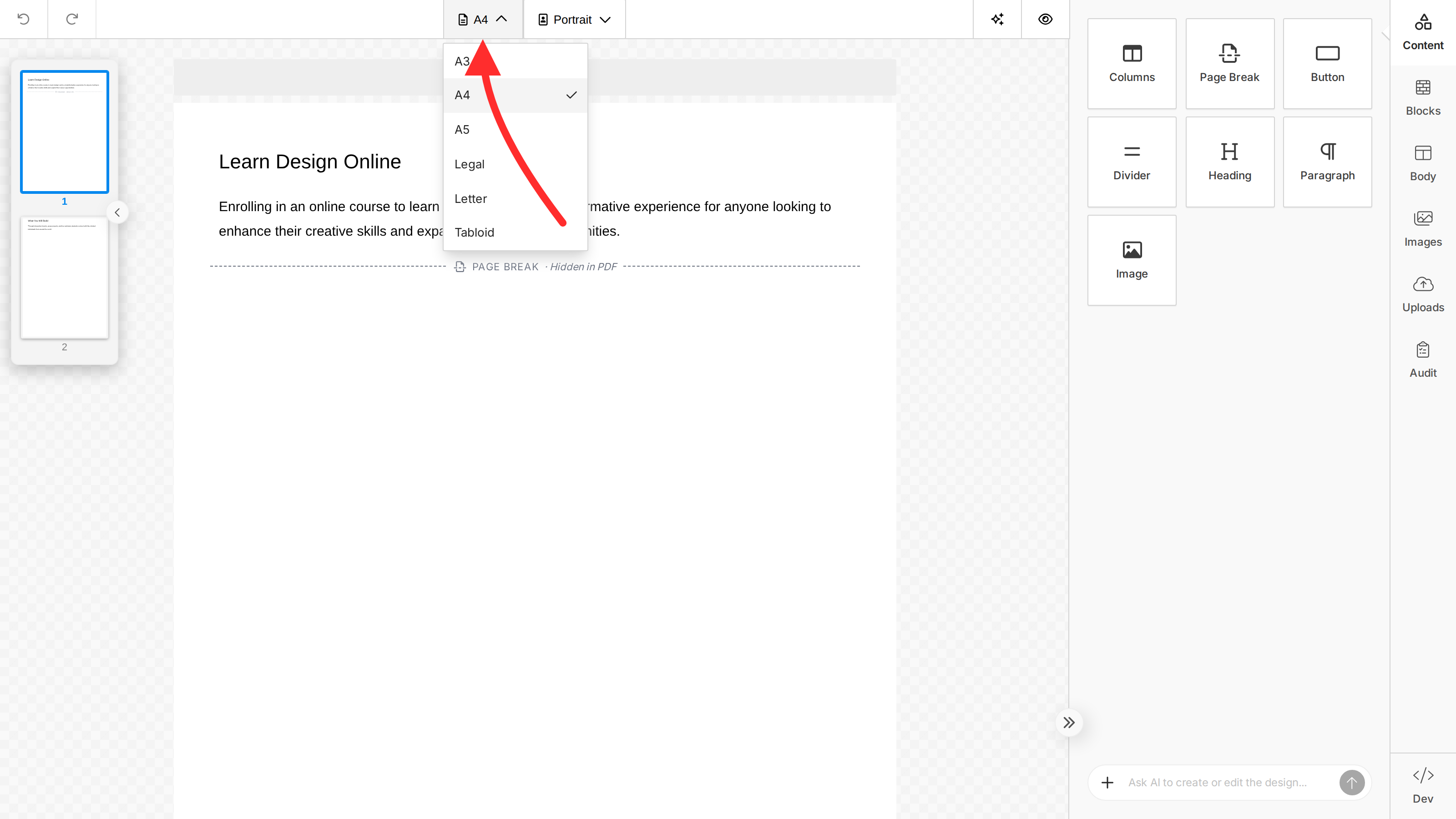
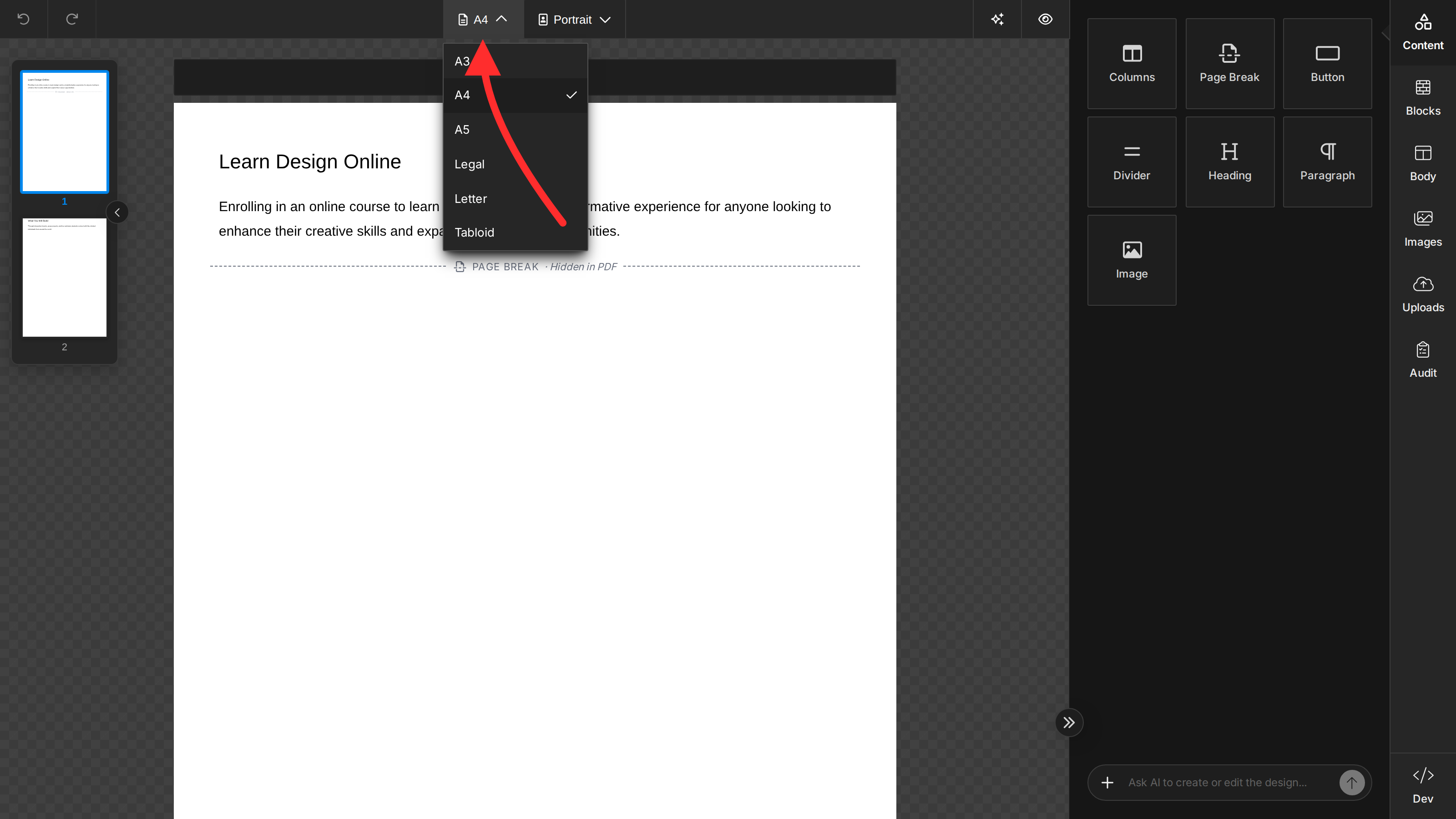
The values flow through the design JSON as body.values.documentSize, body.values.documentOrientation, and body.values.documentMargin, and the Export PDF endpoint reads them when rendering.
documentMargin defaults to 'auto', which uses the selected size's standard margin (48px for A5, 96px for every other size). Switch it to a pixel value, such as '60px', to use the same margin on every side of the page in the editor, in PDF export, and in HTML export, where it insets the exported page body on screen. A margin can be at most 250px and never more than a quarter of the page's shorter side.
Documents saved before page-format settings were introduced have no saved documentMargin. They load and export with no page margin (0), as they did when they were created.
documentSize is the saved editor setting. To choose a paper size for one PDF export without changing the saved design, pass pageSize to exportPdf. See Export PDF for API availability.
You can customize both settings through the standard tools.bodies.properties configuration on unlayer.init, the same shape used for any other tool option. The body tool registers itself under the plural id bodies — tools.body (singular) is silently ignored.
Changing the Default Values
Set editor.defaultValue to change what new documents start with. End-users can still change the value from the property panel and top toolbar.
unlayer.init({
  displayMode: 'document',
  tools: {
    bodies: {
      properties: {
        documentSize: {
          editor: { defaultValue: 'Letter' },
        },
        documentOrientation: {
          editor: { defaultValue: 'landscape' },
        },
        documentMargin: {
          editor: { defaultValue: '72px' },
        },
      },
    },
  },
});
| Property | Type | Default |
|---|---|---|
documentSize | 'A3' | 'A4' | 'A5' | 'Legal' | 'Letter' | 'Tabloid' | 'A4' |
documentOrientation | 'portrait' | 'landscape' | 'portrait' |
documentMargin | 'auto' | a pixel value such as '72px' | 'auto' |
Restricting Available Choices
For the size and orientation pickers, set widgetParams.allowedValues to limit which options end-users can choose from. Labels are still pulled from the built-in schema, so locale and translations keep working. Both the property panel and the top toolbar honor the same list.
unlayer.init({
  displayMode: 'document',
  tools: {
    bodies: {
      properties: {
        documentSize: {
          editor: {
            defaultValue: 'Letter',
            widgetParams: { allowedValues: ['A4', 'Letter'] },
          },
        },
        documentOrientation: {
          editor: {
            widgetParams: { allowedValues: ['portrait'] },
          },
        },
      },
    },
  },
});
Hiding the Pickers
Pass widgetParams.allowedValues: [] to remove the picker from both the property panel and the top toolbar entirely. editor.defaultValue controls new documents and designs where the property is missing; it does not overwrite a value already stored in a loaded design.
unlayer.init({
  displayMode: 'document',
  tools: {
    bodies: {
      properties: {
        documentSize: {
          editor: {
            defaultValue: 'Letter',
            widgetParams: { allowedValues: [] }, // hide picker; default new documents to Letter
          },
        },
        documentOrientation: {
          editor: {
            defaultValue: 'portrait',
            widgetParams: { allowedValues: [] }, // hide picker; default new documents to portrait
          },
        },
      },
    },
  },
});
If you need to enforce one page format for existing designs as well, normalize the saved body.values.documentSize and body.values.documentOrientation before calling loadDesign, or call setBodyValues after loading. Hiding the controls only prevents end-users from changing the stored value in the editor UI.
These overrides set what end-users see in the editor. To render an existing design at a different page format from a single exportPdf call without changing the editor's defaults, use the per-call options described in Export PDF → Page Format.