
Document Builder
The Document Builder allows developers to embed a powerful drag-and-drop editor into their web applications, enabling end-users to create and edit documents. The builder provides extensive tools and customization options for creating structured content such as reports, proposals, contracts, and more.
The document minimap, page-format controls, and documentOrientation export override each require a plan that includes the corresponding feature. Projects without page-format controls use fixed A4 portrait pages in the editor. Plans with PDF export access continue using pageSize to select the exported paper size, as described in Export PDF.
Repeated page headers and footers require a plan that includes both Header and Footer Support and repeated headers and footers in documents.
Integration
After installing our JavaScript library, use the following code snippet to initiate the email editor. You have to pass displayMode as document, and replace your project id.
unlayer.init({
  id: 'editor-container',
  displayMode: 'document',
  projectId: 1234, // REPLACE
});
Builder In Action
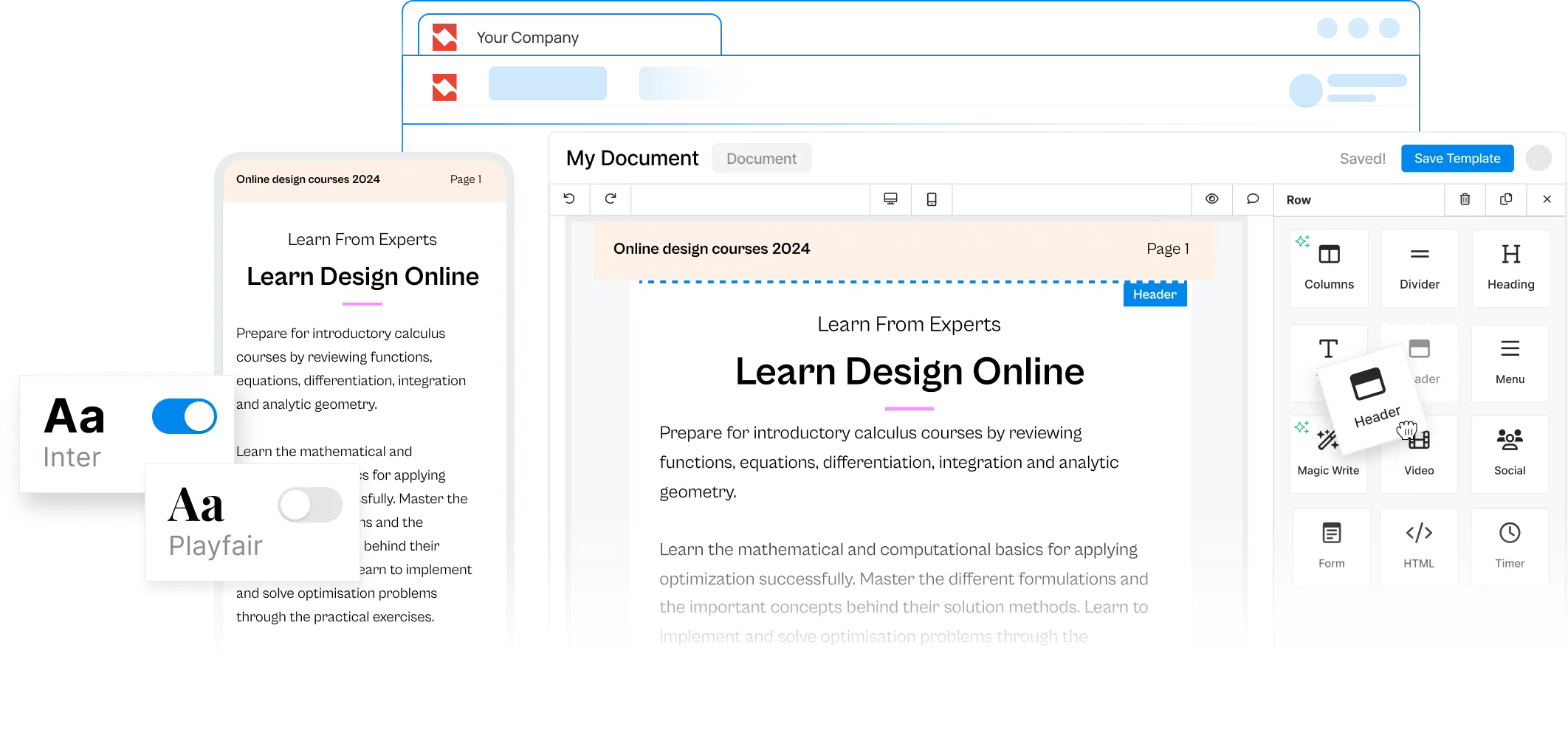
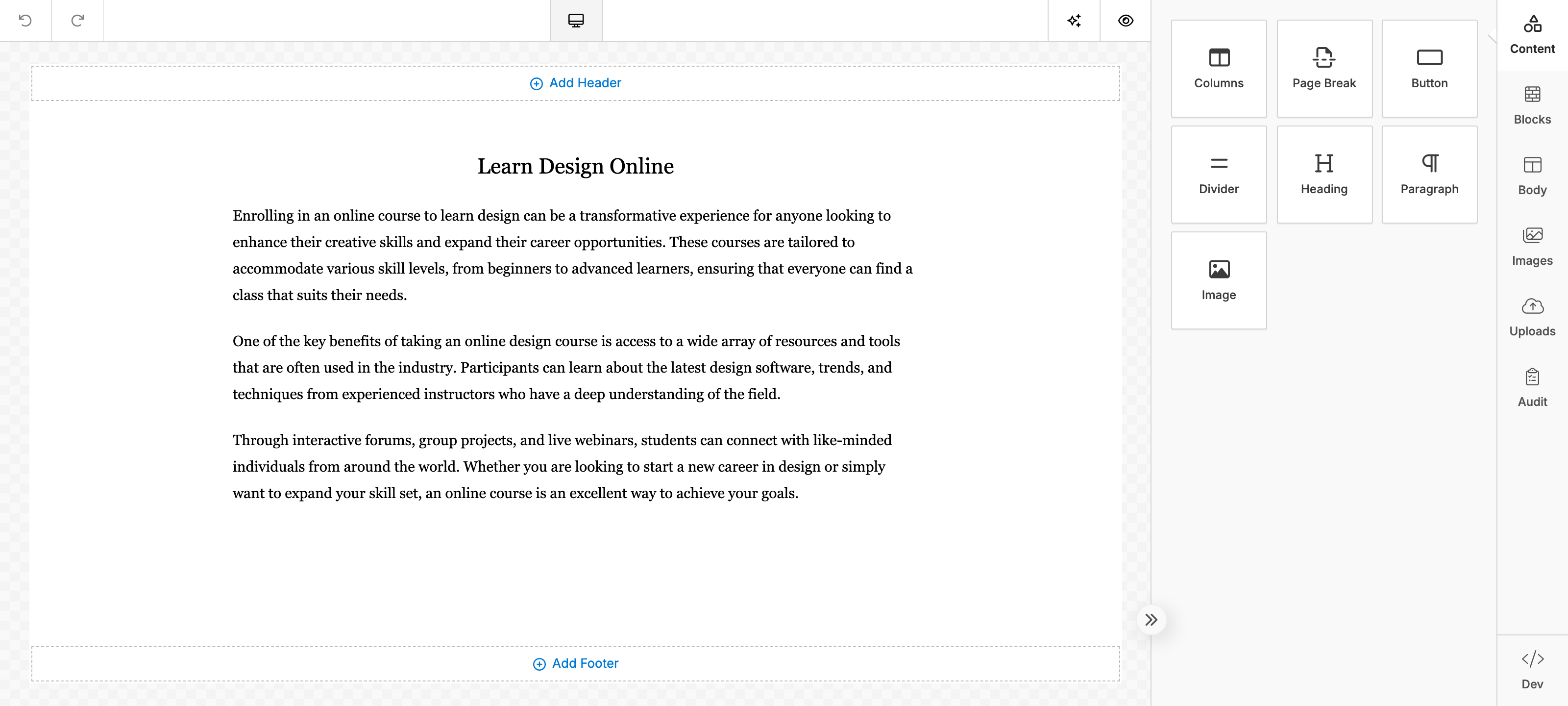
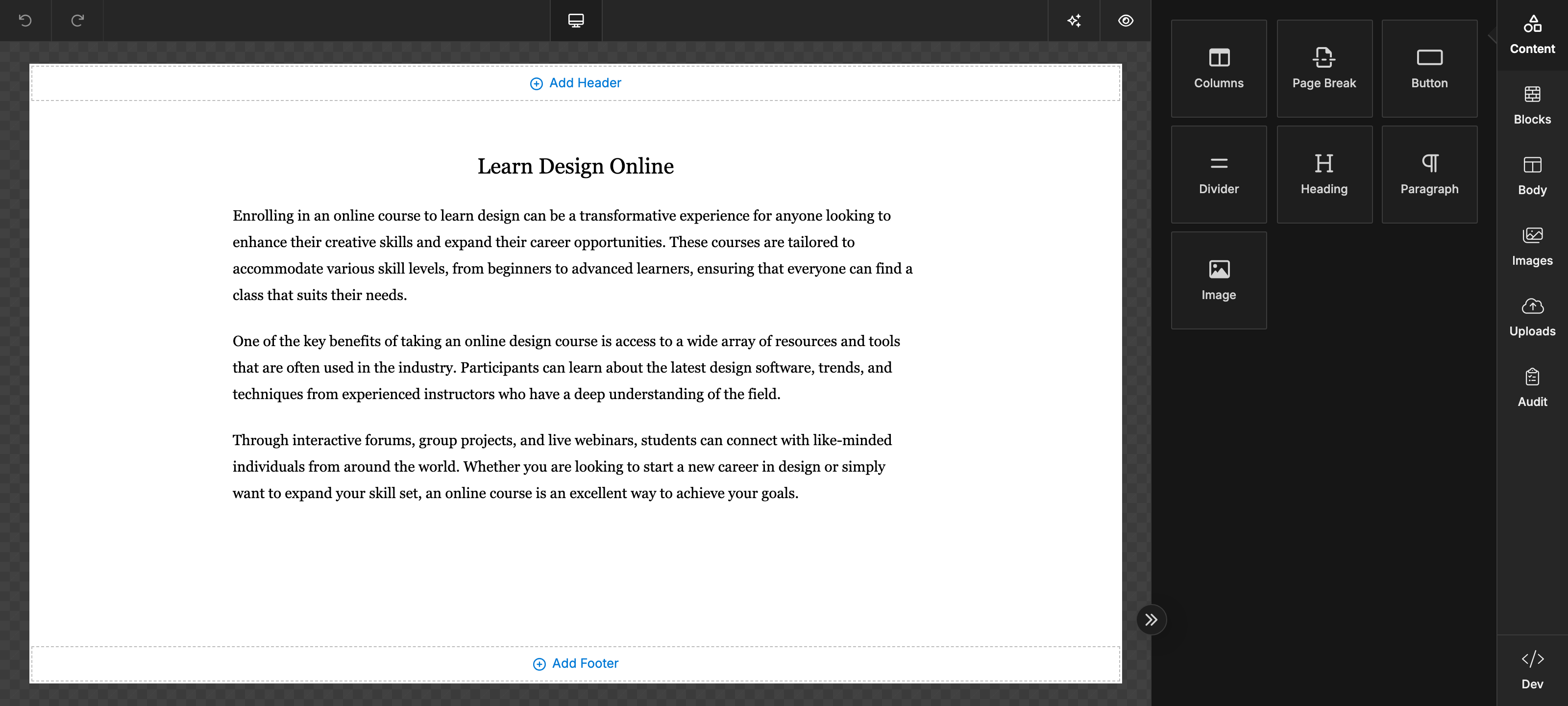
Once the document builder is initialized, it will look like this.
Tools for Documents
The builder comes with the following tools out of the box.
- Columns: It allows your users to add columns to your design in order to have a better design arrangement.
- Button: Add any type of button in your email. You can change colors and styles.
- Divider: It gives your users appropriate spacing at any point they want in their design.
- Heading: Add headings (from level 1-6) to the design.
- Image: To make your emails attractive, you can add images using this tool.
- Social: It is a built-in tool that lets users add their social media icons to your design.
- Text: Text is a built-in tool so users can add text to their designs.
- Page Break: To create multi-page documents, users can use this tool, which adds a dark dotted line to represent the start of a new page. The forced boundary is preserved in exported document HTML and PDF exports, including server-side Cloud API exports.
The empty area of a newly created page accepts the Columns tool, so users can continue building directly on that page.
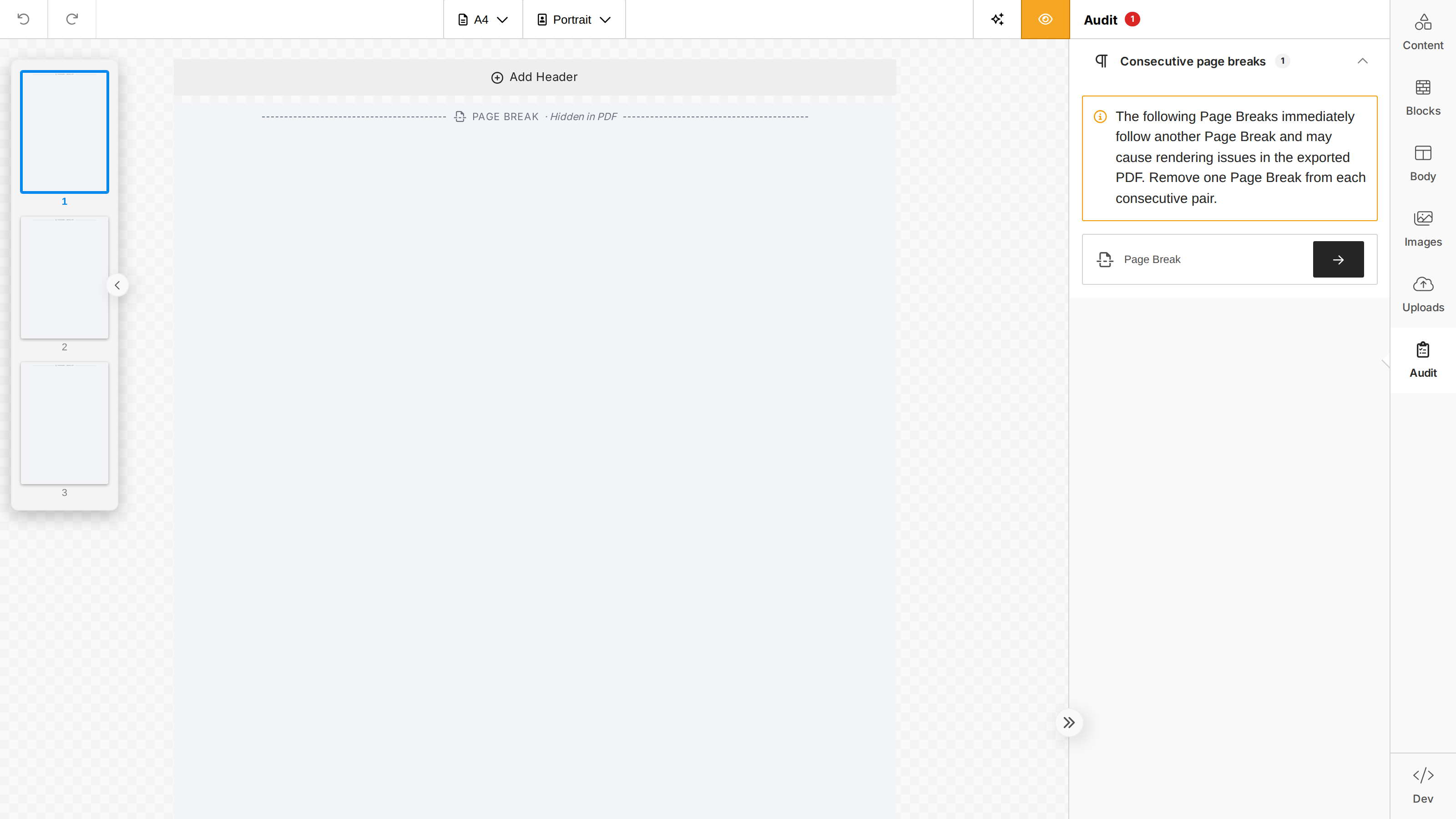
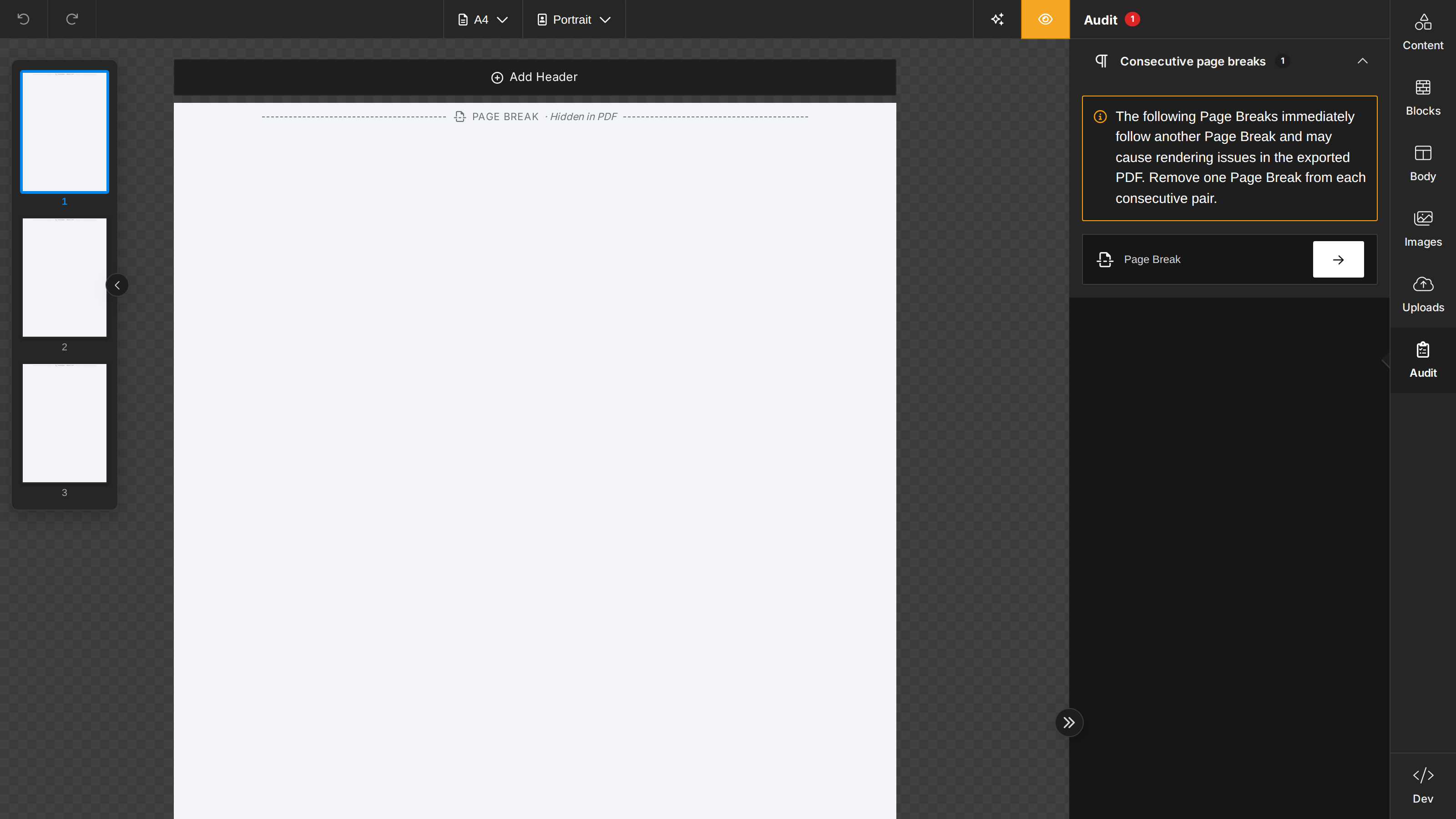
When two Page Breaks are consecutive, the later Page Break is highlighted on the canvas and listed in the Audit tab because consecutive Page Breaks may cause rendering issues in the exported PDF. The Preview button also shows a warning, and detection works when the Page Breaks are placed in separate rows.
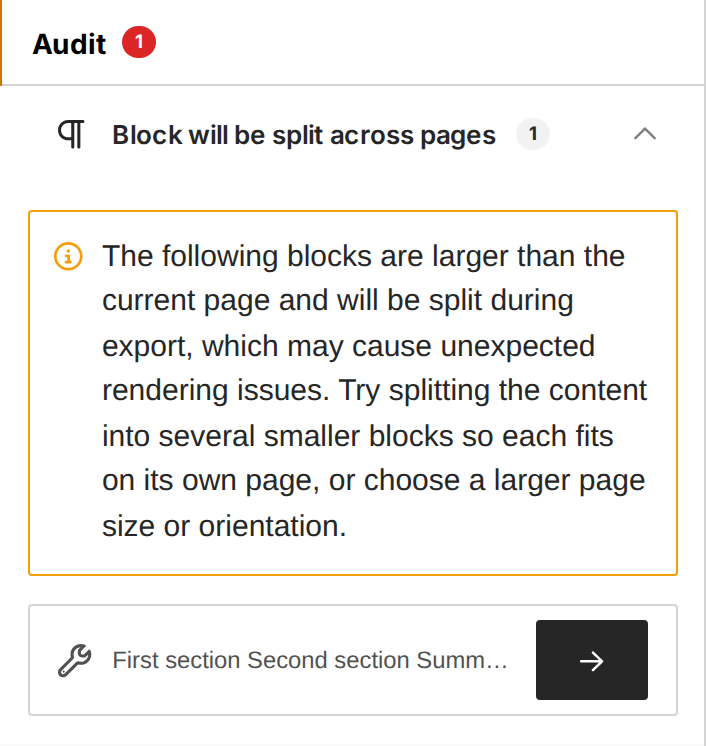
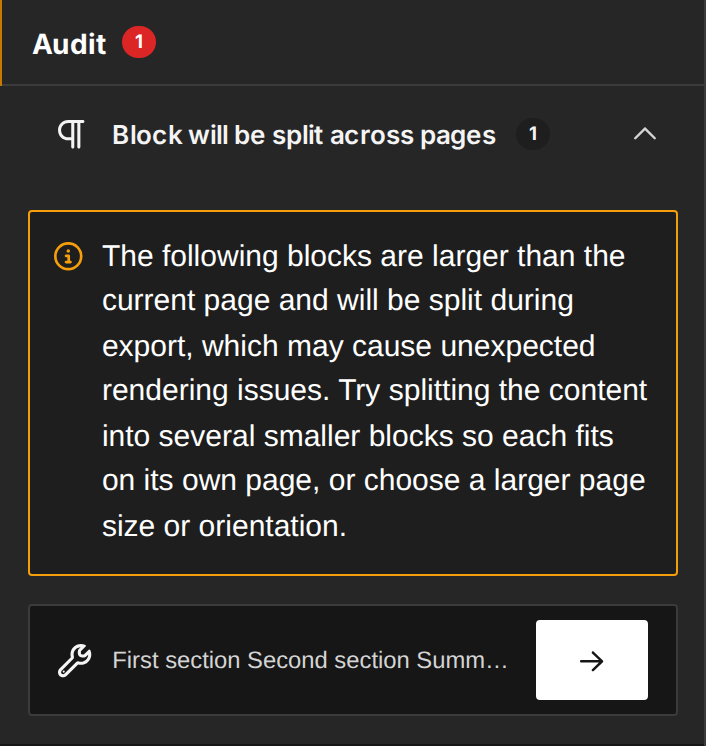
Rows with multiple columns stay together when they fit on a page. If a content block, table row, or complete multi-column row is taller than the printable page area, the Audit tab warns that the block may be split during PDF export.
Page Format
End-users can pick the paper size and orientation from the body's property panel and the editor's top toolbar, and set the page margin from the property panel. You can change the defaults, restrict the available choices, or hide the pickers entirely — see Page Format.
Minimap
A thumbnail minimap floats over the canvas and appears automatically as soon as a document spans two or more pages, letting end-users jump between pages with a single click. The panel docks opposite the tools panel, so it follows the editor's layout. It's enabled by default — see Minimap for the opt-out and behavior details.
Exporting PDF
Once the document is ready to be exported, you can use the Export PDF method to export it into a PDF file.
The document preview includes a Download PDF button in its toolbar. It runs the same export as Export PDF with the preview's language and merge tag values, so it counts like any other PDF export on your plan, and downloads the file directly. Free plans don't include PDF export, so on a free plan the button saves the preview itself, which carries the Unlayer watermark, and doesn't run an export.
On plans that include Document Watermarks, you can stamp your own text watermark on previews and exports. On free plans, document PDFs and the editor canvas carry an Unlayer watermark on every page. See Watermark.

