
Export PDF
Similar to the Export HTML function, you can also export a design in PDF format. This would upload the generated PDF to your connected File Storage and send the link to the callback function.
Note: Unlike HTML or plain text, PDF is not generated on the client. This function uses our cloud API to generate the PDF.
Each call counts toward your workspace's monthly export allowance. When the allowance is used up, the callback receives an error message and no url.
unlayer.exportPdf(function (data) {
  var json = data.design; // design json
  var pdfUrl = data.url; // pdf url

  // Do something with the PDF url
});
Callback Parameters
The exportPdf callback returns the following parameters.
| Name | Description |
|---|---|
| design | This is the JSON of the design |
| url | This is the URL of the generated PDF |
Export Options
You can also pass certain options to this function as a second parameter.
Merge Tags
If you want the Merge Tags in your design to be replaced by different values, you can pass the mergeTags object to export options.
unlayer.exportPdf(
  function (data) {
    var json = data.design; // design json
    var pdfUrl = data.url; // pdf url
  },
  {
    mergeTags: {
      first_name: 'John',
      last_name: 'Doe',
    },
  },
);
In the Document Builder, substituted values can change how tall each row is. When the values you pass differ from what the canvas displays (a merge tag's sample, or its name when it has no sample), or when a multi-language export uses a language other than the one shown on the canvas, the PDF is paginated server-side from the rendered content rather than the editor's currently-displayed pagination. Calls that pass no mergeTags keep the editor's pagination.
Page Format
When using the Document Builder (displayMode: 'document'), you can override the page format that the PDF will be rendered at without modifying the saved design. This is useful for generating the same design at different paper sizes — for example, rendering a US customer's invoice as Letter and an EU customer's as A4 from a single template.
In the editor SDK and Export API v3, pageSize and documentOrientation overrides require a plan that includes PDF page-format overrides. Legacy plans use A4 portrait for document-mode exports. They can omit the fields or explicitly pass the A4 portrait no-op; a different format returns a 403 response.
The deprecated Export API v2 keeps its original pageSize contract for backward compatibility. Existing PDF customers, including legacy plans, can continue to use its full supported format list. The newer documentOrientation option still requires PDF page-format overrides.
All versions still require PDF export access.
| Option | Type | Description |
|---|---|---|
pageSize | 'Letter' | 'Legal' | 'Tabloid' | 'Ledger' | 'A0' | 'A1' | 'A2' | 'A3' | 'A4' | 'A5' | 'A6' | Paper size for the PDF. Requires PDF page-format overrides on v3; retained for existing PDF customers on v2. |
documentOrientation | 'portrait' | 'landscape' | Page orientation override. Requires a plan that includes PDF page-format overrides. |
When pageSize is omitted, document-mode exports use the design's saved page size and orientation when the plan includes page-format controls. Projects without this feature use A4 portrait instead; non-default page values stored in their designs are ignored. The saved setting is named body.values.documentSize; it is not a separate export parameter. Saved formats use their standard physical paper dimensions consistently across Export API v2 and v3.
Page margin comes from the design's saved body.values.documentMargin, including when pageSize overrides the paper. The default 'auto' uses the format's standard margin (A5 uses a tighter margin than A4), and a pixel value applies as saved. Margin isn't a per-call option. See Page Format.
When pageSize is used without documentOrientation, it keeps the named PDF format's natural orientation instead of inheriting the orientation stored in the design. Ledger is naturally landscape; every other listed format is naturally portrait. Projects with PDF page-format overrides can pass documentOrientation: 'portrait' to rotate Ledger.
All plans with PDF export access can export without a per-call format override:
unlayer.exportPdf((data) => console.info(data));
Plans with PDF page-format overrides can select another format through the editor SDK or Export API v3:
unlayer.exportPdf((data) => console.info(data), { pageSize: 'Letter' });
Legacy integrations calling Export API v2 directly can also continue sending pageSize.
Unsupported pageSize values return a 400 response instead of falling back to another paper size.
unlayer.exportPdf(
  function (data) {
    var json = data.design;
    var pdfUrl = data.url;
  },
  {
    pageSize: 'Letter',
    documentOrientation: 'landscape',
  },
);
When an override changes the page geometry, the PDF is paginated server-side using the override's dimensions rather than the editor's currently-displayed pagination. The result will differ from what you see on the canvas if the override's geometry doesn't match the design's saved values — that's intentional.
Existing v2 integrations continue using pageSize for PDF export. New v3 integrations need PDF page-format override access to select a non-A4 document format.
Watermark
When using the Document Builder, you can stamp a text watermark over every page of the PDF. For example, you can mark a draft you send to a client for review. The watermark is drawn on top of the finished pages, so your content and layout stay exactly as designed.
Custom watermarks require a current paid plan that includes Document Watermarks; legacy plans don't include them. They work on document-mode PDFs (displayMode: 'document') through the editor SDK, Export API v3 and the deprecated Export API v2.
On free plans, document PDFs and the editor canvas carry an Unlayer watermark on every page. Free plans don't include Document Watermarks, so a request for a custom watermark is refused, as described below.
| Option | Type | Description |
|---|---|---|
text | string | Required. Plain text, printed literally on a single line (HTML isn't interpreted). 1 to 100 characters. |
position | 'diagonal' | 'center' | 'top' | 'bottom' | Where the watermark sits on each page. diagonal runs corner to corner; top and bottom place it along that edge. Defaults to 'diagonal'. |
opacity | number | From 0.05 to 1. Defaults to 0.2. |
color | string | Color as #RGB, #RRGGBB or rgb(r, g, b) with 0–255 channels. Defaults to #808080. |
The text size is chosen automatically so the watermark fits the page.
Watermark a single export:
unlayer.exportPdf(
  function (data) {
    var pdfUrl = data.url;
  },
  {
    watermark: {
      text: 'Draft for client review',
      position: 'diagonal',
      opacity: 0.2,
      color: '#808080',
    },
  },
);
To watermark every PDF by default, including the document preview and its Download PDF button, set features.watermark when you initialize the editor:
unlayer.init({
  // ...
  displayMode: 'document',
  features: {
    watermark: { text: 'Draft', position: 'top' },
  },
});
The editor also draws this default on every page of the canvas and its page thumbnails, where the PDF will place it, so you design with it in view. The canvas watermark is only a guide in the editor and is never part of the exported HTML.
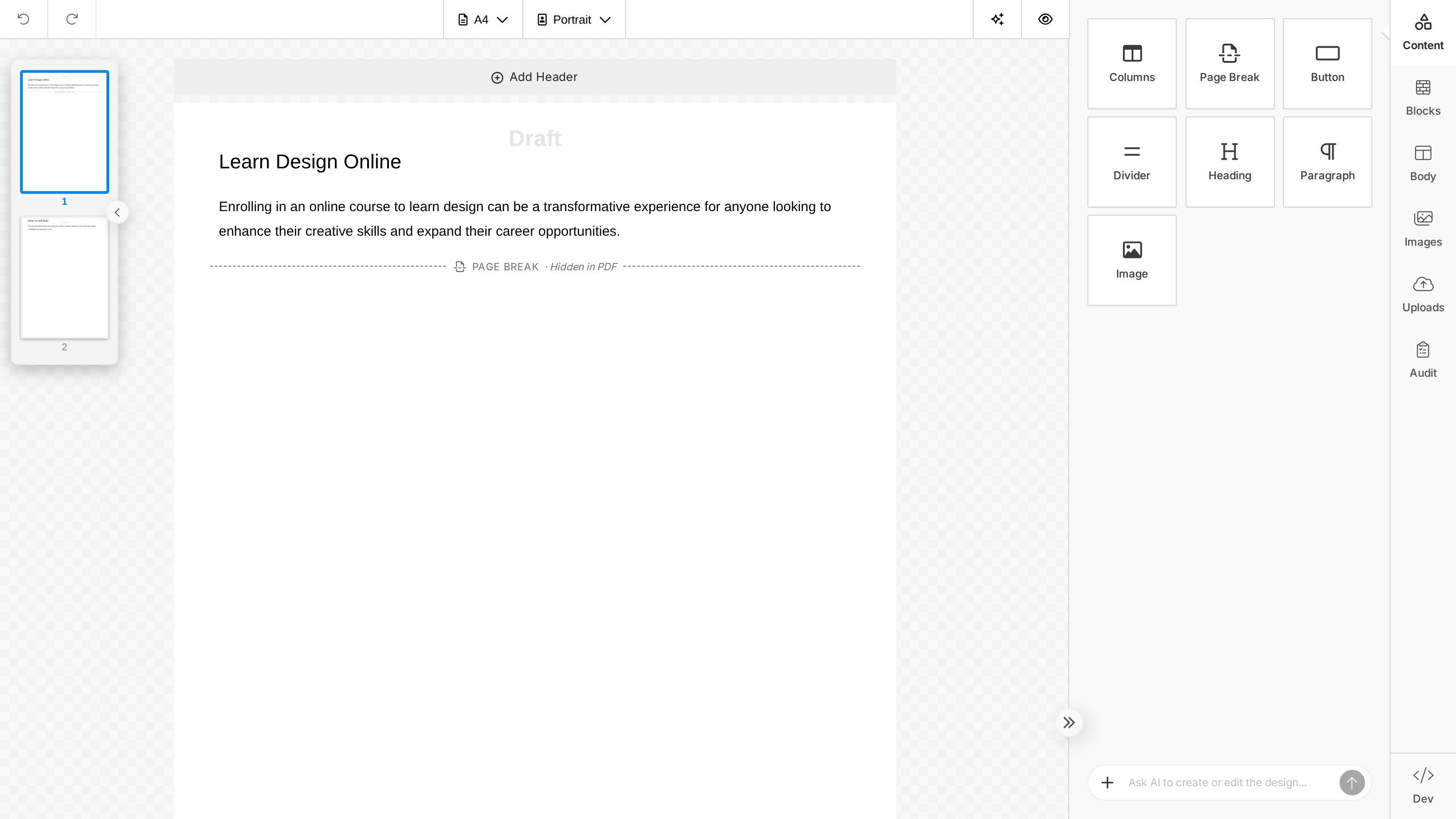
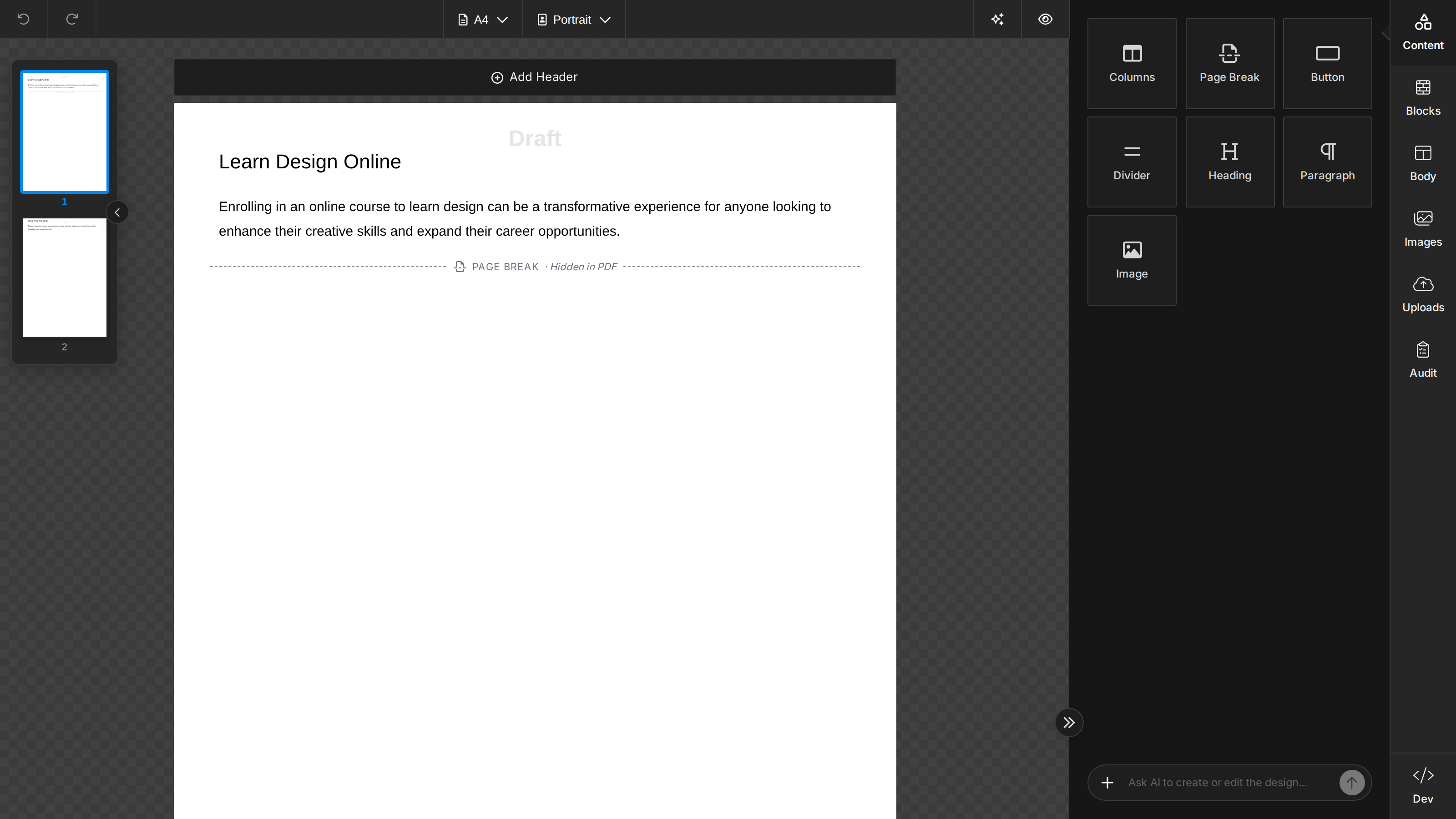
A watermark passed to a single call replaces the default for that call, and watermark: false turns it off:
unlayer.exportPdf((data) => console.info(data), { watermark: false });
You can also set the watermark for one preview:
unlayer.showPreview({ watermark: { text: 'Draft v2' } });
If you request a watermark on a plan without Document Watermarks, or with invalid options, exportPdf doesn't create a PDF and its callback receives an error instead of a url. showPreview refuses it the same way: the preview shows that error instead of the document, and its Download PDF button doesn't download. An unlayer.init default that can't apply, including one with invalid options, is skipped with a console warning instead, so exports and previews keep working.
Cloud API
If you want to generate the PDF on the server-side, you can use our Cloud API.
const fetch = require('node-fetch');

let url = 'https://api.unlayer.com/v2/export/pdf';

let options = {
  method: 'POST',
  headers: {
    'Content-Type': 'application/json',
    Authorization: 'Basic BASE64-ENCODED-API-KEY',
  },
  body: JSON.stringify({
    displayMode: 'email',
    design: {}, // json of your design
    mergeTags: { first_name: 'John', last_name: 'Doe' },
  }),
};

fetch(url, options)
  .then((res) => res.json())
  .then((json) => console.info(json))
  .catch((err) => console.error('error:' + err));
Learn more at Cloud API reference.
For document-mode designs, set displayMode: 'document'. This v2 endpoint preserves pageSize for existing PDF customers, including legacy plans. Passing documentOrientation still requires PDF page-format override access. On Export API v3, selecting a non-A4 document format requires that access as well. Page margin comes from the design's body.values.documentMargin and isn't a separate request field.
body: JSON.stringify({
  displayMode: 'document',
  design: {}, // json of your document design
  pageSize: 'Letter',
  documentOrientation: 'landscape',
});
To watermark a document PDF from your server, pass watermark to Export API v3. It takes the same options as the editor SDK and requires a plan that includes Document Watermarks. When the watermark has been applied, the response data includes "watermark": "custom". On a free plan, whose document PDFs always carry the Unlayer watermark, it includes "watermark": "unlayer" instead, even when you don't pass watermark. The deprecated v2 endpoint accepts the same watermark field and returns the same confirmation.
let url = 'https://api.unlayer.com/v3/templates/export/pdf';

let options = {
  method: 'POST',
  headers: {
    'Content-Type': 'application/json',
    Authorization: 'Bearer unlayer_sk_your_api_key',
  },
  body: JSON.stringify({
    displayMode: 'document',
    design: {}, // json of your document design
    watermark: { text: 'Confidential', position: 'top', opacity: 0.4 },
  }),
};
An API key is scoped to one project. With a Personal Access Token, add ?projectId=YOUR_PROJECT_ID to the URL. See the Export PDF reference for every request field.
Response
The API response will return an uploaded pdf URL.
{
  "success": true,
  "data": {
    "url": "https://.../1593082715347-8LCcNZuuBpU4D92W.pdf"
  }
}