
Image
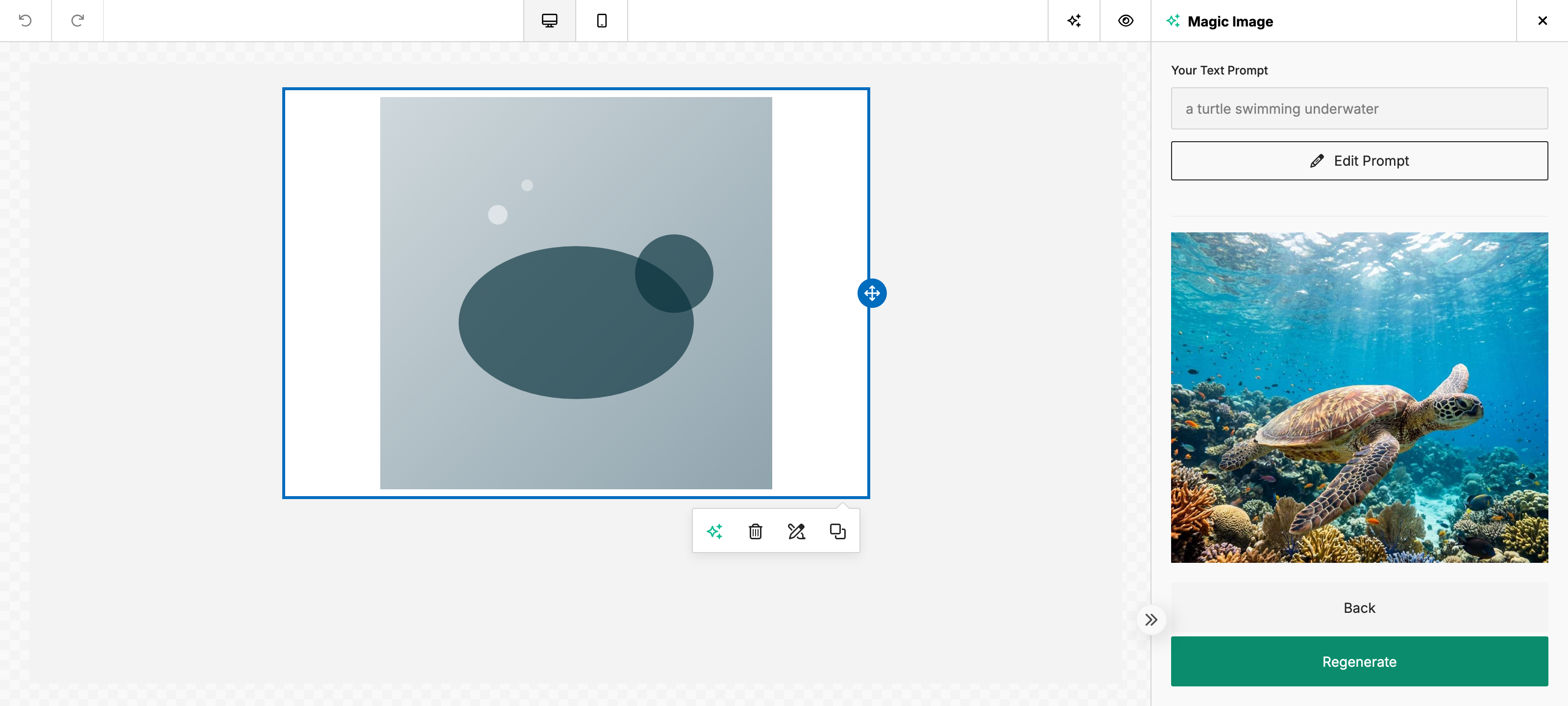
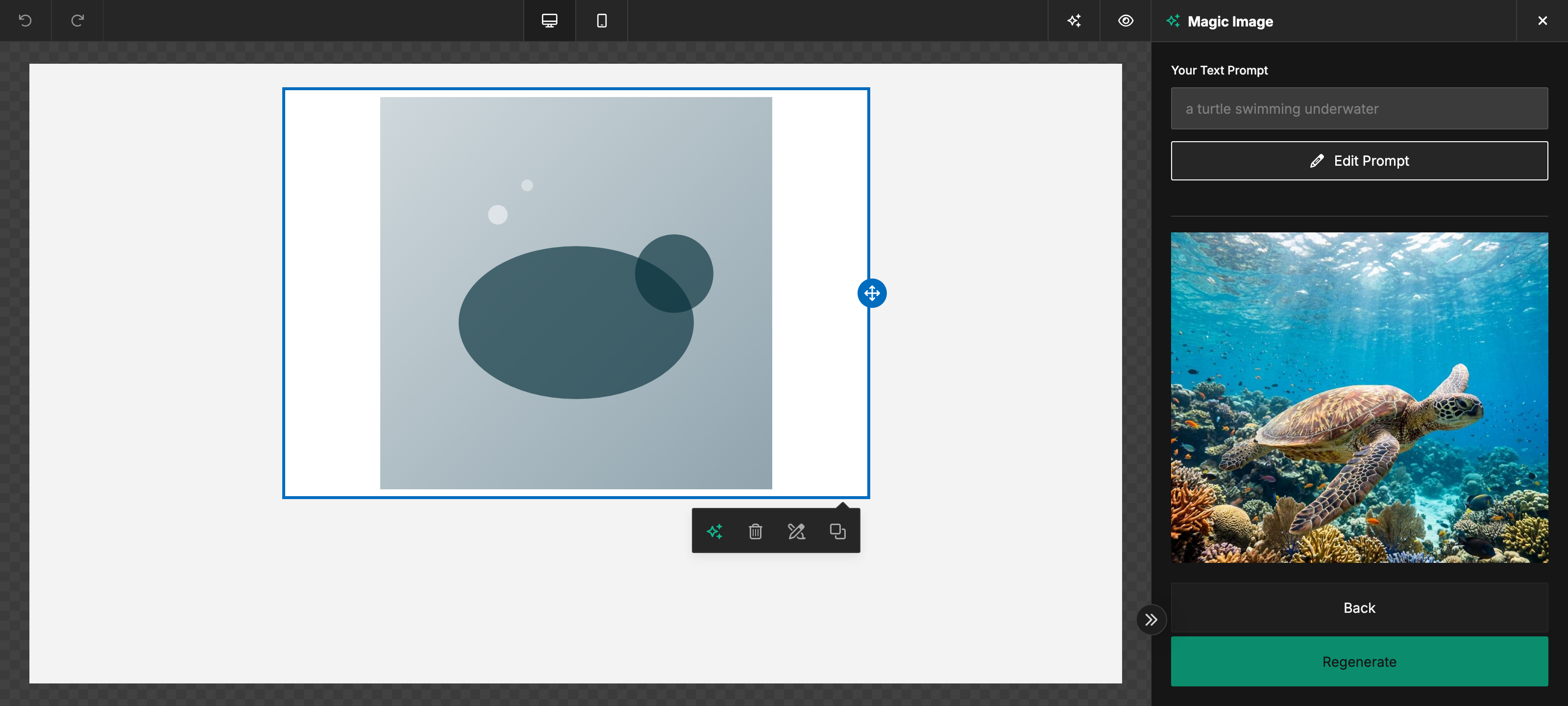
This feature is only available in paid plans. Learn More
Use the AI Assistant chat to find existing photos, create custom images, and edit images. The standalone Image Editor keeps a separate chat for editing the image open in its canvas. Image generation and editing require AI Assistant access in both chats. Legacy Magic Image access alone no longer enables AI editing; manual Image Editor tools remain available.
Find, generate, or edit an image
Open the AI Assistant from the toolbar and describe what you need:
- Find an existing image: “Find a photo of a mountain lake.” The assistant prefers your enabled stock libraries for ordinary image requests and shows results with attribution. Choose Add to design or Replace image, or drag a result into the design.
- Create a custom image: “Generate a watercolor turtle swimming underwater.” The assistant creates one image directly, without a style picker or prompt-scoring step. Describe a style in the prompt when you want one.
- Edit an image: Select an image in the design, or use + → Add files (or Add an image when HTML references are disabled) in chat, then ask “Remove the background.” You can also paste or drop up to 6 PNG, JPEG, WebP, or GIF images totaling no more than 10 MB anywhere over the Assistant panel. Attachments start in selection order. Drag them to reorder, or focus a thumbnail and use the arrow keys. On a touch screen, hold a thumbnail briefly before dragging; swipe to scroll the attachments. Hover or focus a thumbnail to see its number, then refer to “image #1,” “the third image,” or “the last image” in your request.
- Refine a result: Choose Add to prompt under a result to attach it as a reference, or continue with “Make the background blue.” The assistant uses the recent conversation to understand the follow-up.
You can also paste a public image URL with an instruction such as “Remove the background from https://example.com/photo.png.” The assistant checks the image only when editing it. Page links remain page links; a URL without instructions prompts a short clarification. Disabling image uploads also disables pasted-URL image editing; editing selected canvas images and previous results remains available.
Ask for several edits in one request, such as “Make all images black and white.” Each image is edited separately and contributes to the turn’s total credits. Images already completed remain available if another image fails or the request is stopped.
The assistant asks a short question only when the subject or requested change is unclear. Stock search does not silently switch to paid image generation when it cannot find a match.
With an image selected, a request such as “Make the sky blue” targets that image. You can name a different source explicitly, including an attachment number. With nothing selected, describe the existing image and its location: “Remove the background from the product photo below the heading.” You can also specify where a new image belongs, such as “Generate a watercolor house and add it below the welcome paragraph.”
Drop files into the Assistant
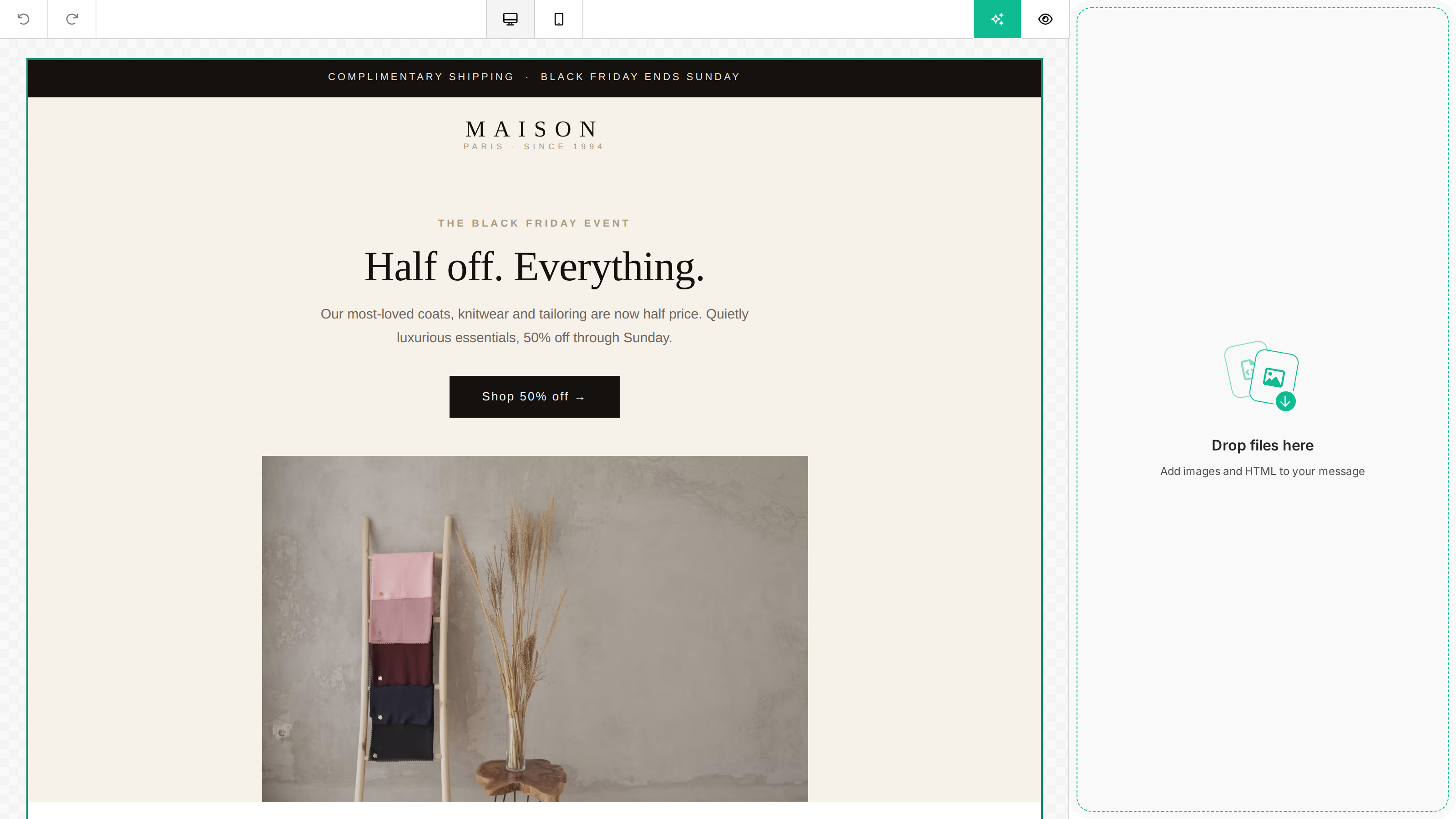
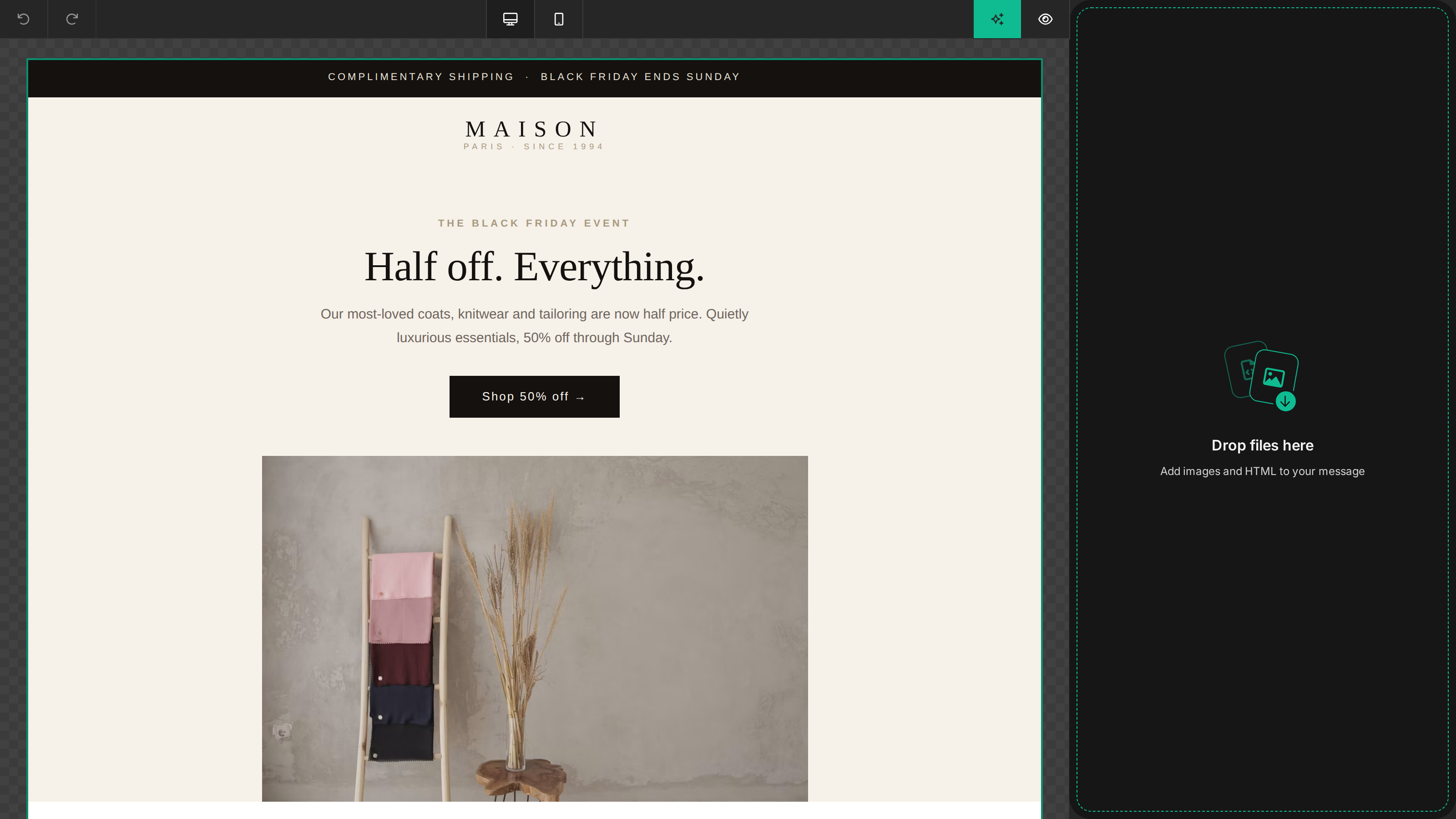
Drag files anywhere over the Assistant, including the conversation or header, or onto the prompt in the Content tab. The drop overlay shows the available actions. Dropping files only stages them; add your instructions and submit when ready. The Content tab stays open until submission, which carries your files and instructions into the Assistant. PNG, JPG/JPEG, WebP, and GIF images use the same uploader and limits as Add an image. HTML/HTM references require features.ai.templateImporter: true and full-template AI Assistant access. You can attach HTML and images together with Add files, or drop them in the same batch. Image uploads still follow features.ai.image.upload.
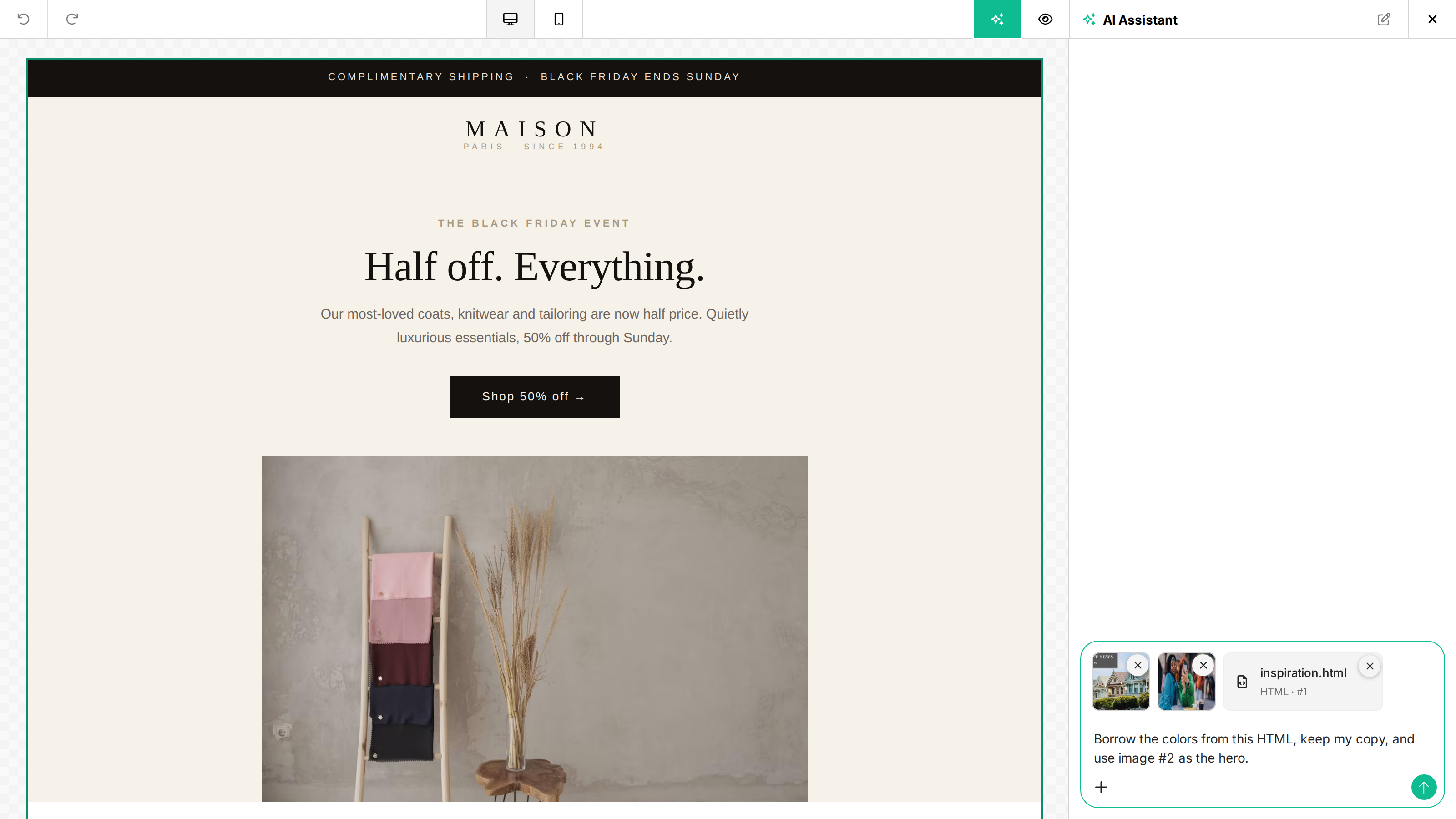
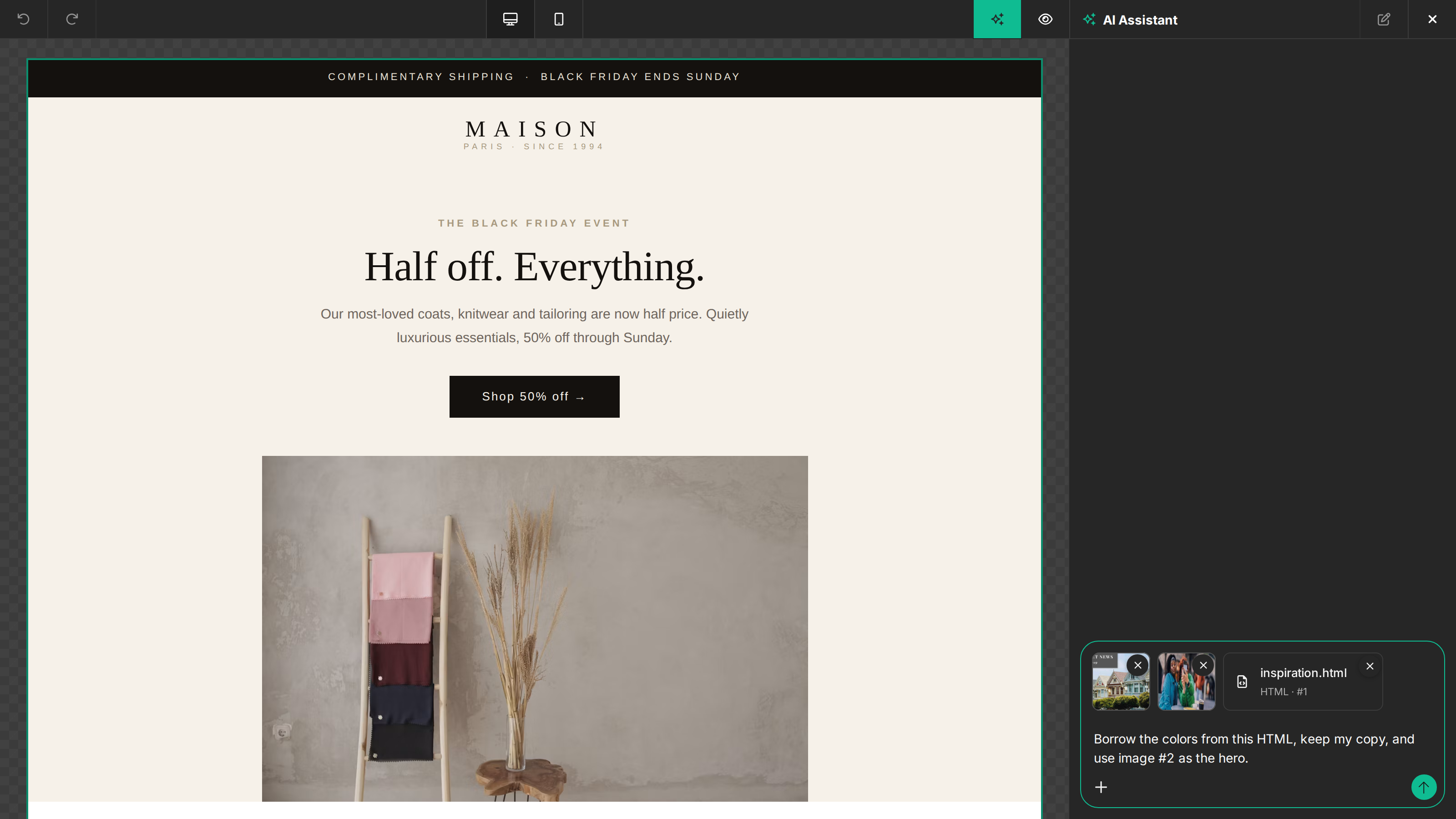
For example: “Use this HTML as inspiration for the colors, keep my existing copy, and replace the hero with image #2.” Or: “Recreate the attached HTML using these two product photos.” The prompt determines whether the assistant adapts the current design or rebuilds it; attaching HTML alone does not change the canvas. With an empty attachment draft, use Import from HTML or image for a straight conversion with replacement confirmation.
To place an attached image without sending a prompt, drag its thumbnail onto the design canvas. This uses the original uploaded image, rather than its thumbnail preview.
Attach up to three non-empty HTML files totaling 5 MB, alongside up to six images totaling 10 MB. HTML appears as named file cards; image numbers follow their thumbnail order. Recent successful HTML references are retained for follow-up turns within the same limits. Older references that no longer fit the design context or cannot be prepared are omitted; reattach a reference if it is needed again. Large HTML sources may also exceed the combined design/context limit after cleanup; simplify the source in that case.
HTML source is sent as structured reference data rather than inserted into the prompt text. Scripts and nonvisual markup are removed before AI processing. Embedded image data is prepared through the importer’s project-storage service, including configured project S3 storage; this server-side preparation does not invoke the browser’s image callback. Separately attached photos continue to use that callback. The HTML file itself is not uploaded as a public asset.
Upload storage and limits
Images attached with Add an image, paste, or drop use the builder’s configured image uploader. By default, files go to Unlayer’s Amazon S3 storage. A project configured with its own S3 bucket uses that bucket instead. When your plan supports custom storage and you register the image upload callback, the callback handles the file bytes and returns the URL used in the prompt. For returned HTTP(S) URLs, Unlayer does not copy those attachment bytes into its own bucket; it may save the URL in the File Manager. If your callback returns inline data: image bytes instead, unchanged placement with HTML references or with generative editing disabled prepares those bytes in project storage. Return a durable HTTPS URL to keep storage entirely in your callback.
When several images are selected, uploads within the queue run one at a time in selection order. The prompt can be sent after all uploads finish. Cancelling a pending attachment stops it from being added to the prompt; it cannot cancel an upload already running inside your callback or storage provider.
Two limits apply:
- Each file must fit your plan’s normal image upload limit, including uploads through a custom callback. This limit is not a public
unlayer.init()option. Your callback can enforce a smaller limit withdone({ error: 'Your validation message' }). - AI operations accept up to six PNG, JPEG, WebP, or GIF references totaling 10 MB. This processing limit still applies with custom storage. The server checks the downloaded bytes for each image operation, including pasted image URLs.
GIF edits use the first frame and return a still image. The uploaded GIF stays unchanged. Its first frame must fit within 25 megapixels and the image-processing byte limit after conversion to PNG. Automatic descriptions also inspect the first frame.
Returned URLs must remain accessible to Unlayer’s AI service for later edits. Private network URLs and expired signed URLs cannot be used. Storage location does not change AI processing: the selected images are sent to the image model provider for the requested operation.
Apply and store results
Click any image in the conversation to open a larger preview. Close it with the close button, Escape, or by clicking outside.
An edit to a template image is applied to that image after upload, even when it was identified by your prompt instead of selected. Generated images are inserted when you specify a destination. Ask for a preview to keep the result in chat. Attachment-only edits stay in chat unless you ask to place them. For stock search, choose Add to design or Replace image to apply your chosen result at the requested destination. Generated and edited images go through the same upload callback as the editor's image picker, so custom file storage continues to work. Chosen stock photos also use that uploader when added to the design or prompt, so the saved URL belongs to your configured storage. Use Undo change below an applied image to restore its previous source or remove a newly inserted image. It applies while the affected image is still eligible for undo; a different loaded design or subsequent manual changes can prevent it. This preserves unrelated edits and does not consume AI credits. The editor’s Undo/Redo controls also remain available.
Stopping a request keeps any images already returned in the conversation. A pending upload does not overwrite a newer manual edit or a different design.
Images upload as soon as you attach them, so they are ready when you submit. Removing a draft attachment does not delete an uploaded file or reverse an embedder's upload callback. Saved images remain available in Uploads; generated results also remain in the current chat. The previous Magic Image panel and its Recents view are no longer used.
Pass a stable user.id when initializing the builder to attribute image and credit usage to the end user. New images report as image_generation; edits report as image_edit in the AI credits usage API.
Use features.ai.image.model to choose an image model or leave it unset to let Unlayer pick. Set features.ai.image.enabled to false to disable image chat and attachments while keeping text/design assistance. The deprecated features.ai.magicImage: false also disables image chat unless image.enabled is explicitly set. Assistant chat image workflows use AI Assistant access.
Standalone Image Editor
Double-clicking an image opens the Image Editor modal. Its AI chat edits the current canvas through the shared image service and keeps a separate conversation. AI changes can be undone in the modal before saving. Model and quality settings are shared; the action switches below apply to the builder Assistant chat. See Image Editor user configuration for end-user attribution.
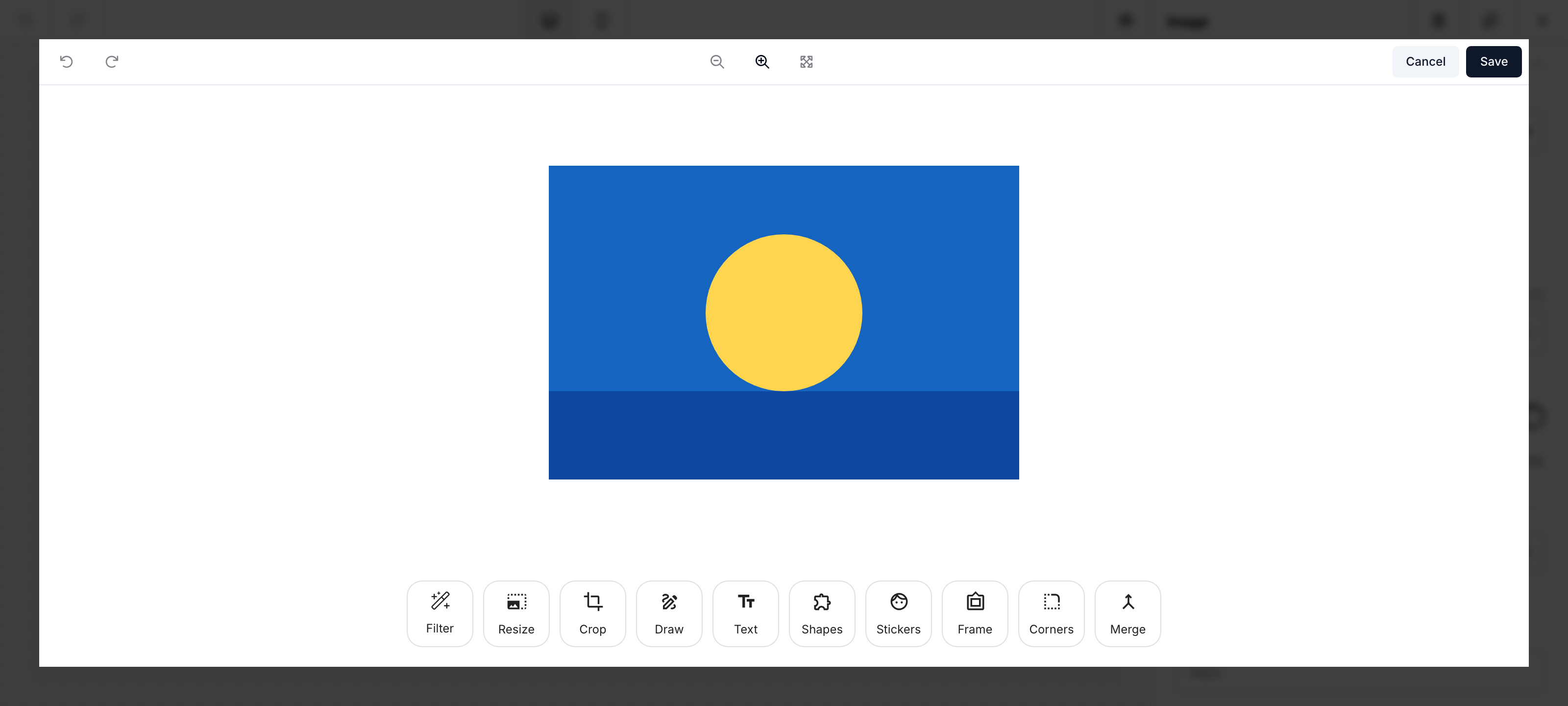
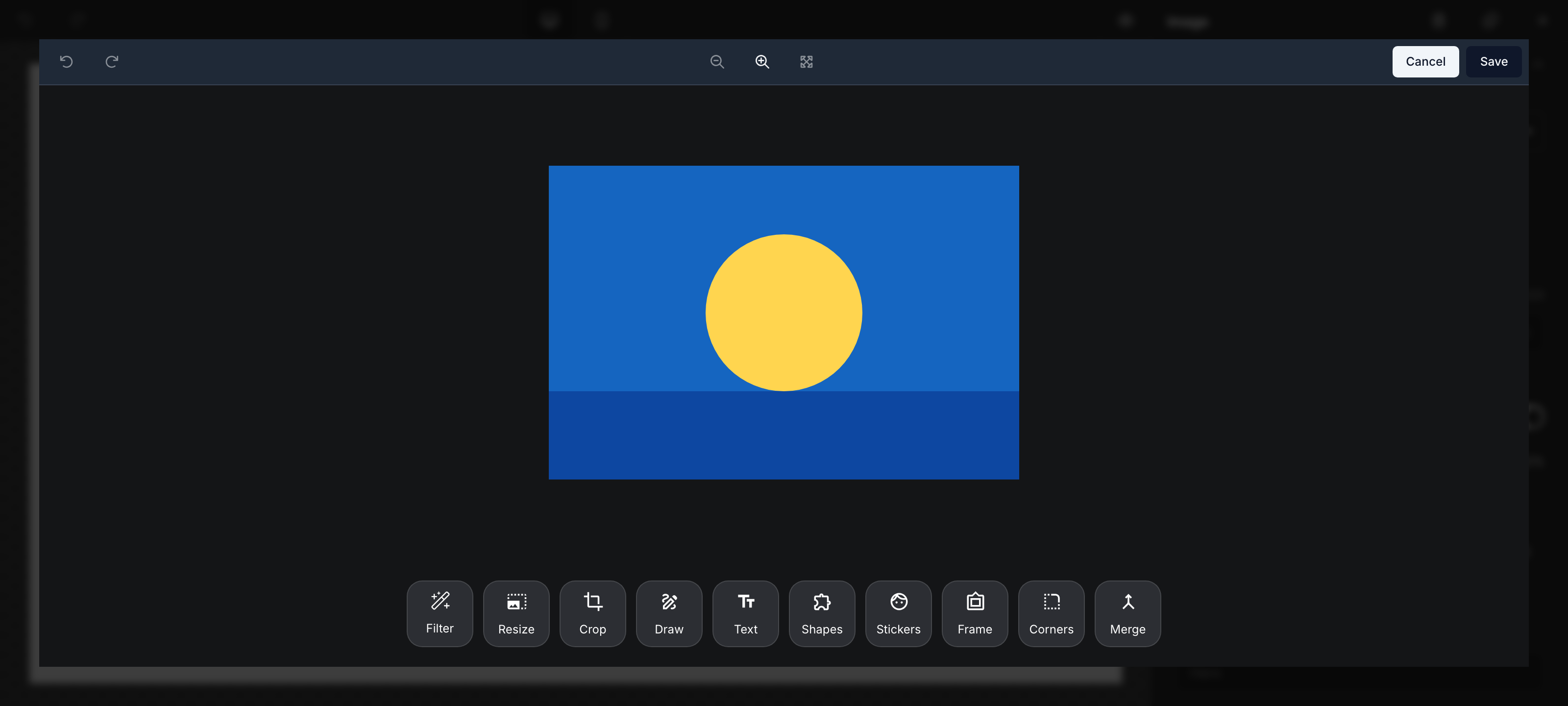
Image Alt Text
Images added or directly changed through AI receive automatic descriptions based on their actual pixels. This includes images applied from the builder Assistant and AI edits saved from its Image Editor modal. Ordinary uploads, manual URL changes, and edits made without AI do not generate descriptions or consume AI credits. An existing description stays unchanged if it is still accurate. Layout or text edits around an unchanged image do not fill in missing alt text or rewrite existing descriptions.
Descriptions are added after the image is applied and use AI Assistant credits. A manual edit, image replacement, language change, or cancellation takes precedence over a pending description. If the image cannot be inspected, no description is invented. Set features.ai.image.altText: false to turn automatic descriptions off; explicit requests remain available.
Ask the AI Assistant to add alt text to one image or several images. The description appears in the image's Alternate Text field and in the exported HTML's alt attribute. This works in the Email, Page, Popup, and Document builders.
How users access it
With no image selected, open the AI Assistant from the main toolbar and ask "Generate alt text for the first image." To fill missing descriptions throughout the design, ask "Add missing alt text to all images." The assistant inspects the requested images and saves descriptions of what they show. Existing descriptions are preserved. To generate replacements, ask "Regenerate alt text for all images." You can also provide the exact description to use.
The assistant inspects images when you explicitly ask it to generate visual descriptions. Supplied descriptions, clearing, translation, and unrelated edits do not need image inspection. A clear generation request proceeds without an extra confirmation. Inspection adds image processing to the normal AI Assistant credit usage.
A request can inspect up to eight images. For larger designs, work on smaller sections. If an image cannot be inspected, the assistant asks for a description instead of guessing from its filename.
Alt text is optional. Images without descriptions remain valid, and changing the layout preserves existing descriptions. To remove a description, ask the assistant to clear it or empty the Alternate Text field manually.
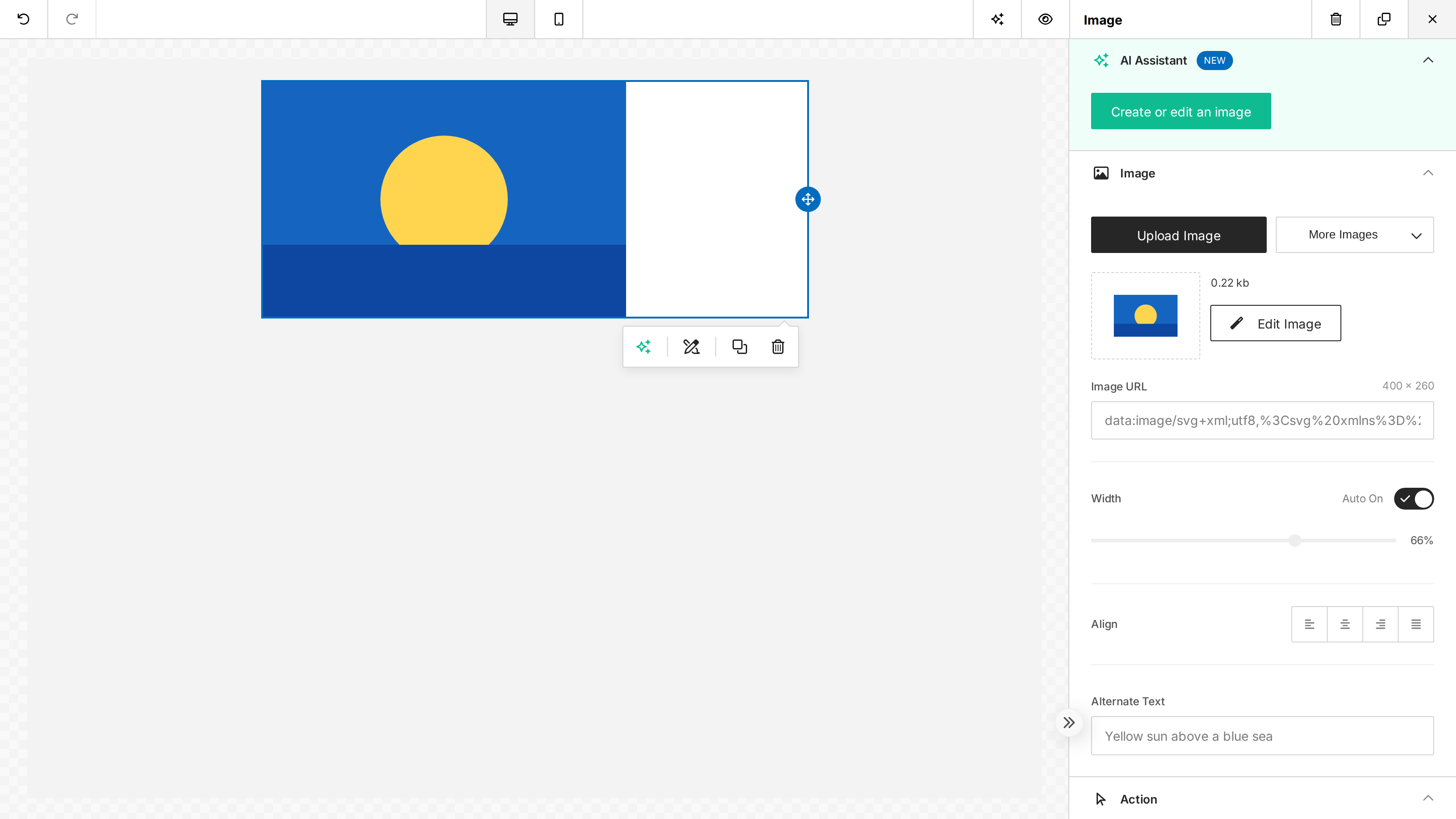
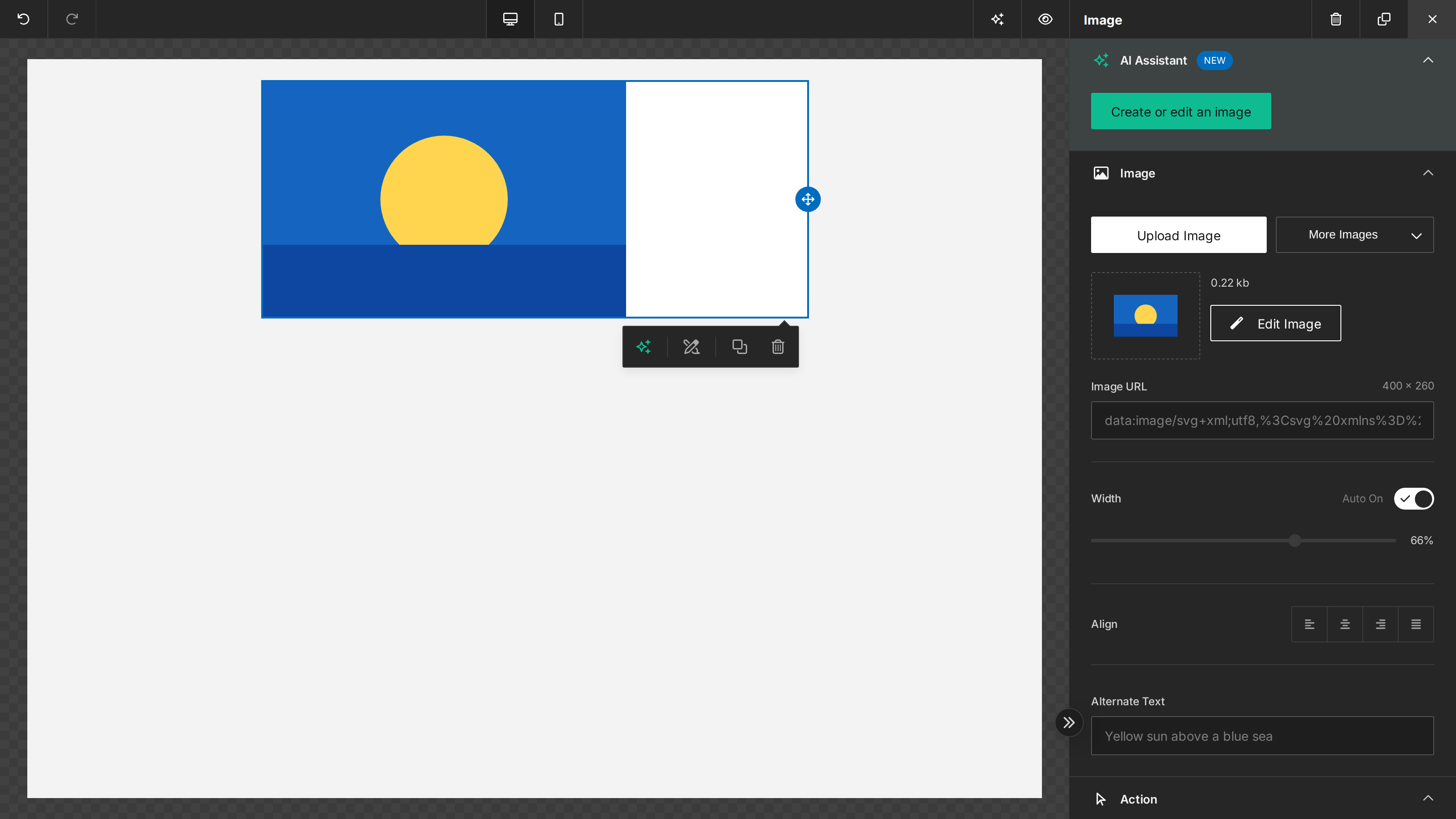
This uses your plan's AI Assistant access and credits; it does not require the legacy Smart Alt Text feature. If the assistant needs more information about an image, provide a description of what it shows. Review the resulting text for accuracy.
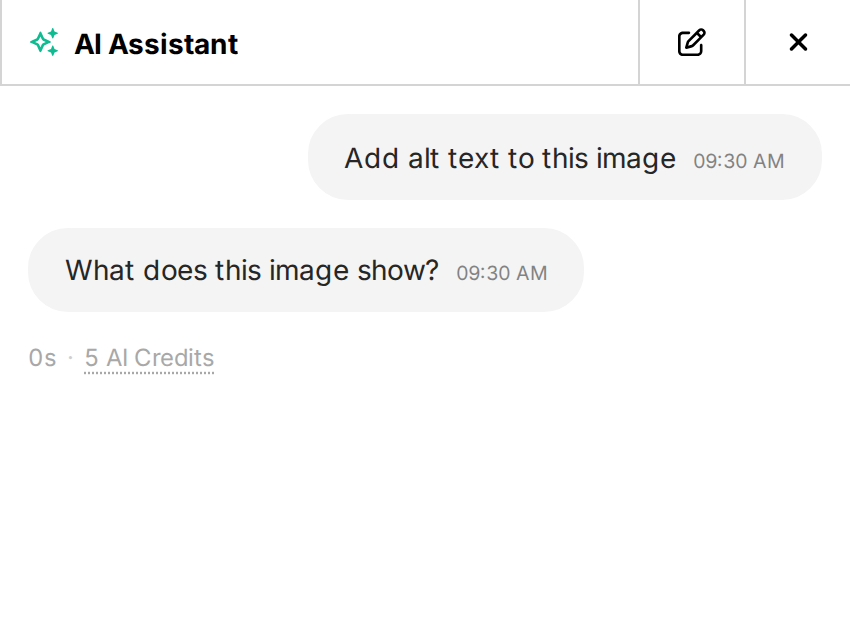
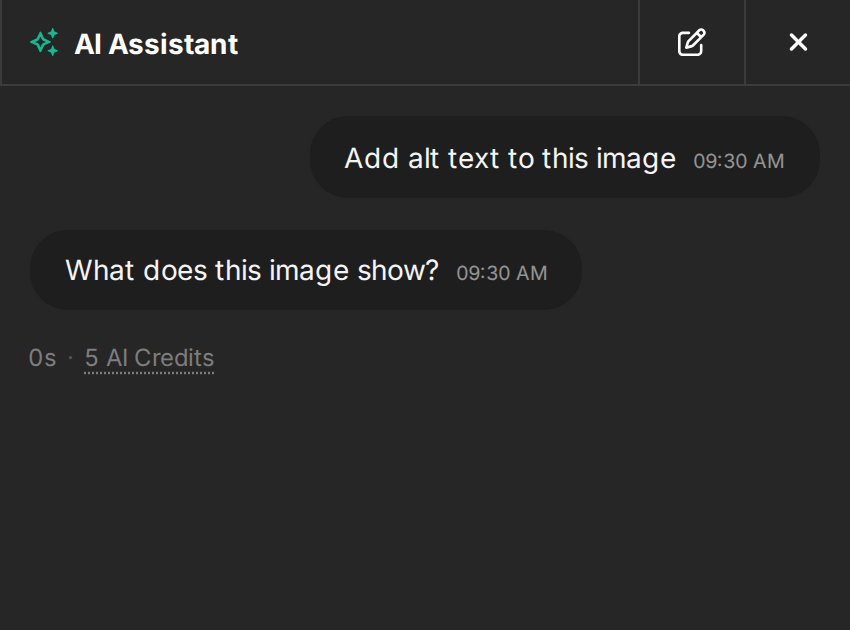
The assistant confirms accepted edits after validation. Replies and clarifying questions appear on their own, without an extra no-change notice. If a completed request makes no changes and has no reply or choices to show, No changes were made to the design appears as a message bubble. Time and credit usage remain below the reply. You can always edit Alternate Text manually.
| With a reply | Without a reply |
|---|---|
  | 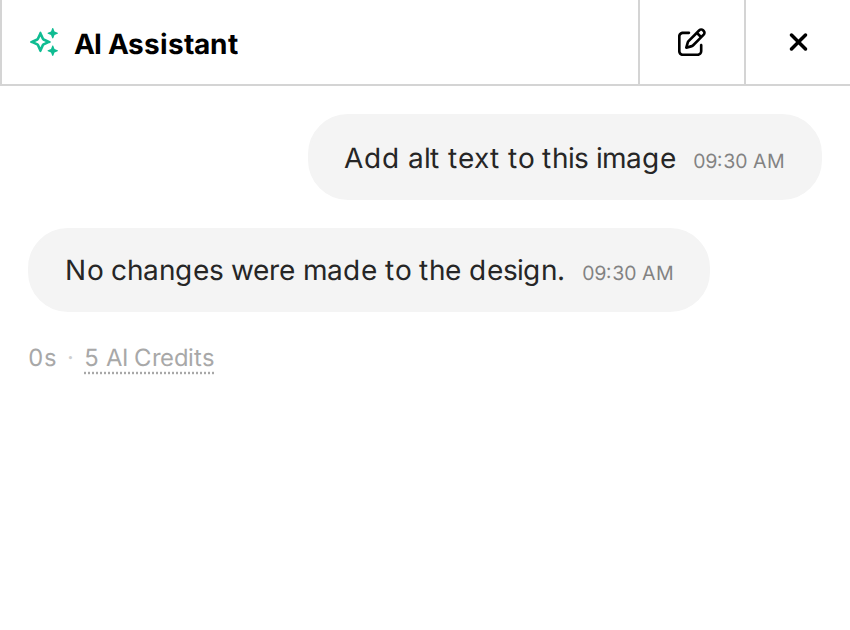 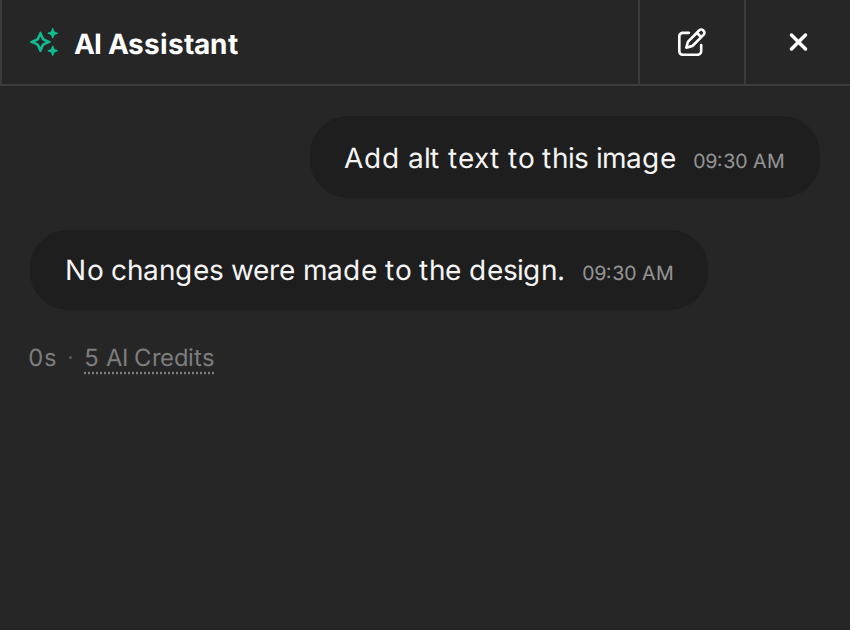 |
Why alt text matters
- Accessibility — screen readers use alt text to describe images to users with visual impairments.
- Deliverability — email clients show alt text when images fail to load (or are blocked by default), which is common in inbox previews.
Configure image actions
Each image action is enabled by default when the editor session has AI Assistant access. All configuration below is optional; existing initialization code continues to work. The Assistant API uses the same features.ai.image option names for supported image actions. Control them independently in unlayer.init():
unlayer.init({
  features: {
    ai: {
      assistant: true,
      image: {
        upload: true,
        generation: true,
        editing: true,
        search: true,
        enableDesignImageTargeting: true,
        altText: true,
      },
      templateImporter: false,
    },
    stockImages: true,
  },
});
image.uploadcontrols the Add an image picker, paste, drop, and pasted-URL edits. Uploads can be used as references or placed unchanged even when generative editing is disabled. It does not prevent editing a canvas image or an earlier chat result.image.generationcontrols creation of new custom images.image.editingcontrols changes to existing images. Add to prompt follows the upload control.image.searchcontrols online search in the Assistant. Search also requires stock-image access andfeatures.stockImages; setting the latter tofalsedisables online search throughout the editor.image.enableDesignImageTargetingcontrols whether image actions can use existing design images and resolve image replacement or insertion destinations. It defaults totrue; set it tofalseto keep generated and edited images in chat until the user applies them. Attachments and previous results can still be edited.image.safeSearchcontrols safe search for online images. It defaults tofeatures.stockImages.safeSearch, ortruewhen that is unset.image.altTextcontrols automatic descriptions for images added or directly changed through AI, including AI edits saved from the builder's Image Editor modal. An explicitfeatures.ai.smartImageAltText: falsealso disables them.image.enabled: falsedisables image actions and automatic descriptions in the builder Assistant chat. The standalone Image Editor keeps its own AI editing configuration;image.altTextcontrols automatic descriptions when its AI edits are saved back to the builder. Setfeatures.imageEditor: falseto hide the Image Editor modal independently; its availability also depends on your plan.
The + button appears only when at least one attachment action is available. HTML references and Import from HTML or image use features.ai.templateImporter, which defaults to false, and require full-template AI access. They also follow features.ai.fullTemplateGeneration. Add files accepts HTML and images together when both capabilities are enabled; otherwise the picker accepts only the enabled types. Dropped HTML stages a reference, and dropped images attach to chat when uploads are enabled. If uploads are disabled and import is enabled, dropping a single supported image stages an import. The explicit import action appears only while the reference draft is empty. Adding references to a staged import keeps its source and instructions in the normal conversation. Both attachment actions are hidden when the host owns generation through ai:assistant:generate. See embedded template import.
Related
- File Manager — where generated images are stored.
- AI Assistant overview — what the assistant does and where users find it.