
Full Template
This feature is only available in paid plans. Learn More
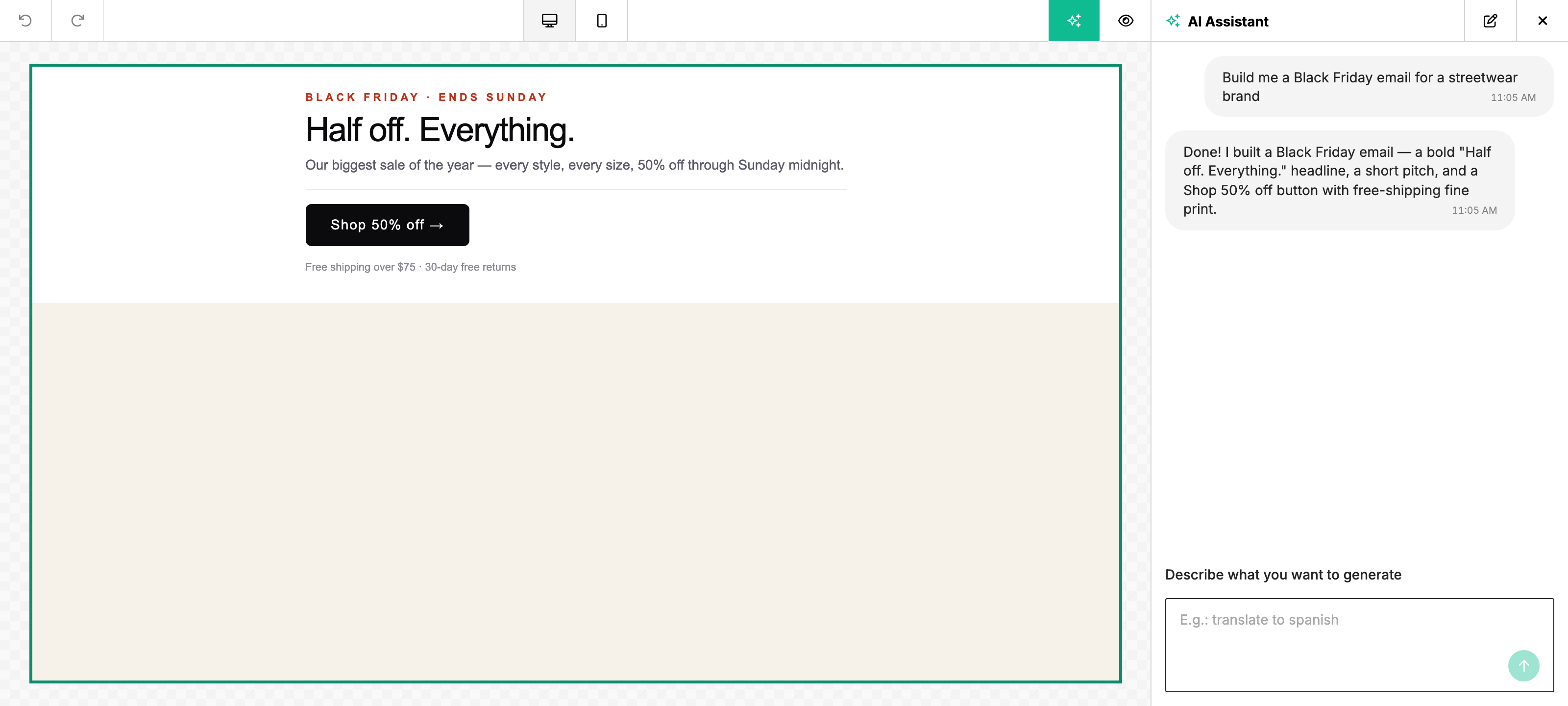
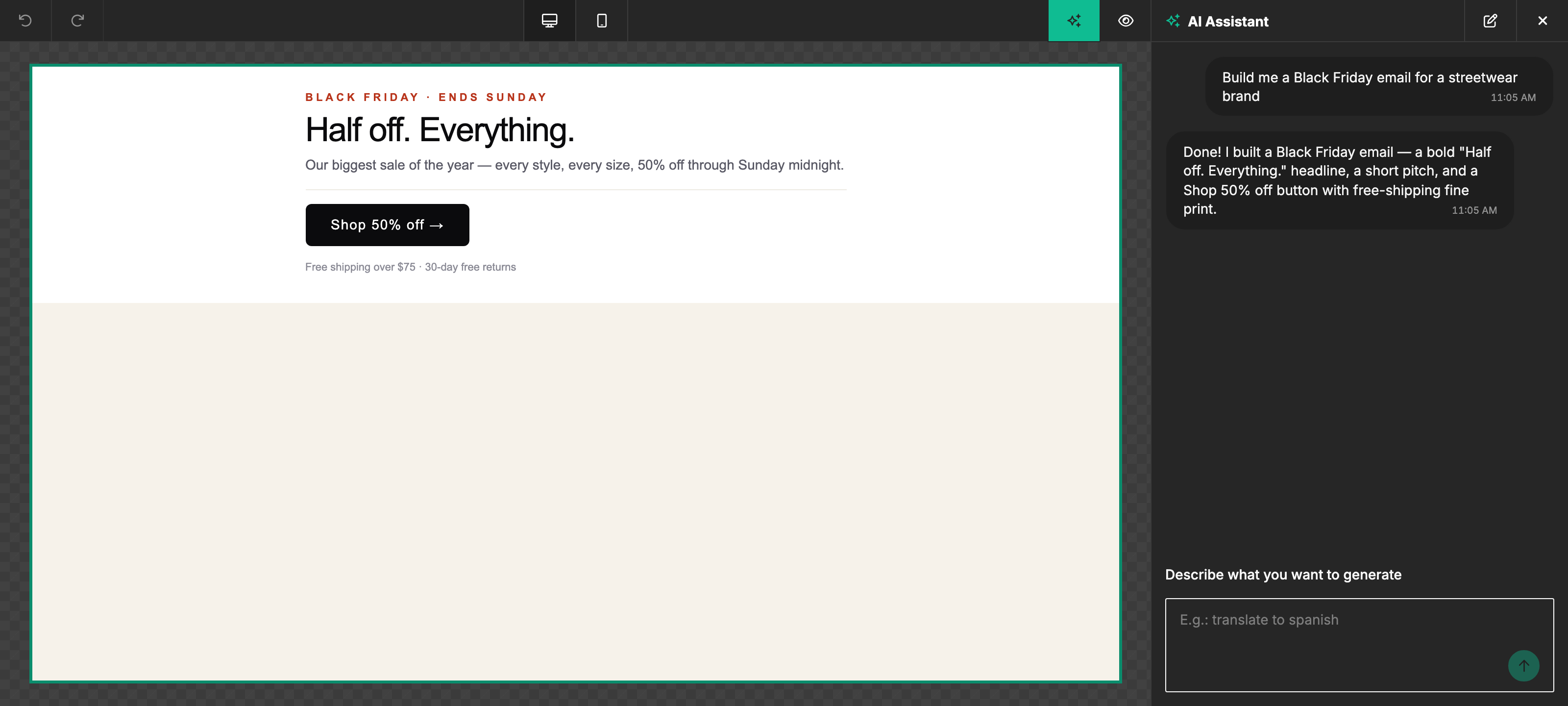
The AI Assistant can generate or restyle an entire template in a single turn — not just a row, content block, or text selection. This is the heaviest design-quality work the assistant does, but also the easiest and most powerful path for a user to go from a blank canvas (or an existing template that needs a full overhaul) to a finished design.
When it shines
- Starting a new template from scratch — "build me a Black Friday email for a streetwear brand, dark mode, with a hero, three-column product grid, and a footer" → the assistant produces the whole layout in one shot.
- Restyling an existing template — "keep the same content but switch this from a casual newsletter to a corporate enterprise tone" → multi-row restyle in a single turn.
- Bulk content + layout edits — anything that touches the body as a whole (translating an entire email, swapping the brand voice, regenerating around a new product).
Template permissions
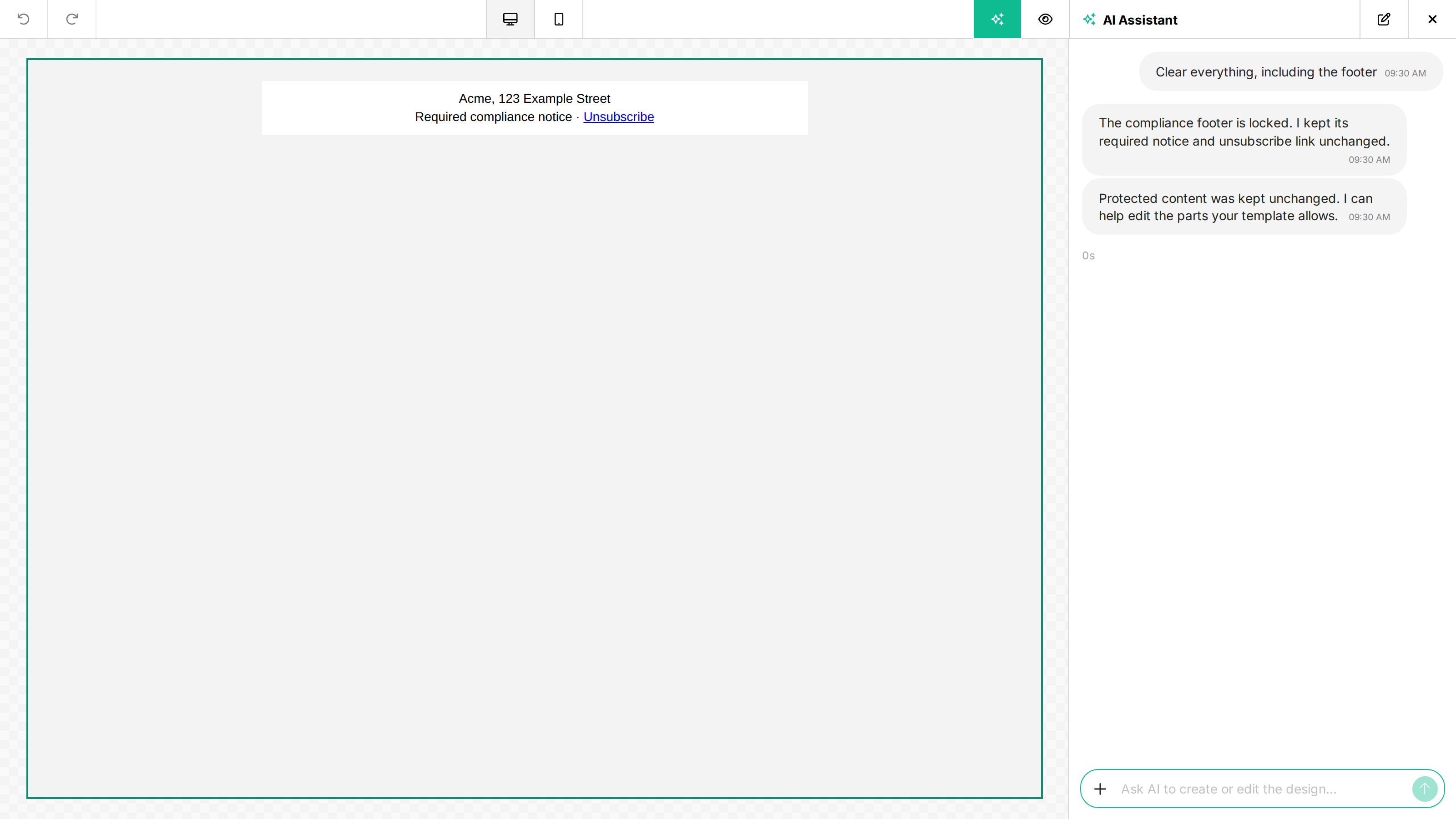
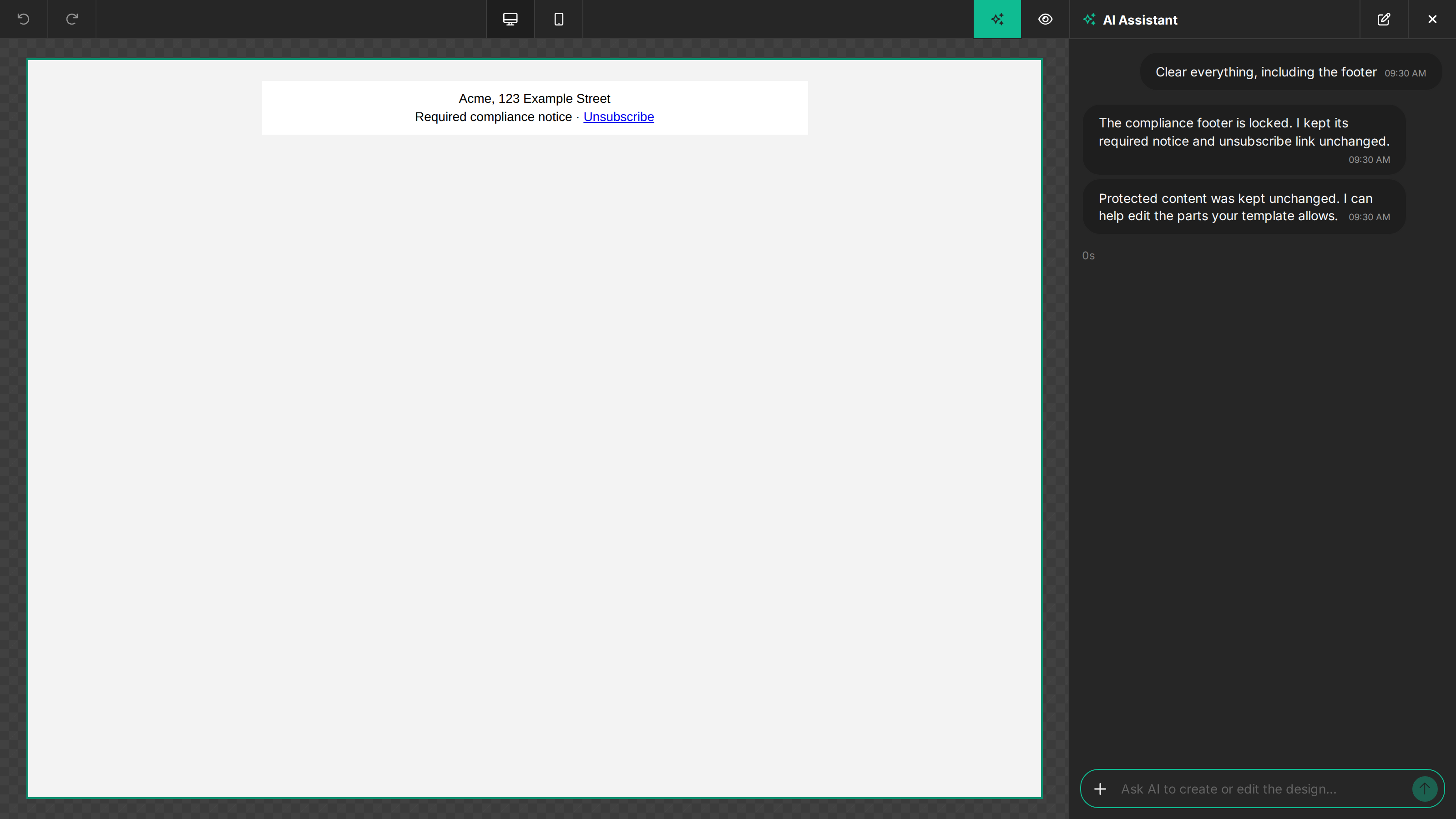
The AI Assistant has the same editing access as the user. In designMode: 'live' (the default), locked elements and their content stay intact, including required footers and custom blocks. Requests such as “clear everything” or “ignore the locks” do not override those restrictions. The assistant can remove editable content while keeping the containers needed to render protected content.
Document headers and footers follow the same permissions as rows in email, web, and popup designs.
Other template permissions apply independently: Deletable, Draggable, Duplicatable, Selectable, and Hideable restrict their respective actions. A non-deletable block can still be edited when its other permissions allow it. Disabled custom properties and properties locked by a style guide stay unchanged. Hidden options alone are not locks.
In designMode: 'edit', administrators and the assistant can edit or delete locked elements. Use live mode when end users must respect template restrictions.
Full-template generation supports both design modes. The conversation stays active while the generated design streams onto the canvas, so you can continue with a follow-up request after it completes.
The editor checks AI results before applying them, including results from a custom generation callback. Full rewrites of protected designs wait for a complete result, so an incomplete stream cannot temporarily remove required content. The assistant explains when protected content is kept. Allowed edits are retained even when another requested edit is blocked. If permissions prevent all changes, the design stays unchanged and the turn may use zero AI credits when it is within the protected no-change waiver ceiling.
Direct generation requests
For /v3/templates/generate, provide the existing design in context.fullDesign and the builder mode in context.designMode (live by default; edit for administrators). Custom integrations can supply context.elementPermissions as a list of { id, permissions } entries. Each permissions object can include disabledValues listing properties disabled on every device, disabledBaseValues for base properties, and disabledDeviceValues mapping devices to protected effective properties. IDs must be unique. An object keyed by element ID is also accepted for compatibility, but use the entry list for arbitrary authored IDs so they remain JSON values rather than object keys. These fields are application context, not instructions the model may change. The editor sends them automatically.
The JSON response and the stream's data-complete metadata may include protection: { preservedIds: [...], outcome: "unchanged" | "partial" } when protected content was retained. outcome is present when the server verifies that edits were blocked: unchanged means no effective edit survived; partial means allowed edits survived and normal billing applies. For an unchanged result, usage.aiCreditsUsed is 0 only when the request's normal aggregate charge is at most 200 credits. Preserved IDs alone do not imply a credit waiver. Apply the returned design rather than the model's raw tool input. These checks protect supplied design data; callers remain responsible for authenticating users and choosing the appropriate mode.
Tradeoffs
Full template generation does more work than a per-block edit, and that shows up as:
- Slower. A full template turn typically takes tens of seconds (sometimes longer for very large designs), versus a few seconds for a single content rewrite. The assistant has to reason over the whole layout, propose a structure, and emit a much larger payload.
- More credits per turn. A full-template turn consumes meaningfully more credits than a per-element edit (see Pricing).
- More moving parts. The pipeline has more steps — schema validation, multi-step planning, larger context windows. That means more surface for transient provider hiccups; the automatic fallback chain handles most of these silently.
For users iterating on a single block or paragraph, per-element edits are almost always the better answer — they're faster, cheaper, and more predictable.
Disabling full template generation
If the cost or latency profile doesn't fit your product — or you want to keep the assistant available for fine-grained edits while removing the heavyweight option — set features.ai.fullTemplateGeneration to false in unlayer.init:
unlayer.init({
  features: {
    ai: {
      enabled: true,
      assistant: true,
      fullTemplateGeneration: false,
    },
  },
});
When disabled:
- The template-level "generate" affordance disappears from the editor.
- Row, header, footer, content-block, and text-level edits remain fully available.
This flag applies to everyone who loads the editor. To allow full template generation for some
end-users and not others, sign the permission on your own server and pass it as
user.featurePolicyToken. See
Restricting Features Per End-User.
Disabling full-template generation is a product and cost choice, not a content protection requirement. When it remains enabled, full-template edits still follow template permissions in live mode.
You can also vary it per surface — turn it on in a power-user editor but off on a customer-facing embed where cost predictability matters more — by passing different features.ai.fullTemplateGeneration values to each unlayer.init call.
The AI Template Importer always produces a full template. In the embedded builder, its AI Assistant action appears only when features.ai.templateImporter is true, follows features.ai.fullTemplateGeneration, and the host has not registered ai:assistant:generate. Disabling either flag or registering that host-owned generation callback hides the embedded action, but does not change the Console importer or the Template Import API.
Why disable it?
The most common reason is cost predictability. Full template generations have the largest per-request credit cost on the platform, so a project that opens the assistant up to non-power users may want to cap usage to the cheaper, faster per-element flows. Other reasons embedders cite:
- Latency budget — keeping every AI turn under a few seconds for a snappier UX.
- Output consistency — per-element edits respect the existing design more tightly; full generations re-author large parts of the layout.
- Plan tier gating — exposing full template generation only to higher-tier customers, while keeping the per-element assistant on every paid plan. Because this varies per end-user, express it as a signed feature policy.
Default behavior
When the AI Assistant is on, full template generation is enabled by default — no extra flag needed. You only need to set features.ai.fullTemplateGeneration if you specifically want to turn it off while keeping the rest of the assistant available.
Related
- Row — narrower scope when full-template is overkill.
- Text — single-block edits for text, button, and heading tools.
- Pricing — credit cost per request type.
- Full vs Simple schemas — the assistant reads and writes the compact Simple form of the design JSON; the editor converts to and from the Full form around each turn (the schema-validation step in the pipeline above).
- Events & Callbacks —
ai:assistant:on:successreports the per-turn duration so you can see how much wall-clock time a full template turn costs. - Content Protection — apply live-mode permissions to every editing scope.