
Custom Tools
This feature is only available in paid plans. Learn More
Embedders can register their own content blocks via unlayer.registerTool(...) — see Custom Tools for the registration API. The AI Assistant understands and edits these blocks too, with one configuration step for the cases it can't introspect on its own.
Automatic support
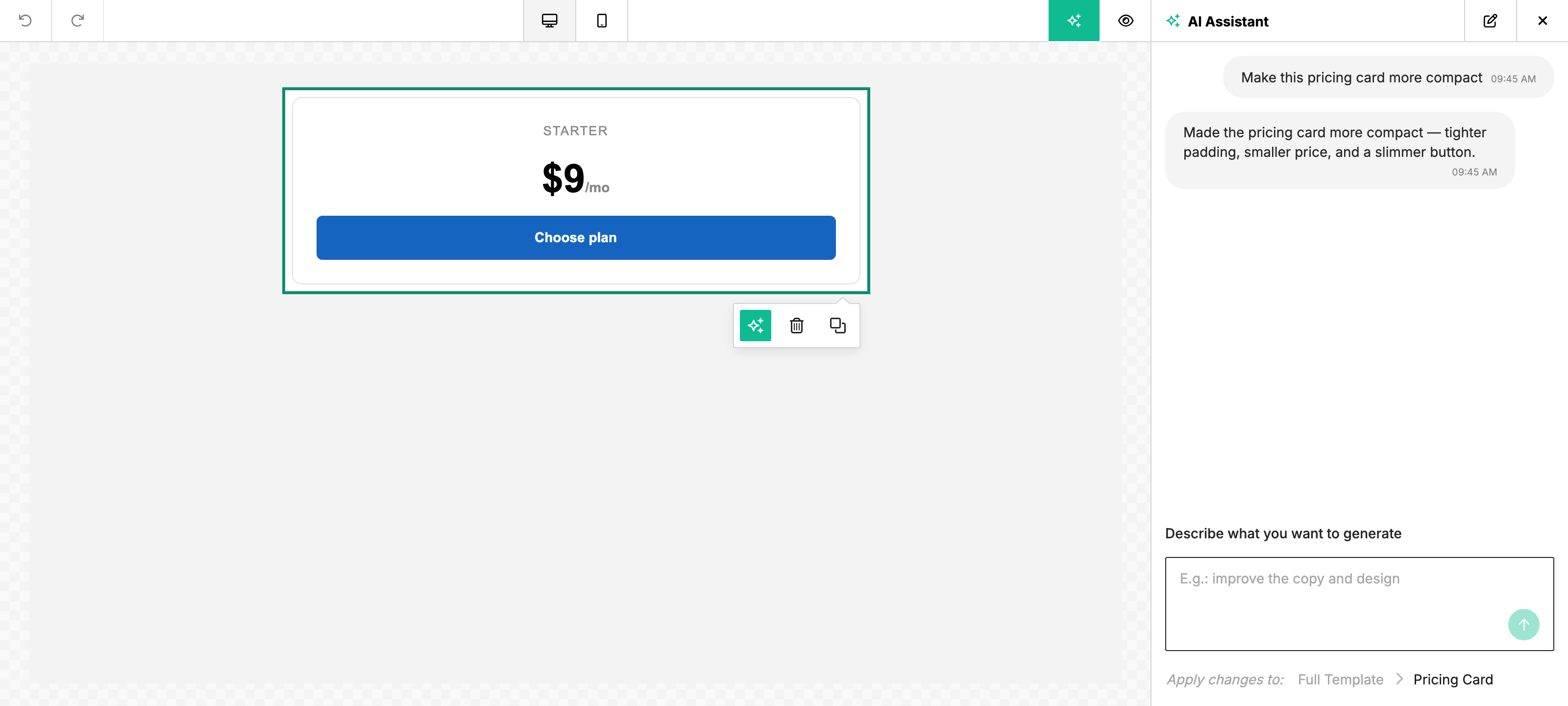
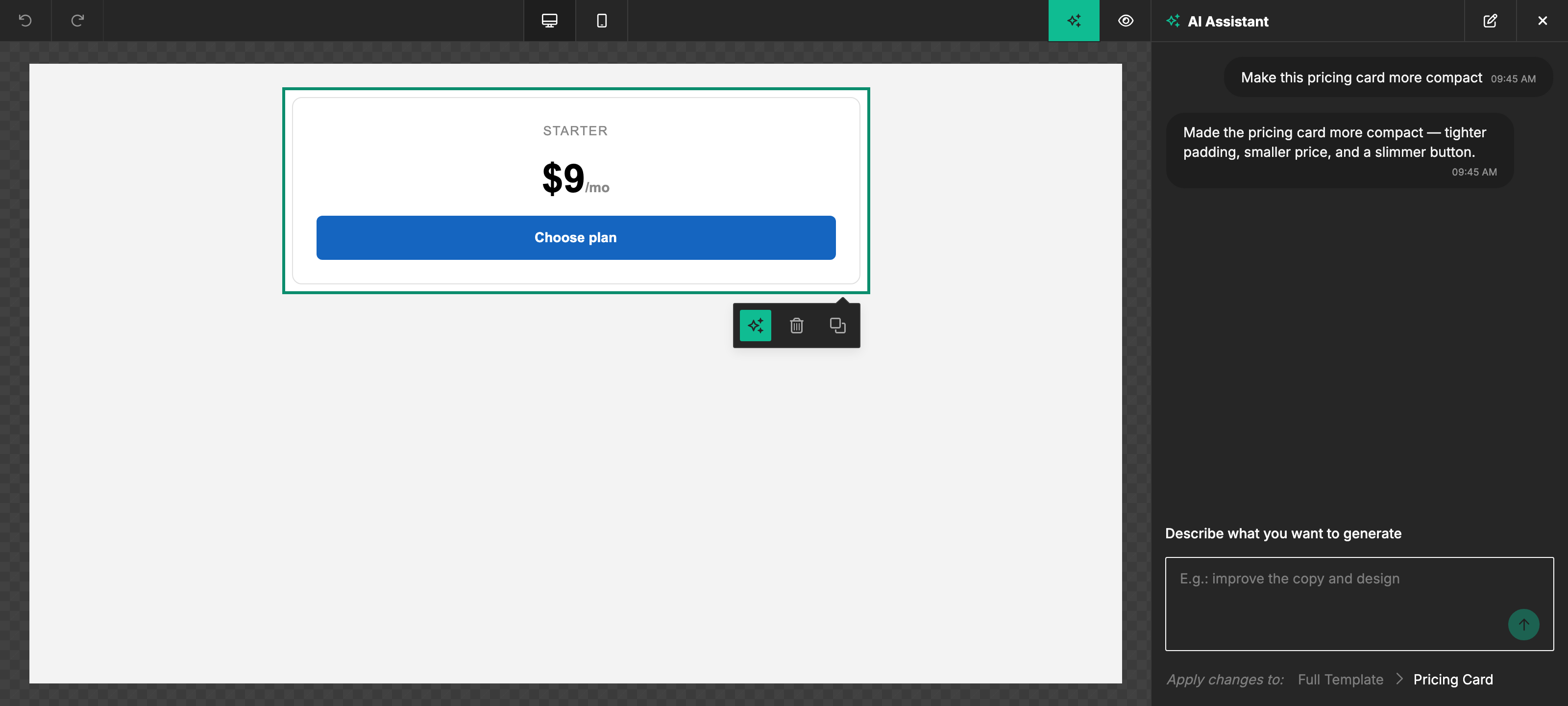
If your custom tool only uses Unlayer's built-in property editors (text, color, font, link, image, dropdown, checkbox, slider, etc.), it works with the AI Assistant automatically. Drop the tool into a design, ask the assistant to edit it, done.
Opt a custom tool out
Set supportedByAI: false when registering a custom tool to remove direct AI
support for that tool:
unlayer.registerTool({
  name: 'compliance_footer',
  label: 'Compliance Footer',
  supportedByAI: false,
  // options, values, and renderer...
});
This option belongs to custom tool registration. It is not a supported way to
disable a built-in tool type, so setting tools.button.supportedByAI does not
remove Button from the Assistant. Lock the specific built-in content that must
remain unchanged, or disable the Assistant for that editor.
supportedByAI: false prevents a user from targeting the custom tool directly,
but it is not a hard protection for an existing instance during a whole-design
rewrite. For content that must remain unchanged, also mark the saved content as
locked. Full-template generation follows that lock in live mode. See
Protect content from AI changes.
Custom widgets and property editors
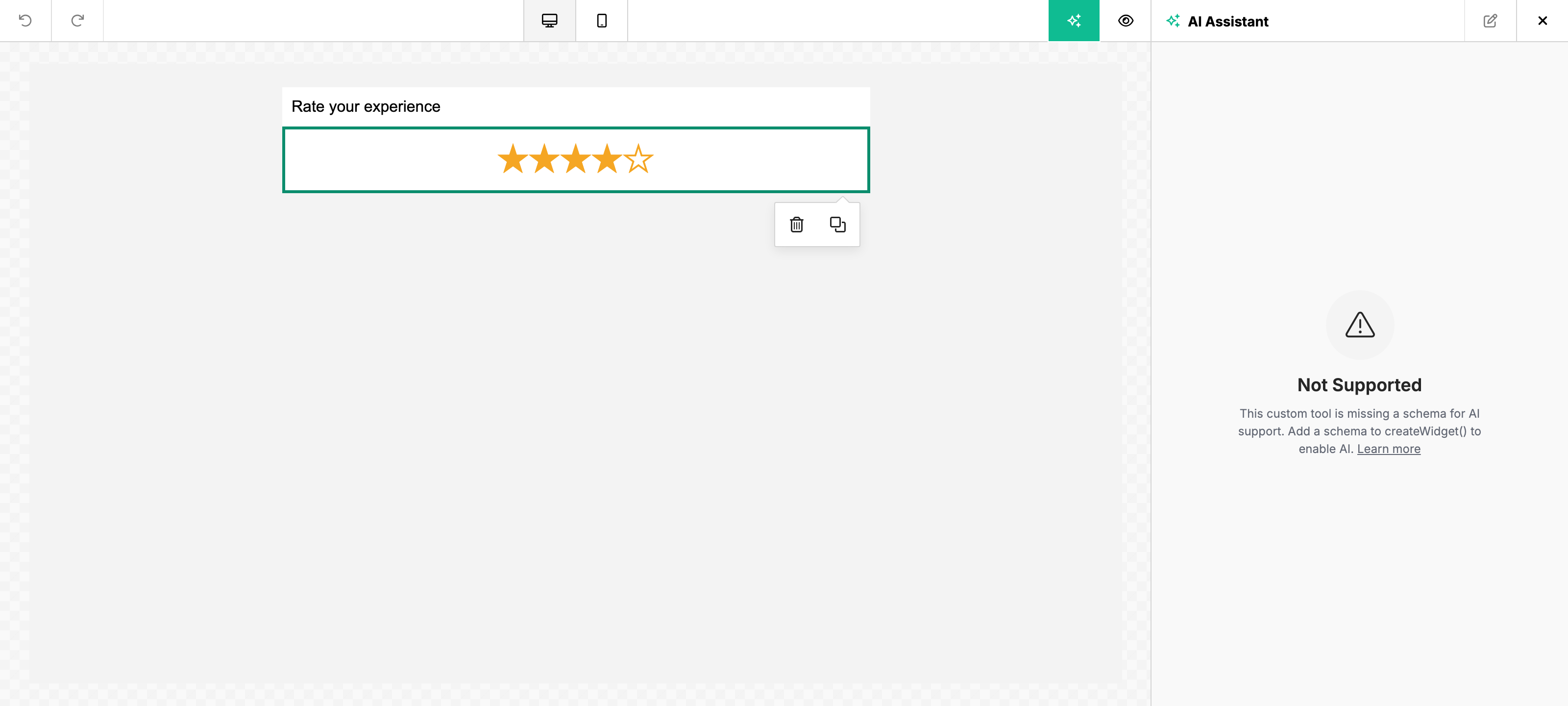
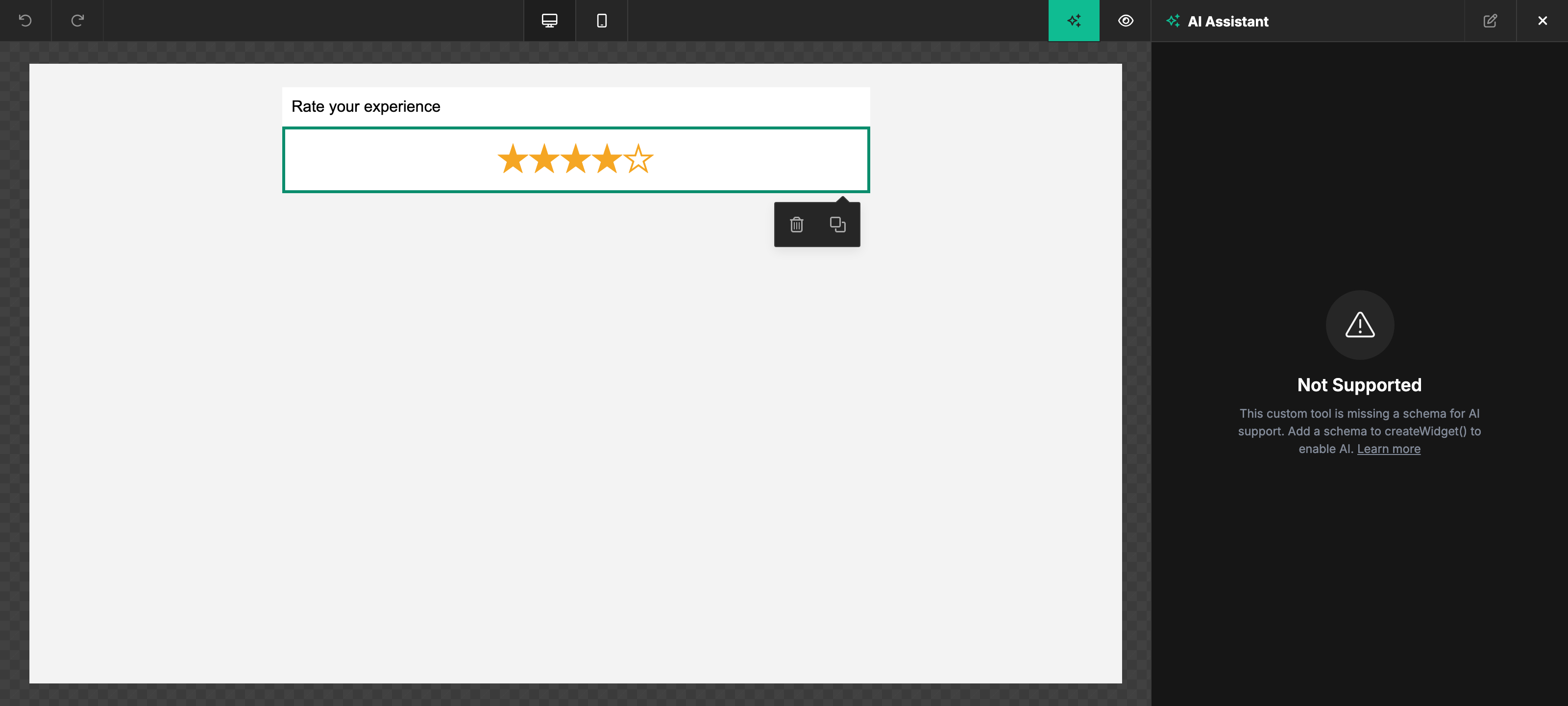
When a property uses a custom property editor built with unlayer.createWidget(...), the assistant can't infer the shape on its own — the widget renders arbitrary UI and stores arbitrary values that Unlayer doesn't know about. In that case, you declare the shape explicitly by passing a schema field on the widget, not on the tool. The schema lives next to the widget's mount and render functions:
unlayer.registerPropertyEditor({
  name: 'my_color_picker',
  Widget: unlayer.createWidget({
    schema: {
      type: 'string',
      description: 'Hex color value, e.g. "#FF5733".',
    },
    render(value) {
      /* return HTML for the editor */
    },
    mount(node, value, updateValue) {
      /* wire up the editor */
    },
  }),
});
The schema is a JSON Schema describing the value the widget produces. The assistant uses it to understand what the field accepts and to write valid values into it. See Custom Tools → Custom Property Editor for the full registration API and a complete example.
Without a schema on the widget, the assistant skips properties backed by that custom editor — it surfaces a message to the user explaining the property isn't AI-aware instead of trying to write into a structure it doesn't understand. With the schema, those properties become first-class targets for the assistant.
Schema tips
- Use
descriptionon the schema (and on nested properties when the value is an object) — the assistant reads descriptions like prompt instructions, so a sentence meaningfully improves output quality. - Constrain enums (
enum: [...]), formats (format: 'uri' | 'email' | 'date-time'), and ranges (minimum,maximum) where you can. Tighter constraints produce fewer invalid edits. - Mark fields
requiredonly when the value genuinely won't render without them. Optional fields give the assistant room to leave existing values untouched. - Keep nested objects shallow. Deeply nested schemas work, but a flatter shape is easier for the assistant to reason about and produces more predictable edits.
Related
- Custom Tools (registration API) — how to register a custom tool with Unlayer.
- Custom Property Editor — the full
createWidget+registerPropertyEditorreference. - Design Schema — how custom tools appear in the design JSON.
- Protect content from AI changes — live-mode permissions across every editing scope.
- AI Assistant overview — what the assistant does and where users find it.
Template permissions
Custom blocks follow the same template permission rules as built-in blocks. In live mode, locked blocks remain intact and disabled custom properties cannot be changed by the assistant. hidden only controls an option's presentation; it does not make its value read-only. Edit mode gives administrators and the assistant unrestricted editing access.