
Text
This feature is only available in paid plans. Learn More
The AI Assistant treats Text, Button, and Heading as one family of text tools. When asked to write or rework any of them — through a freeform prompt, a layer-control Sparkles button, or a one-tap quick action — the behavior is the same:
- It reads the surrounding section (heading, body, image alt text, nearby copy) and writes content that fits the context.
- It preserves inline formatting and merge tags. Bold spans, links, and
{{ merge_tags }}come back intact. - It returns suggestions inline as clickable pills the user can pick from.
The only thing that changes per tool is the expected output: a paragraph for Text, a short label for Button, a punchy line for Heading. Everything else on this page applies to all three.
How users access it
After dropping or selecting a Text, Button, or Heading content block, the user can either:
- Open the AI Assistant chat and ask for what they want ("shorten this paragraph and make it friendlier", "suggest a CTA for this section", "write me a heading for this section").
- Select the block and click the Sparkles button on the layer control to ask scoped to that element.
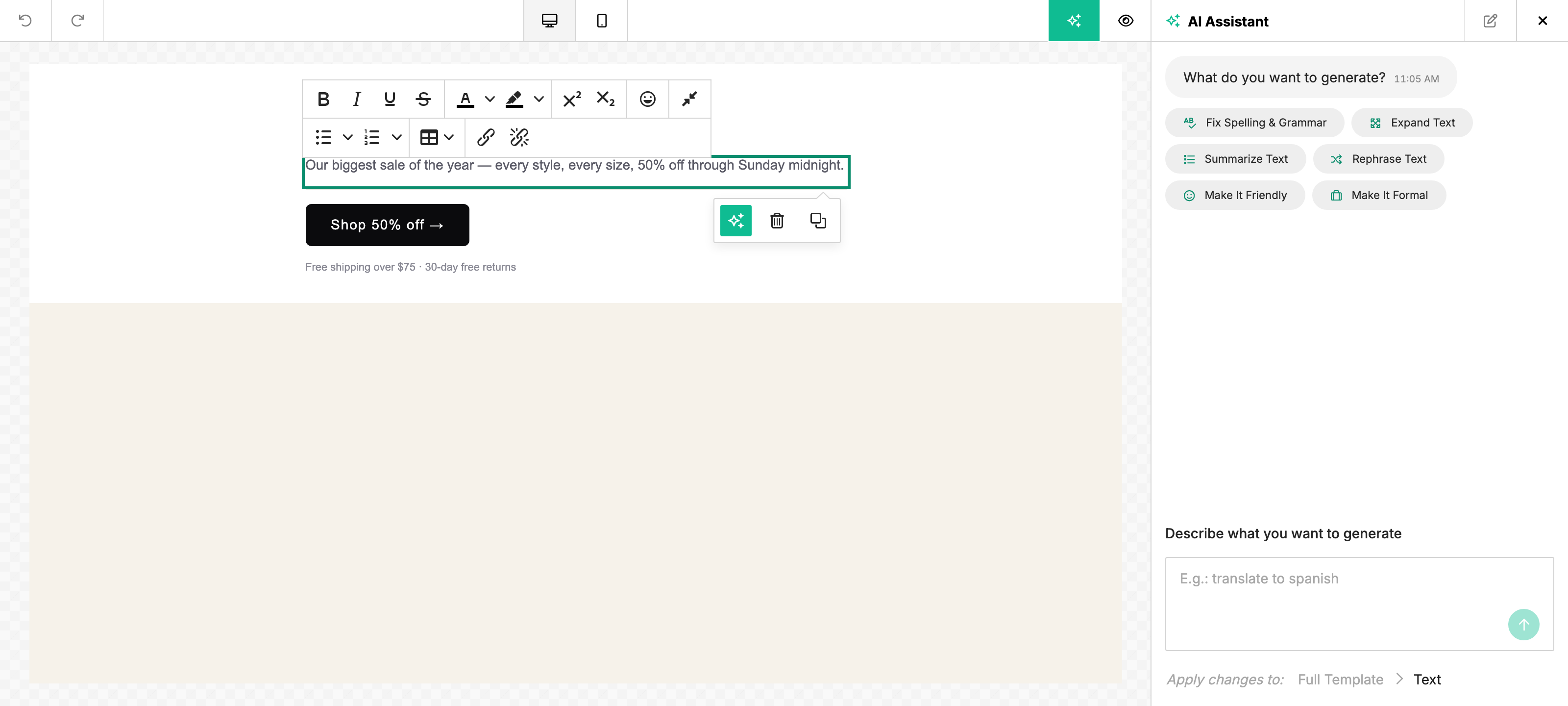
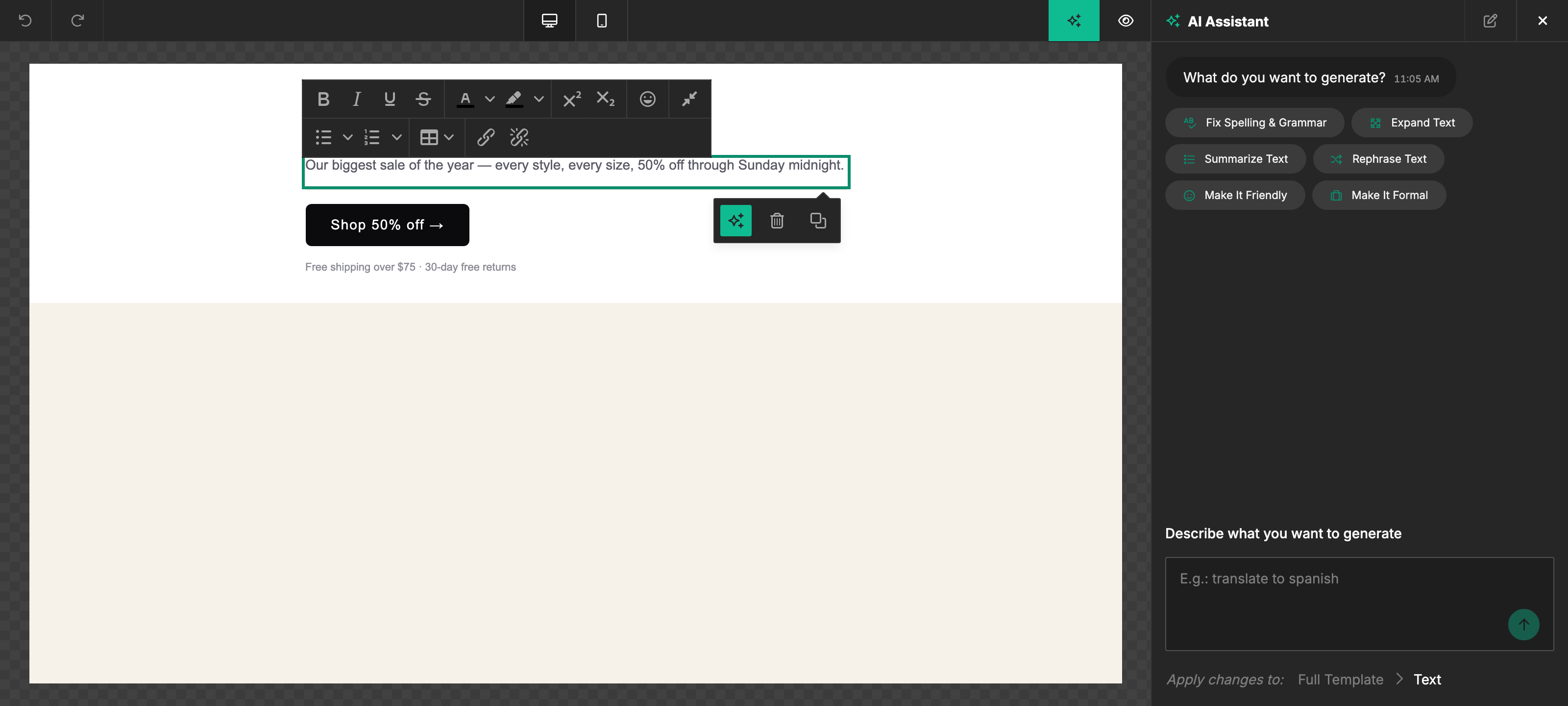
- On Text specifically: open the inline quick-action menu and pick a one-tap action (Fix Spelling & Grammar, Summarize Text, Expand Text, Make It Friendly, Make It Formal).
Common rewrites
The quick-action menu on Text covers the most common rewrites in one click. Buttons and headings have the same intents available via chat:
| Intent | What it does |
|---|---|
| Fix Spelling & Grammar | Corrects typos, agreement, punctuation. Preserves voice and length. |
| Expand Text | Adds detail and examples to make a short passage longer. |
| Summarize Text | Compresses a long passage into a tighter summary. |
| Rephrase Text | Same meaning, different words — useful for breaking up repetition. |
| Make It Friendly | Casual, warm tone shift. |
| Make It Formal | Professional, businesslike tone shift. |
Ask for multiple options
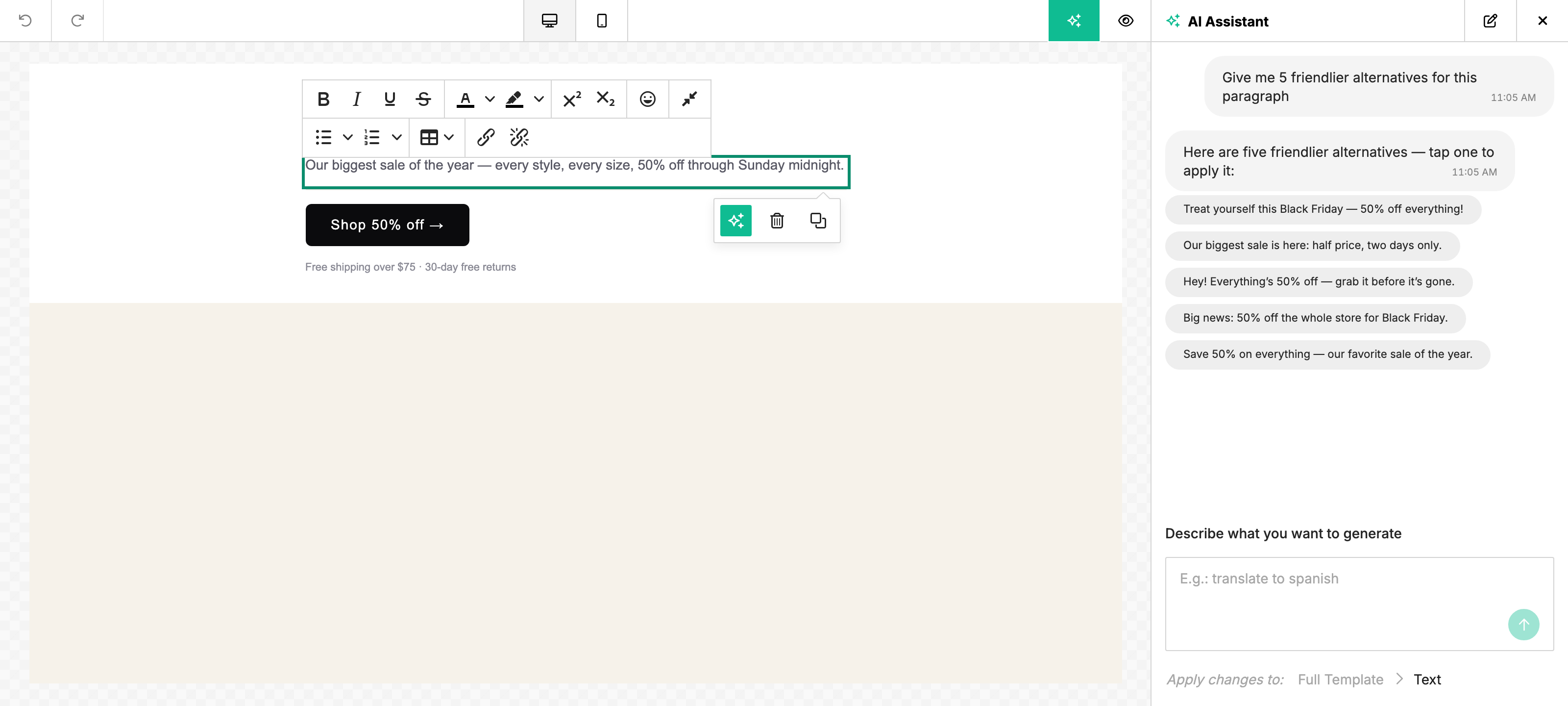
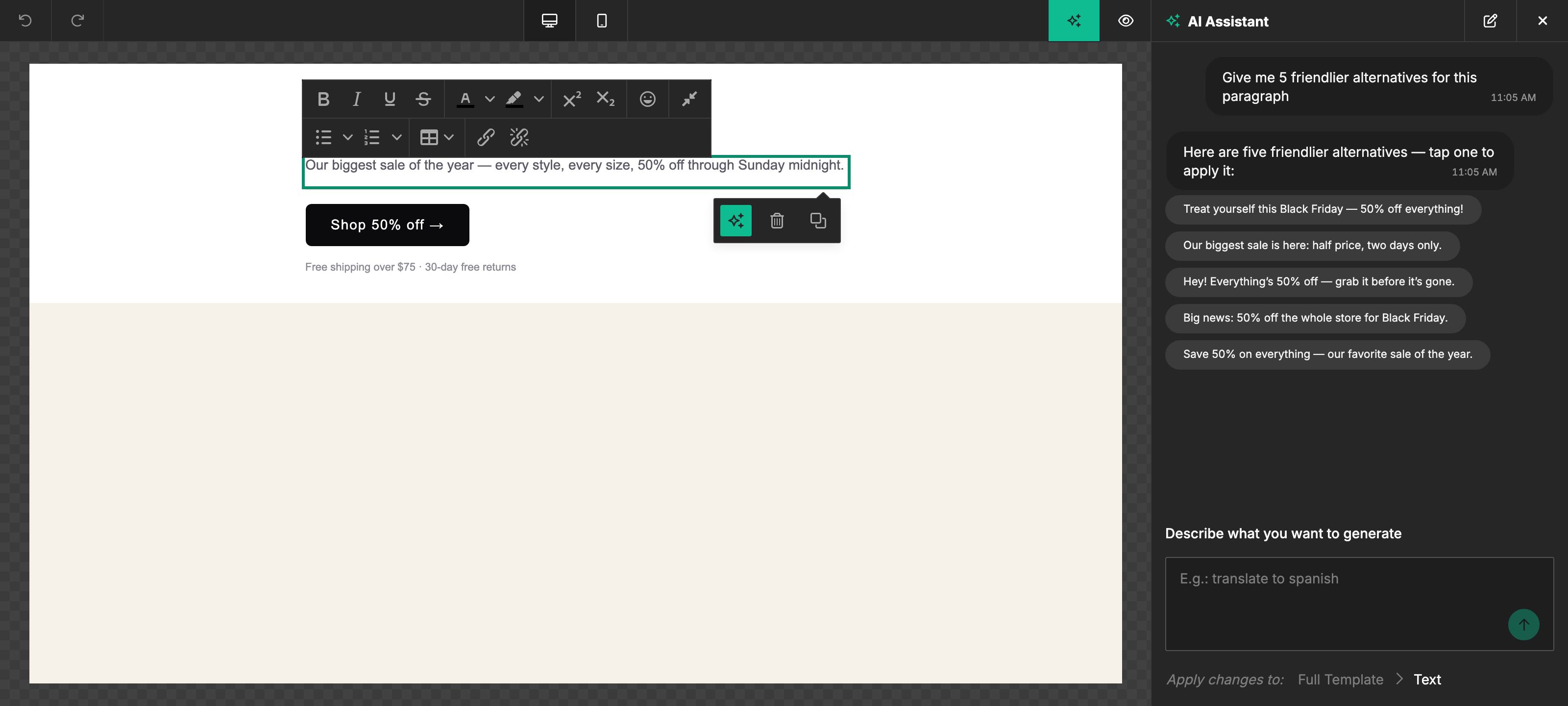
Ask the assistant for a few variations in a single turn — "give me 5 friendlier alternatives for this paragraph", "give me 5 CTA options for this section", "give me 5 heading options for this section" — and it returns each suggestion as a clickable pill in the chat. Click a pill to apply that suggestion to the selected block; the others stay around so the user can compare and pick a different one without re-prompting.
Example prompts
Freeform chat goes beyond the quick-action menu — anything you can describe, the assistant can try. A few that work well across the three tools:
- "Shorten this and make it friendlier."
- "Match the tone of the heading above."
- "Rewrite for a non-technical reader."
- "Translate to Spanish, keep the merge tags intact."
- "Suggest a CTA for this section — under 4 words."
- "Give me 3 heading options that lead with a benefit."
Related
- Image — image generation, editing, and alt text.
- Custom Tools — how the assistant works with embedder-defined custom tools.
- Row — multi-block edits in one turn.
- AI Assistant overview — what the assistant does and where users find it.