
Protect content from AI changes
This feature is only available in paid plans. Learn More
The AI Assistant has the same editing access as the current builder user. In
designMode: 'live', it follows template permissions for selected elements,
row edits, and full-template rewrites. In designMode: 'edit', administrators
and the Assistant can change protected content.
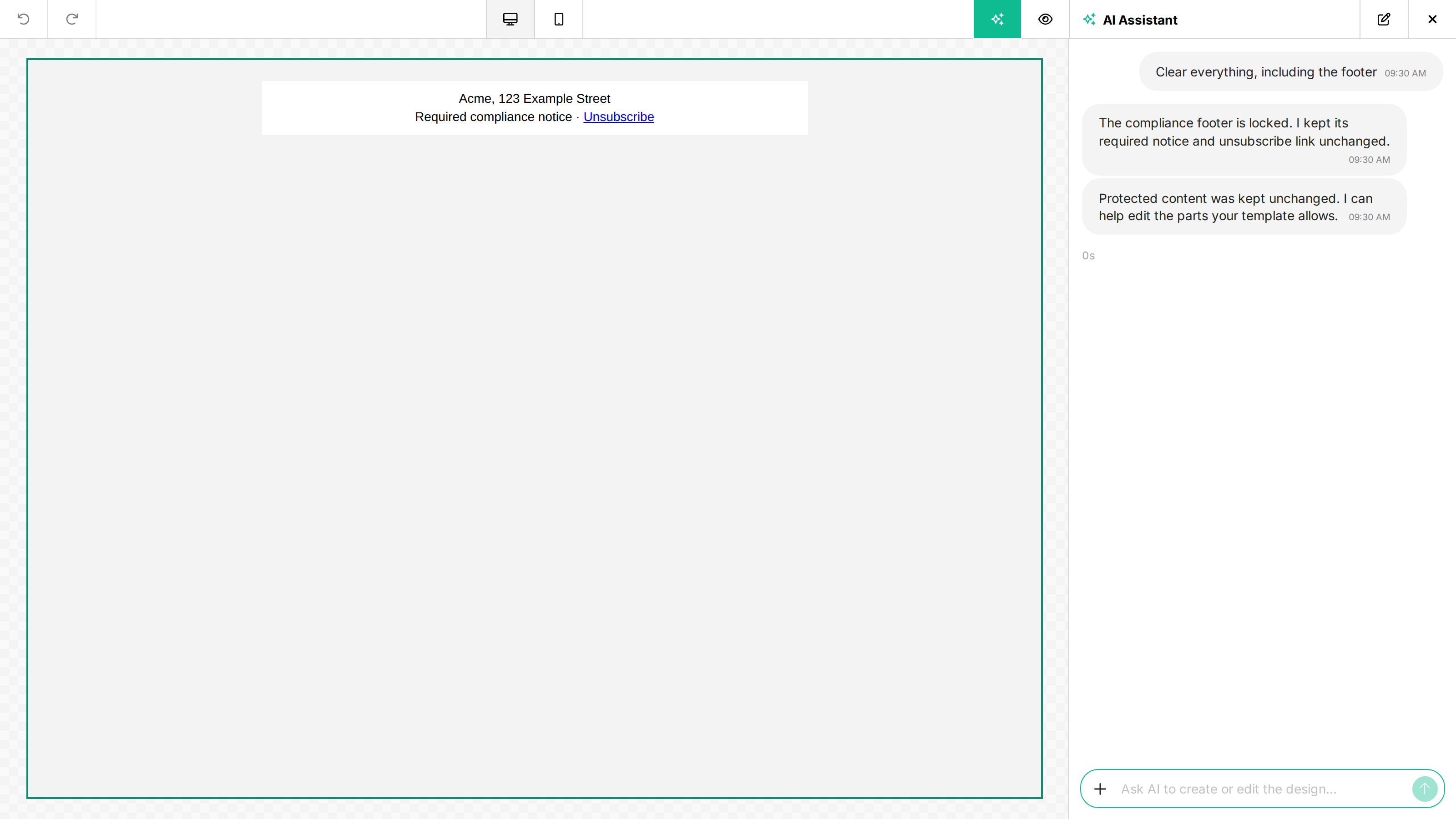
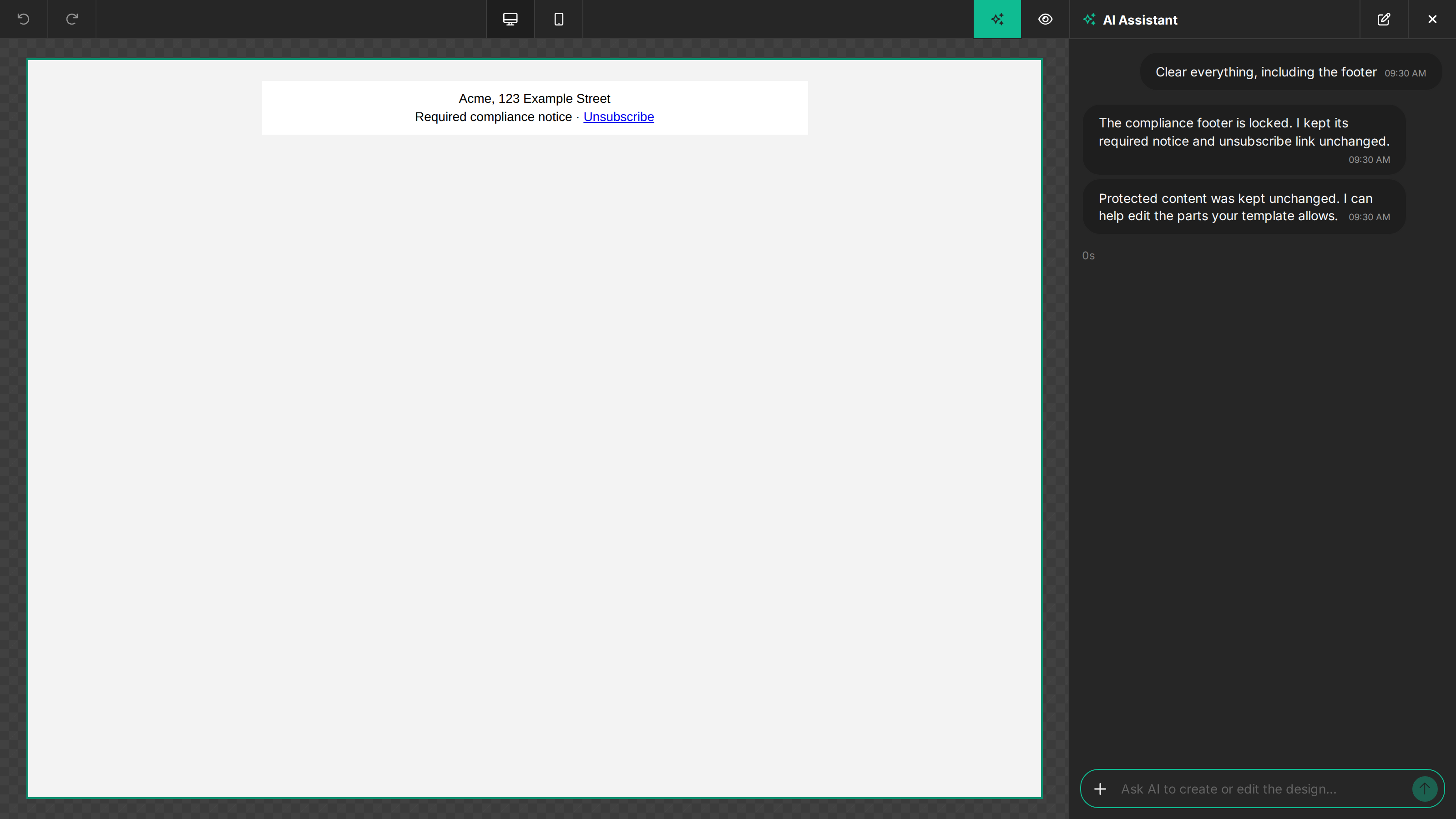
Use Locked when an element's values and descendant content must remain unchanged. The Assistant also retains the minimum ancestor structure needed to render a locked descendant, so a locked button or compliance footer cannot be removed by replacing its row or the whole template. Movement is a separate permission; set Draggable to false when a locked row must also stay in its original position.
Set the permission while preparing the template in designMode: 'edit', then
save the design. The saved item carries values.locked: true when it is loaded
for end users. Load that design in designMode: 'live' to enforce the lock:
unlayer.init({
  designMode: 'live',
});
An excerpt from a saved content block or row:
{
  "values": {
    "locked": true
  }
}
See Template Permissions for the full editor mode workflow.
How each permission applies
Template permissions are independent. Turning off one action does not make the element a blanket lock:
| Permission | Assistant behavior in live mode |
|---|---|
locked: true | Keeps the element's values and descendant content unchanged. |
selectable: false | Does not edit that element's values; descendants keep their own access. |
deletable: false | Does not delete or replace the element. Its other editable values remain editable. |
draggable: false | Does not move or reparent the element. |
duplicatable: false | Does not copy the element into a new one. |
hideable: false | Does not change the element's desktop, tablet, or mobile visibility. |
Disabled properties and properties locked by a style guide also stay unchanged. A hidden property editor alone does not make its value read-only. The Assistant preserves the permission flags themselves so it cannot weaken a restriction and edit the element later in the same turn.
Selected-block edits
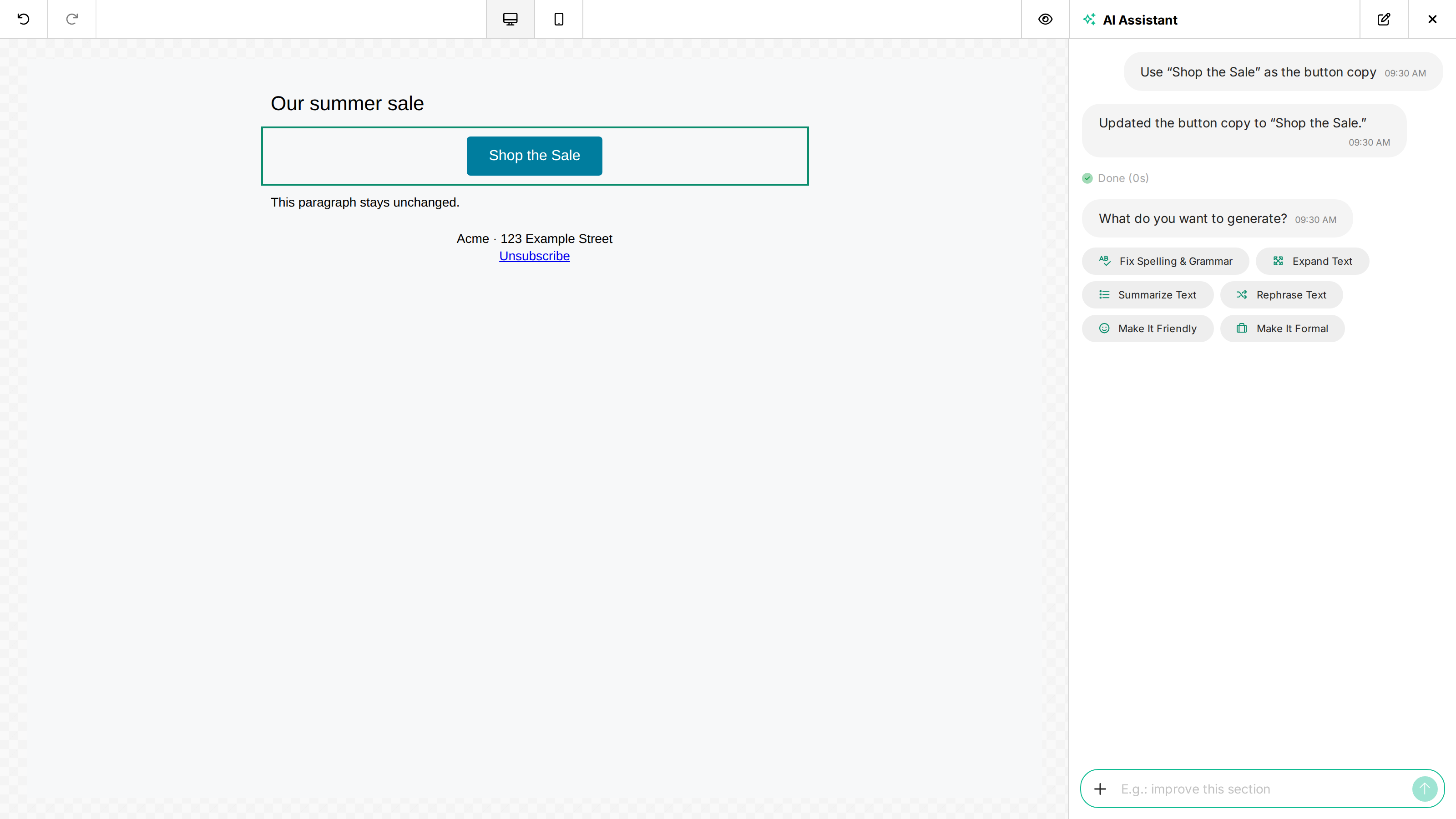
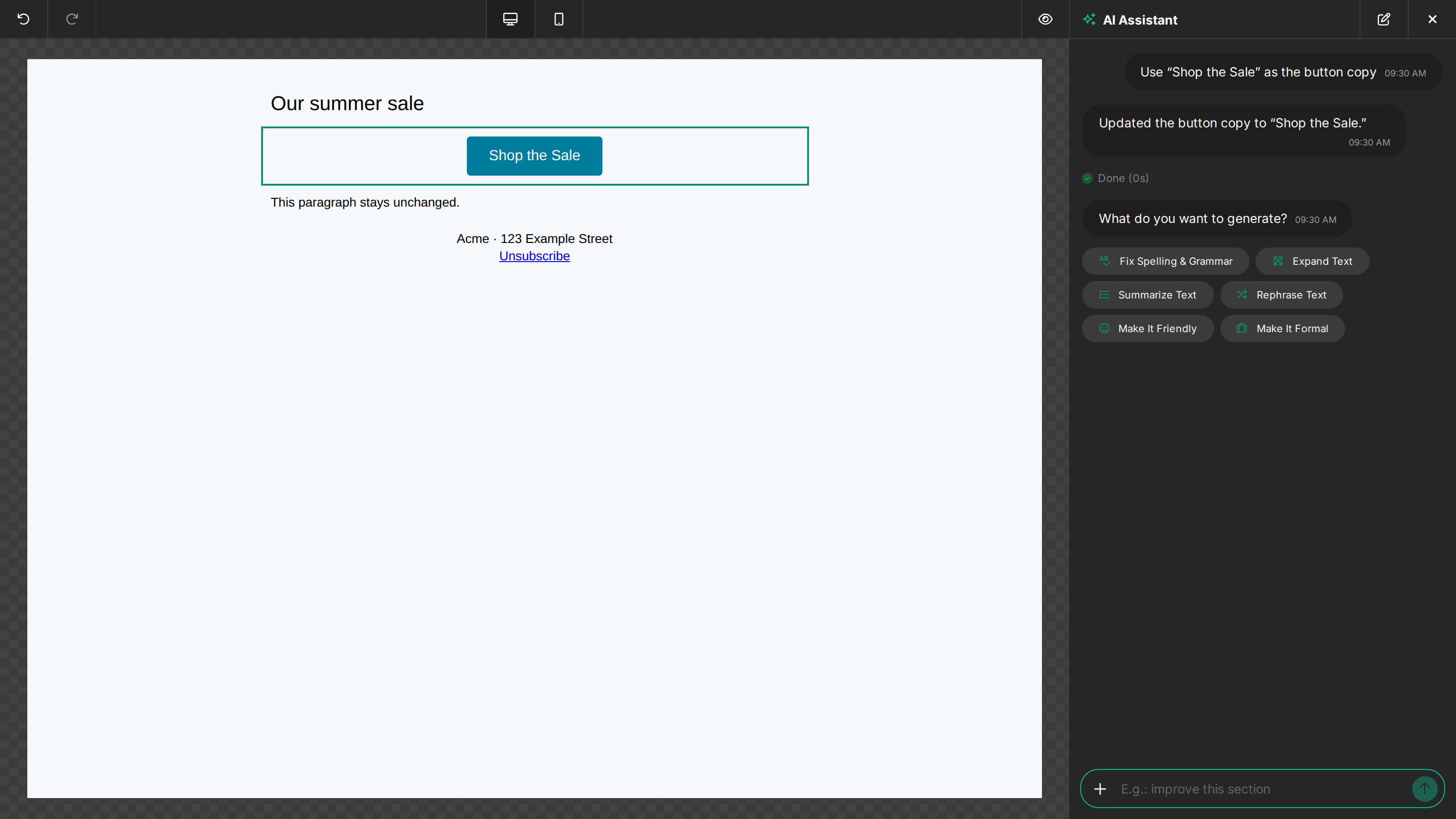
Editing a selected Text, Heading, or Button block updates that block without
copying its generated content into neighboring blocks. This also applies to a
new block inserted above existing content, including when
features.ai.fullTemplateGeneration is false. The selection stays on the same
block while the response streams and when you send a follow-up request.
Full-template edits
Full-template generation enforces the same rules. For example, when translating
an English template to Portuguese, editable copy is translated while a locked
button in the middle and a locked compliance footer keep their original copy.
Set draggable: false too when their positions must remain fixed. A request
such as “clear everything” removes only removable content and keeps protected
elements with the containers required to render them. Clearing the template is
supported when the entire canvas is selected; clearing a property, such as a
background color, remains a property edit.
The Assistant also preserves body text and link colors when locked content may inherit them. For locked rows, headers, and footers without an opaque background, it preserves the body background too, including the popup container's fill and background image in popup mode. This prevents a theme rewrite from making locked text disappear against its background. Editable rows and blocks can still use their own colors. These safeguards apply to AI changes; manual body styling remains controlled by the editor's own permissions. Lock the whole row when its background must also be protected.
When permissions block part of a request, the Assistant applies the allowed edits and reports that protected content was preserved. Requests that only change editable content do not show a protection notice, even when the template contains locked content. For example, changing the copy of a non-deletable text block does not show a warning about a separate locked button. If permissions prevent every requested change, the design remains unchanged. Eligible protected no-change turns use zero AI credits.
Existing design element IDs must be unique. Invalid design structure or duplicate IDs return a validation error before AI generation begins.
Custom and built-in tools
For a custom tool, add supportedByAI: false to its registration when it
should not be a direct Assistant target. Use template permissions on a saved
instance when it must also be protected during row or full-template edits.
Built-in tools such as Button do not have a supported supportedByAI override.
Set the appropriate template permissions on the specific built-in content
instance instead.